
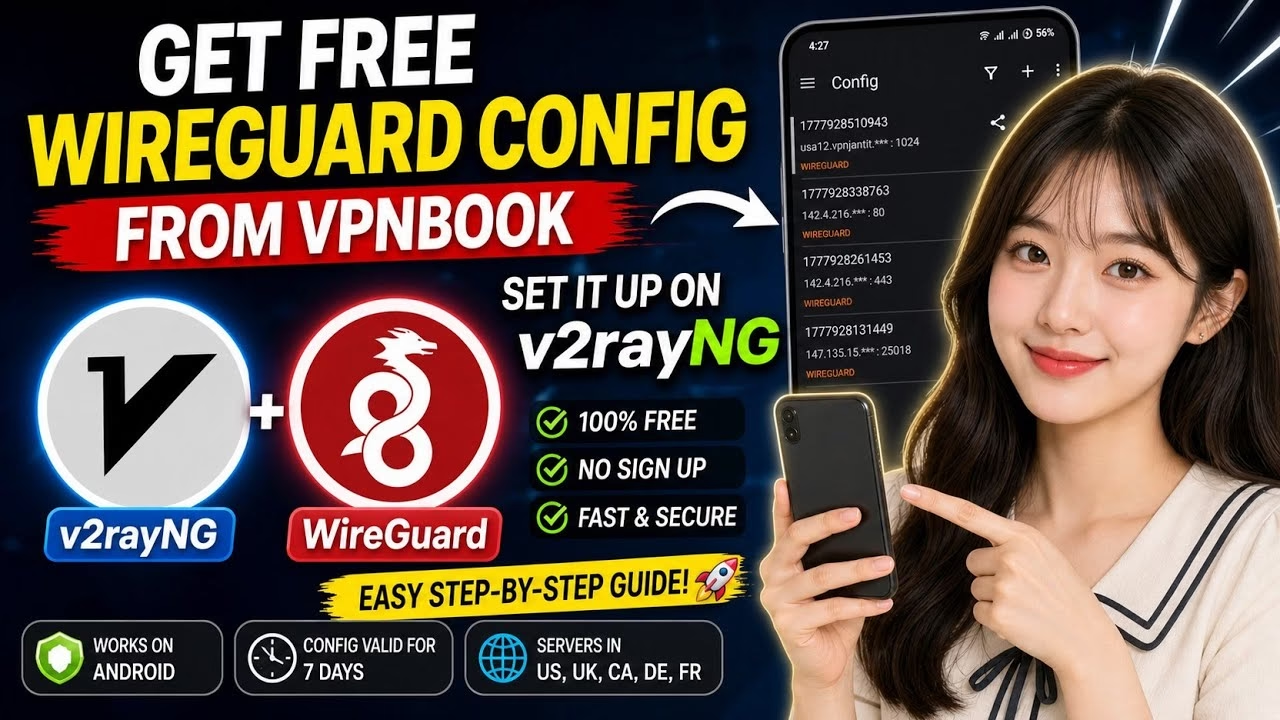
Wireguard setup on V2rayng VPN | complete Guide

WireGuard is recognized as one of the most modern, lightweight, and secure virtual private network (VPN) protocols available today. By using state-of-the-art cryptography, it offers significantly faster data speeds and lower latency compared to legacy protocols like OpenVPN or IPsec. This guide details how to obtain a free, high-performance WireGuard configuration file from VPNBook and successfully configure it inside the popular v2rayNG client on Android, providing a secure browsing tunnel without any registration or cost.
Table of Contents
- 1. Why Choose WireGuard & v2rayNG?
- 2. Generating a Free WireGuard Config on VPNBook
- 3. Installing and Opening v2rayNG on Android
- 4. Importing and Configuring the Connection
- 5. Launching the VPN and Testing Connectivity
- 6. Advanced: Sharing Configurations via QR Code
- 7. Frequently Asked Questions (FAQ)
1. Why Choose WireGuard & v2rayNG?
WireGuard stands out because of its simplicity and efficiency. Running inside the Linux kernel space, it consumes fewer system resources than older technologies and connects almost instantaneously. Coupling this robust protocol with v2rayNG—a highly versatile proxy client for Android that supports multiple tunneling protocols—allows you to manage your network traffic flexibly. The combination gives you a secure connection capable of bypassing carrier firewalls and ISP throttling easily.
2. Generating a Free WireGuard Config on VPNBook
VPNBook provides public VPN servers free of charge. Follow these steps to generate and copy a WireGuard config:
- Open your mobile browser (e.g. Chrome) and search for
VPNBook. - Navigate to the official site: vpnbook.com.
- Tap on the Free VPN tab in the navigation menu.
- Scroll down and select the WireGuard option to open the configuration generator.
- Select Server Location: Choose a server location from the list, which includes the US, Canada, UK, Germany, and France.
- Select Connection Port: Choose a port (443, 80, 123, or 25018). It is highly recommended to select Port 443, as it mimics standard HTTPS traffic and is rarely blocked by networks. If 443 is restricted on your network, select 80 or 123 as a fallback.
- Accept Conditions: Read the notice (each config is active for 7 days and can only be used on 1 device at a time). Check the agreement box and click Generate Configuration.
- Copy Config: Once the configuration is generated, tap the Copy Config button to copy the raw text config to your clipboard.
3. Installing and Opening v2rayNG on Android
To run the connection, you must install the v2rayNG client app:
- Open the Google Play Store on your Android device.
- In the search box, type
v2rayNGand select the official app. - Tap Install. Once the installation completes, tap Open to load the app’s clean dashboard.
4. Importing and Configuring the Connection
With the WireGuard configuration saved on your clipboard, importing it into v2rayNG is extremely straightforward:
- Tap the Plus (+) icon located in the top-right corner of the v2rayNG main screen.
- From the dropdown options, select Import config from clipboard. The app will automatically parse the clipboard text and add the WireGuard profile.
- Optional Customization: Tap the pencil icon next to the newly imported profile. In the editing screen, you can rename the profile (e.g., “VPNBook US WireGuard”) and add a custom Server Name Indication (SNI) if required by your carrier. Tap the checkmark icon in the top right to save changes.
5. Launching the VPN and Testing Connectivity
To establish your secure tunnel connection:
- Tap on the imported WireGuard profile in the list to select it (a colored vertical bar will appear next to it).
- Tap the round V connect button at the bottom-right corner of the screen.
- If Android prompts you with a standard VPN permission request, select OK.
- To verify that your connection is actively transmitting data, tap the three dots in the top-right and select Real delay (or use the test button at the bottom) to run a ping test. The screen will display the round-trip delay time in milliseconds, indicating a successful connection.
6. Advanced: Sharing Configurations via QR Code
v2rayNG allows you to share your imported config with secondary devices (like another phone or tablet) without needing to re-generate configuration text:
- Tap the menu button next to your active configuration.
- Select the Share option.
- Choose to generate a QR Code. On the secondary device, simply open v2rayNG, tap the Plus (+) icon, select “Scan QR Code”, and align the camera with the screen to import the profile instantly.
7. Frequently Asked Questions (FAQ)
Q1: Why did my WireGuard configuration stop working after exactly one week?
A: All free configurations generated by VPNBook are temporary and valid for exactly 7 days. Once they expire, you must return to the VPNBook website, generate a new WireGuard configuration using the same steps, and import the fresh config into v2rayNG.
Q2: Can I use the same VPNBook WireGuard config on multiple devices simultaneously?
A: No. VPNBook configs are restricted to one active device at a time. If you attempt to connect multiple devices using the same credentials, the server will block the connection. You can generate separate configs for each device on the site.
Q3: Which port is recommended for the best balance of speed and security?
A: Port 443 is highly recommended. Because it is the default port for SSL/HTTPS traffic, network firewalls rarely inspect or restrict it, ensuring a smoother connection. If you experience slow speeds, try shifting to Port 80 or 123.