
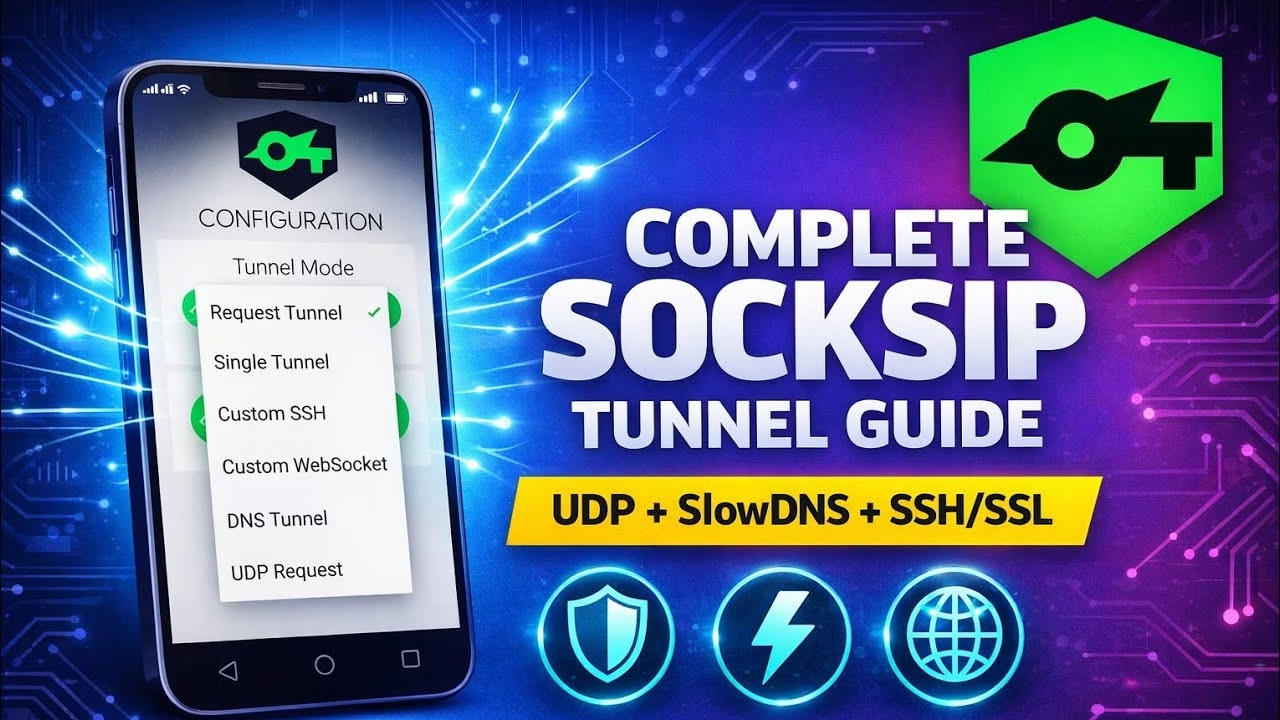
Socksip Tunnel Tutorial 2026 – All Protocols Setup Guide (UDP, DNS, SSH/SSL)

- Select **SlowDNS** as the connection mode on the dashboard.
- Input your target Name Server (NS) and DNS Public Key.
- This mode routes traffic via DNS queries, which is highly effective on networks where all other TCP/UDP ports are blocked.
C. UDP Request
- Select **UDP Request** connection mode.
- Configure the target UDP port. This encapsulation is optimized for low-latency streaming and gaming.
Step 4: Connection & Log Monitoring
Return to the main page of the application, select your profile, and click Start. Authorize the Android VPN permission prompt on the first run. Swipe to the **Logs** tab to view the connection handshake. Once it shows a “Connected” state, your internet connection is fully secured.
FAQ & Troubleshooting Guide
1. Why is the SlowDNS connection extremely slow?
DNS tunneling encapsulates internet traffic inside standard DNS queries. Because DNS servers are not designed to transmit heavy data streams, connection speeds in SlowDNS mode are naturally low. This mode should only be used as a fallback when all other protocols are blocked.
2. How do I fix the “SSH Connection Timeout” error?
Verify that your custom SSH server details (IP, port, username, password) are input correctly. If they are correct, the remote SSH host may be offline, or your local network provider is blocking connections on the target SSH port. Try changing the port (e.g. from 22 to 443) or using a different server.
3. How do I import a `.sip` config file?
Tap the menu icon in the top right, select Import/Export, click **Import Configuration**, locate the .sip file in your downloads directory, and tap to import it. The settings will apply automatically.
- On the main screen, tap the server dropdown menu.
- Select from the list of public servers (e.g., US, Germany, Singapore).
- Choose your target bypass method or preset from the connection config dropdown.
- Click **Start** to connect immediately.
Step 3: Custom Protocols & Server Setup
For custom configurations, Socksip Tunnel supports three primary routing protocols. Choose your configuration:
A. Custom SSH / SSL Tunnel
- Open the side menu and select SSH Settings.
- Input your custom server IP, Port, Username, and Password.
- Toggle SSL/TLS if your server utilizes secure encapsulation, and input your custom SNI hostname.
B. SlowDNS (DNS Tunnel)
- Select **SlowDNS** as the connection mode on the dashboard.
- Input your target Name Server (NS) and DNS Public Key.
- This mode routes traffic via DNS queries, which is highly effective on networks where all other TCP/UDP ports are blocked.
C. UDP Request
- Select **UDP Request** connection mode.
- Configure the target UDP port. This encapsulation is optimized for low-latency streaming and gaming.
Step 4: Connection & Log Monitoring
Return to the main page of the application, select your profile, and click Start. Authorize the Android VPN permission prompt on the first run. Swipe to the **Logs** tab to view the connection handshake. Once it shows a “Connected” state, your internet connection is fully secured.
FAQ & Troubleshooting Guide
1. Why is the SlowDNS connection extremely slow?
DNS tunneling encapsulates internet traffic inside standard DNS queries. Because DNS servers are not designed to transmit heavy data streams, connection speeds in SlowDNS mode are naturally low. This mode should only be used as a fallback when all other protocols are blocked.
2. How do I fix the “SSH Connection Timeout” error?
Verify that your custom SSH server details (IP, port, username, password) are input correctly. If they are correct, the remote SSH host may be offline, or your local network provider is blocking connections on the target SSH port. Try changing the port (e.g. from 22 to 443) or using a different server.
3. How do I import a `.sip` config file?
Tap the menu icon in the top right, select Import/Export, click **Import Configuration**, locate the .sip file in your downloads directory, and tap to import it. The settings will apply automatically.
For custom payload injection and firewall bypass, Socksip Tunnel is a powerful and versatile VPN client. Supporting multiple transport protocols—including UDP Request, SlowDNS (DNS Tunnel), and SSH/SSL encapsulation—it offers advanced configuration options for both beginners and experienced network administrators.
This technical guide walks you through the step-by-step setup of Socksip Tunnel, covering how to utilize its built-in servers and how to configure custom server profiles for all supported protocols.
Table of Contents
- Video Tutorial
- Step 1: Downloading & Installing Socksip Tunnel
- Step 2: Using Built-in Servers & Presets
- Step 3: Custom Protocols & Server Setup
- Step 4: Connection & Log Monitoring
- FAQ & Troubleshooting Guide
Video Tutorial
Step 1: Downloading & Installing Socksip Tunnel
To install the official and secure client:
- Open the Google Play Store on your Android device.
- Search for Socksip Tunnel in the search bar.
- Tap the official application on the search results and click **Install**.
- Open the application once installed.
Step 2: Using Built-in Servers & Presets
Socksip Tunnel provides built-in, pre-configured servers for instant connection. Ensure you have active internet access to update the config repository during the first boot:
- On the main screen, tap the server dropdown menu.
- Select from the list of public servers (e.g., US, Germany, Singapore).
- Choose your target bypass method or preset from the connection config dropdown.
- Click **Start** to connect immediately.
Step 3: Custom Protocols & Server Setup
For custom configurations, Socksip Tunnel supports three primary routing protocols. Choose your configuration:
A. Custom SSH / SSL Tunnel
- Open the side menu and select SSH Settings.
- Input your custom server IP, Port, Username, and Password.
- Toggle SSL/TLS if your server utilizes secure encapsulation, and input your custom SNI hostname.
B. SlowDNS (DNS Tunnel)
- Select **SlowDNS** as the connection mode on the dashboard.
- Input your target Name Server (NS) and DNS Public Key.
- This mode routes traffic via DNS queries, which is highly effective on networks where all other TCP/UDP ports are blocked.
C. UDP Request
- Select **UDP Request** connection mode.
- Configure the target UDP port. This encapsulation is optimized for low-latency streaming and gaming.
Step 4: Connection & Log Monitoring
Return to the main page of the application, select your profile, and click Start. Authorize the Android VPN permission prompt on the first run. Swipe to the **Logs** tab to view the connection handshake. Once it shows a “Connected” state, your internet connection is fully secured.
FAQ & Troubleshooting Guide
1. Why is the SlowDNS connection extremely slow?
DNS tunneling encapsulates internet traffic inside standard DNS queries. Because DNS servers are not designed to transmit heavy data streams, connection speeds in SlowDNS mode are naturally low. This mode should only be used as a fallback when all other protocols are blocked.
2. How do I fix the “SSH Connection Timeout” error?
Verify that your custom SSH server details (IP, port, username, password) are input correctly. If they are correct, the remote SSH host may be offline, or your local network provider is blocking connections on the target SSH port. Try changing the port (e.g. from 22 to 443) or using a different server.
3. How do I import a `.sip` config file?
Tap the menu icon in the top right, select Import/Export, click **Import Configuration**, locate the .sip file in your downloads directory, and tap to import it. The settings will apply automatically.