
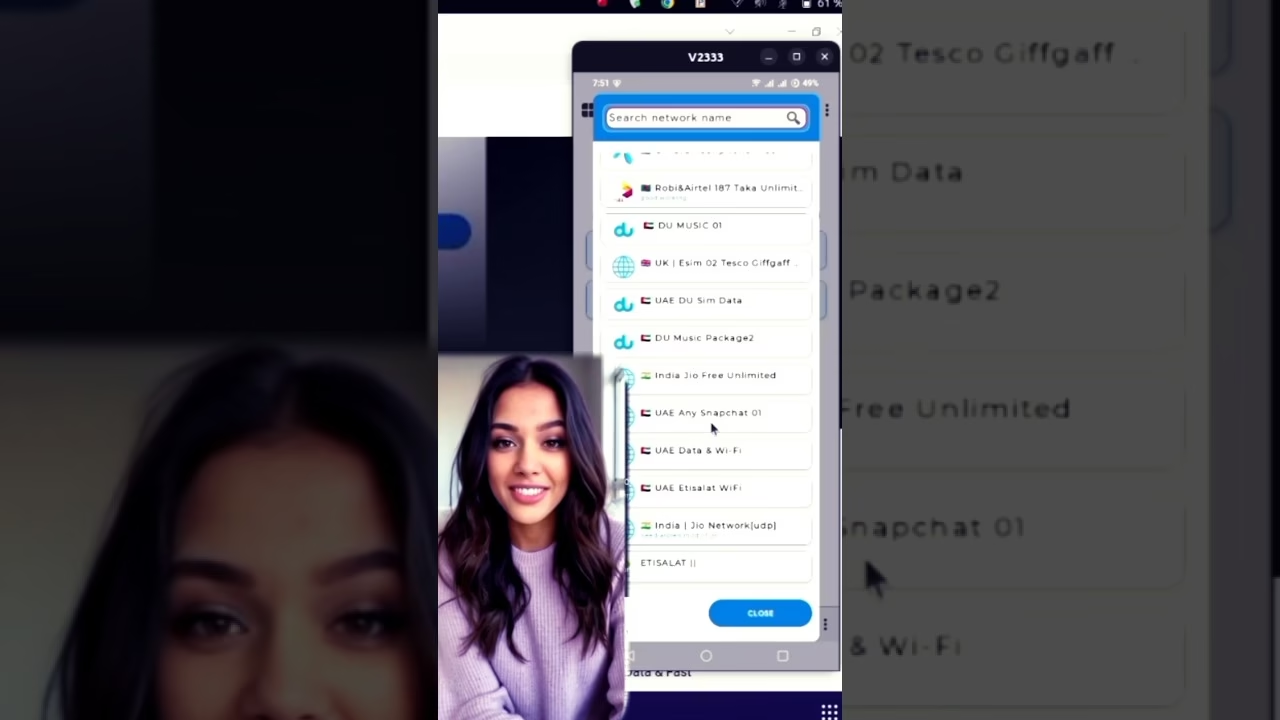
new working VPN

In the modern digital landscape, finding a VPN that combines raw speed, robust security, and ease of use is rare. IRNVPN Tunnel, built on the highly customizable UDP Custom framework, rises to the challenge. With support for advanced tunneling protocols (including VMess, VLESS, SSL/TLS, and SlowDNS), it offers a versatile toolkit for bypassing censorship, securing public Wi-Fi, and enjoying unlimited web access.
This tutorial provides a detailed, step-by-step breakdown of how to locate, install, and configure IRNVPN Tunnel, optimize server selection, apply optimized tweaks, and even share your secure tunnel with other devices via tethering.
Table of Contents
- Video Guide: IRNVPN Tunnel Setup
- Step 1: Downloading & Installing IRNVPN Tunnel
- Step 2: Server Selection and Updating
- Step 3: Choosing Tweaks or Custom Settings
- Step 4: Connecting and Verifying the VPN
- Step 5: Sharing Your VPN via Tethering
- Frequently Asked Questions (FAQ)
Step 1: Downloading & Installing IRNVPN Tunnel
To acquire the IRNVPN Tunnel client app, follow these steps:
- Open any web browser on your Android device (e.g., Google Chrome or Mozilla Firefox).
- In the search bar, type UDP Custom and perform a search.
- Locate the official
udpcustom.onlinewebsite and tap to visit the homepage. - Tap the menu bar icon in the top corner and select Free VPN.
- Find IRNVPN Tunnel in the application list and click download/install.
- Launch the app after installation completes. If prompted to allow system notifications, configure according to your personal preference.
Step 2: Server Selection and Updating
Once you are on the home screen of the IRNVPN Tunnel app, you need to sync the latest optimized servers:
- Ensure your mobile data or Wi-Fi connection is active. The application requires internet access to fetch and update the global server list.
- Wait a few seconds for the automatic refresh. The app may quickly restart to apply the updated server files.
- Tap on the Server Selection field to open the region panel. Browse and select your preferred location. Geographically closer servers offer the lowest latency (ping), while distant servers help access region-locked content.
Step 3: Choosing Tweaks or Custom Settings
IRNVPN Tunnel allows two configuration methods: using pre-configured Tweaks or setting up custom tunneling configurations.
Method A: Built-in Tweaks (Recommended for Beginners)
- Tap the Tweaks section. A dropdown containing optimized, pre-configured payloads for different carriers and countries will appear.
- Scroll through the list, select the tweak matching your carrier or region, and apply it. These tweaks automatically adjust connection settings.
Method B: Custom Settings (Advanced Mode)
- Toggle the **Custom Settings** radio button in the top-right corner.
- This opens the custom configuration page where you can manually select connection protocols: SlowDNS, V2Ray (VMess/VLESS), SSL settings, and more.
- Input your custom configuration data (such as server hostname, port, SSL settings, or custom payloads) depending on the selected protocol.
Step 4: Connecting and Verifying the VPN
With the server and connection settings applied, you can initiate the VPN:
- Go back to the main home screen of the IRNVPN Tunnel app.
- Tap the large circular Start button to begin the connection process.
- If this is the first time you are connecting, your Android device will show a system permission dialog asking to allow the VPN. Tap **OK** or **Allow**.
- Within seconds, the button will turn green or show a “Connected” state, indicating your internet traffic is now fully encrypted.
Step 5: Sharing Your VPN via Tethering
Sharing your secure tunnel with laptops, gaming consoles, or smart TVs is straightforward using IRNVPN’s built-in tethering proxy:
- Tap the side menu icon in the IRNVPN Tunnel app and select Tethering.
- Enable the toggle switch. The app will provide a local IP address (typically
192.168.43.1) and a port (typically10808or8080). - Turn on your phone’s personal Wi-Fi hotspot and connect your other device.
- On the connected device (e.g., your computer), go to proxy settings and enter the IP and port provided by the app to route its traffic through the secure VPN tunnel.
Frequently Asked Questions (FAQ)
Q1: Why is my server list not loading in the app?
A1: Make sure your mobile data or Wi-Fi connection is active before launching the app. If the problem persists, force close the application, clear the app cache in device settings, and restart it with a working internet connection.
Q2: How does SlowDNS protocol work, and when should I use it?
A2: SlowDNS tunnels all internet traffic inside standard DNS queries (Port 53). You should use it when your network blocks all standard TCP/UDP protocols but allows DNS resolution, making it a reliable way to get basic connectivity on extremely restricted public networks.
Q3: Do I need to root my device to share the VPN connection via tethering?
A3: No, root access is not required. By enabling the Tethering feature inside IRNVPN Tunnel, the app sets up a local HTTP/Socks proxy that you can manually configure on the connected device’s Wi-Fi proxy settings.
Stay Connected
- 🌎 12_5 TECH Whatsapp channel: Join Channel
- 📢 Telegram Group: Join Telegram Group
- 📺 Telegram Channel: Subscribe to Channel