
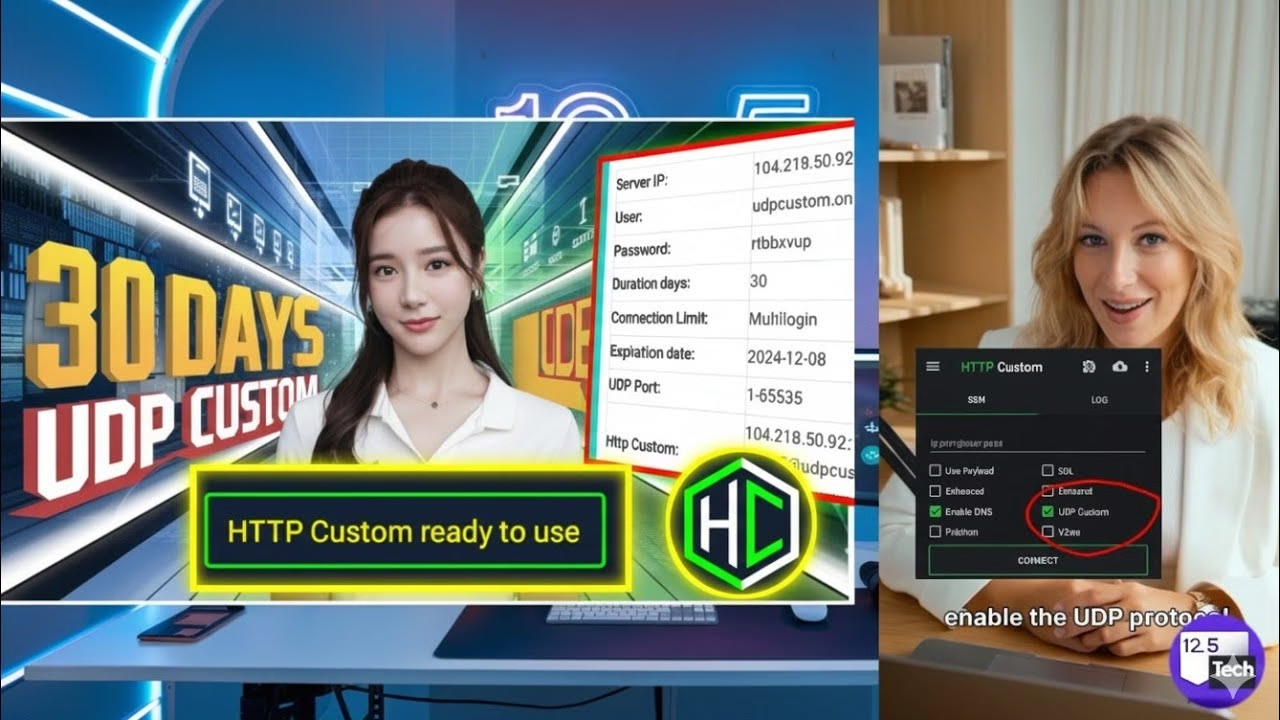
HTTP CUSTOM 30 days UDP CUSTOM Config | Quick Guide

- Open your browser and search for
UDP Customto access the hosting portal. - Tap the menu icon, select **30 Days Premium UDP Server**, then select **30 Days UDP Custom Server**.
- Enter a custom username and password, complete the anti-bot verification, and tap **Create Account**.
- Copy the server details (Host IP, Port, Username, and Password) to your clipboard.
Step 3: Configuring HTTP Custom
Map the server details into the client dashboard:
- Open **HTTP Custom**. On the main screen, check the **UDP Custom** box to enable the UDP protocol handler.
- In the connection details field, input the server credentials in the designated format:
IP:Port@username:password. - Tap the **Connect** button at the bottom of the screen. Confirm any Android system VPN prompts. The logs will display connection status; when “Connected” appears, your connection is active and secure.
FAQ & Troubleshooting Guide
1. Why does my HTTP Custom connection disconnect immediately?
This is often caused by an incorrect credentials format in the connection field. Ensure you use the exact format (IP:Port@username:password) without extra spaces or characters. If the formatting is correct, check that Dns Forwarding is enabled in the client settings.
2. Can I use custom payload headers in UDP Custom mode?
Yes. If your mobile carrier filters connection handshakes, you can configure custom payloads. In the main input box, enter your host details or check the **Payload** option to use a custom HTTP header payload.
3. How do I export my configuration as an `.hc` file?
Tap the menu icon in the top right corner, select **Save/Export Config**, set a file name, and choose whether to lock details (to hide your password or server IP). Save the file, which you can share with other HTTP Custom users.
Deploying a custom secure tunnel often requires frequent profile renewals. However, creating a **30-day UDP Custom configuration** for **HTTP Custom** provides a reliable, long-term tunnel. HTTP Custom is a powerful Android client that wraps SSH and VPN configurations in custom HTTP headers. Using a UDP-based server ensures low packet latency, which is ideal for streaming and bypassing network restrictions.
This guide explains how to install the client, generate a 30-day premium server account, and configure HTTP Custom for a stable connection.
Table of Contents
- Video Tutorial
- Step 1: Installing the HTTP Custom Client
- Step 2: Generating a 30-day Premium UDP Account
- Step 3: Configuring HTTP Custom
- FAQ & Troubleshooting Guide
Video Tutorial
Step 1: Installing the HTTP Custom Client
To install the official client application safely:
- Open the Google Play Store on your device.
- Search for
HTTP Customand install the client. - Launch the app to open the configuration dashboard.
Step 2: Generating a 30-day Premium UDP Account
Next, create a long-term premium server configuration:
- Open your browser and search for
UDP Customto access the hosting portal. - Tap the menu icon, select **30 Days Premium UDP Server**, then select **30 Days UDP Custom Server**.
- Enter a custom username and password, complete the anti-bot verification, and tap **Create Account**.
- Copy the server details (Host IP, Port, Username, and Password) to your clipboard.
Step 3: Configuring HTTP Custom
Map the server details into the client dashboard:
- Open **HTTP Custom**. On the main screen, check the **UDP Custom** box to enable the UDP protocol handler.
- In the connection details field, input the server credentials in the designated format:
IP:Port@username:password. - Tap the **Connect** button at the bottom of the screen. Confirm any Android system VPN prompts. The logs will display connection status; when “Connected” appears, your connection is active and secure.
FAQ & Troubleshooting Guide
1. Why does my HTTP Custom connection disconnect immediately?
This is often caused by an incorrect credentials format in the connection field. Ensure you use the exact format (IP:Port@username:password) without extra spaces or characters. If the formatting is correct, check that Dns Forwarding is enabled in the client settings.
2. Can I use custom payload headers in UDP Custom mode?
Yes. If your mobile carrier filters connection handshakes, you can configure custom payloads. In the main input box, enter your host details or check the **Payload** option to use a custom HTTP header payload.
3. How do I export my configuration as an `.hc` file?
Tap the menu icon in the top right corner, select **Save/Export Config**, set a file name, and choose whether to lock details (to hide your password or server IP). Save the file, which you can share with other HTTP Custom users.