
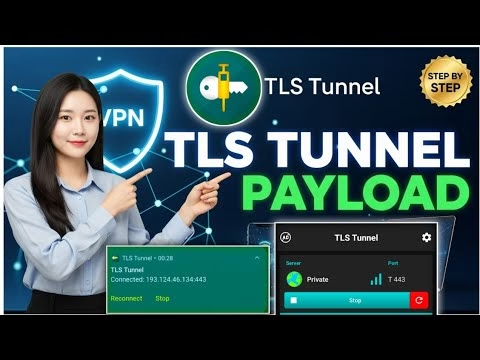
How to Setup TLS Tunnel Payload with Private Server

For custom network bypass and secure routing, **TLS Tunnel** is one of the most reliable Android clients. While the application provides public servers, these nodes can become congested, leading to slower speeds and unstable connections. Deploying your own **private TLS Tunnel server** ensures a dedicated, high-bandwidth endpoint specifically optimized for your traffic.
This technical guide covers how to set up the TLS Tunnel client, generate private server credentials, and configure custom payload and SNI parameters for a stable connection.
Table of Contents
- Video Tutorial
- Step 1: Installing the TLS Tunnel Client
- Step 2: Generating Private Server Credentials
- Step 3: Configuring custom Payloads & SNI
- FAQ & Troubleshooting
Video Tutorial
Step 1: Installing the TLS Tunnel Client
First, download the client from the app repository:
- Open the Google Play Store on your device.
- Search for
TLS Tunneland download the app developed by the authorized group. - Launch the application to access the home screen.
Step 2: Generating Private Server Credentials
Private servers offer dedicated speeds and lower ping compared to public endpoints. To generate your custom server parameters:
- Open your browser and navigate to a secure SSH/VPN hosting site offering private TLS Tunnel configurations.
- Create a private server account in a low-latency region.
- Once generated, copy the server hostname (or IP) and TLS authentication credentials.
Step 3: Configuring custom Payloads & SNI
Now, map these credentials into the TLS Tunnel app:
- Launch **TLS Tunnel**. Under connection method, toggle from *Default Server* to **Custom Method**.
- In the server address field, input your generated private server IP or hostname.
- In the payload parameters configuration panel, input your custom headers or SNI values (e.g. for SSL bypass configurations).
- Return to the main dashboard and click **Start** to connect. Confirm the system VPN dialog. Once connected, your traffic is fully encrypted through your private node.
FAQ & Troubleshooting
1. Why does my private server fail to connect with an authentication error?
Authentication errors are caused by incorrect usernames, passwords, or expired account tokens. Verify your credentials on the server hosting dashboard, as free private server nodes typically require renewal every few days.
2. What is the benefit of a private server over a default TLS Tunnel server?
Default servers are shared by thousands of active users, causing bandwidth throttling and high latency. A private server provides dedicated resources, resulting in lower ping times (ideal for mobile gaming) and higher download speeds.
3. How can I export my custom settings file?
Inside the TLS Tunnel menu, click on the export icon, choose **Export Configuration**, set a file name, and choose whether to lock settings (to hide your SNI or server payload details). Save the resulting .tls file to share with others.