
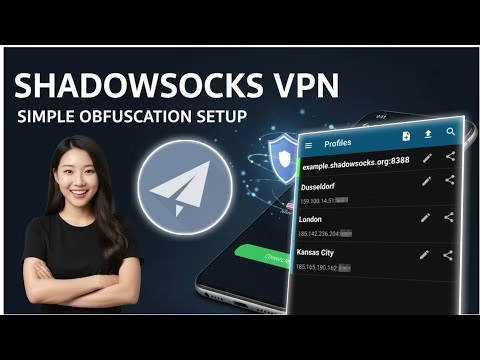
How to setup Shadowsocks VPN | Quick Guide

- Set the **Obfuscation wrapper** type to **http**.
- Specify a valid host name (e.g.
m.youtube.comor any whitelisted hostname on your network) in the host field.
- Save the profile, select it, and tap the paper plane connect button. Confirm the Android connection prompt to start browsing securely.
Frequently Asked Questions
1. What is the role of the Simple Obfuscation plugin?
By default, Shadowsocks encrypts traffic but doesn’t disguise it. Network firewalls using Deep Packet Inspection (DPI) can identify this traffic and block it. Simple Obfuscation wraps the encrypted data in standard HTTP requests, making the traffic look like normal web browsing.
2. Why does the connection show a handshake timeout?
Handshake timeouts occur if the remote server node has expired, or if the port is blocked on your cellular network. Ensure your account is active and verify that the plugin host is configured correctly in the settings.
3. Is Shadowsocks suitable for gaming?
Yes. Shadowsocks uses lightweight SOCKS5 proxy encapsulation which has much lower overhead than traditional VPNs. Choosing a server with a low physical distance will yield low ping times, making it ideal for online multiplayer games.
- Launch the **Shadowsocks** application.
- Tap the **+ (plus)** icon at the top and select **Import from Clipboard**. The app will parse the URI and populate the server profile.
- Tap the pencil icon next to the profile to edit settings. Scroll down to the **Plugin** segment, select **Simple Obfuscation**, and configure the plugin settings:
- Set the **Obfuscation wrapper** type to **http**.
- Specify a valid host name (e.g.
m.youtube.comor any whitelisted hostname on your network) in the host field.
- Save the profile, select it, and tap the paper plane connect button. Confirm the Android connection prompt to start browsing securely.
Frequently Asked Questions
1. What is the role of the Simple Obfuscation plugin?
By default, Shadowsocks encrypts traffic but doesn’t disguise it. Network firewalls using Deep Packet Inspection (DPI) can identify this traffic and block it. Simple Obfuscation wraps the encrypted data in standard HTTP requests, making the traffic look like normal web browsing.
2. Why does the connection show a handshake timeout?
Handshake timeouts occur if the remote server node has expired, or if the port is blocked on your cellular network. Ensure your account is active and verify that the plugin host is configured correctly in the settings.
3. Is Shadowsocks suitable for gaming?
Yes. Shadowsocks uses lightweight SOCKS5 proxy encapsulation which has much lower overhead than traditional VPNs. Choosing a server with a low physical distance will yield low ping times, making it ideal for online multiplayer games.
For bypassing strict network firewalls and maintaining online privacy, **Shadowsocks** is a highly efficient secure socks5 proxy client. Unlike traditional VPNs, Shadowsocks is lightweight and designed to avoid detection by deep packet inspection (DPI) firewalls. By combining the Shadowsocks client with the **Simple Obfuscation** plugin, users can establish highly secure, low-latency connections on Android.
This technical guide explains how to install the client and its obfuscation plugin, generate credentials from a public provider, and connect successfully.
Table of Contents
- Video Tutorial
- Step 1: Installing the Shadowsocks App & Plugins
- Step 2: Generating Shadowsocks Credentials
- Step 3: Importing and Configuring the Profile
- Frequently Asked Questions
Video Tutorial
Step 1: Installing the Shadowsocks App & Plugins
First, install the core application and its obfuscation wrapper from the Play Store:
- Search for Shadowsocks in the Google Play Store and install the client.
- Search for Simple Obfuscation (a plugin used to wrap proxy traffic in standard HTTP headers to avoid firewall detection) and install it.
Step 2: Generating Shadowsocks Credentials
To establish a connection, generate account details from a high-speed provider:
- Open your web browser and navigate to sshot.com.
- Open the navigation menu, click **Services**, and select **Shadowsocks**.
- Choose a server node physically close to you to ensure low latency. Complete verification and click **Create**.
- The site will output a configuration URI (starting with
ss://). Copy this full URI link to your clipboard.
Step 3: Importing and Configuring the Profile
Import and fine-tune your configuration settings:
- Launch the **Shadowsocks** application.
- Tap the **+ (plus)** icon at the top and select **Import from Clipboard**. The app will parse the URI and populate the server profile.
- Tap the pencil icon next to the profile to edit settings. Scroll down to the **Plugin** segment, select **Simple Obfuscation**, and configure the plugin settings:
- Set the **Obfuscation wrapper** type to **http**.
- Specify a valid host name (e.g.
m.youtube.comor any whitelisted hostname on your network) in the host field.
- Save the profile, select it, and tap the paper plane connect button. Confirm the Android connection prompt to start browsing securely.
Frequently Asked Questions
1. What is the role of the Simple Obfuscation plugin?
By default, Shadowsocks encrypts traffic but doesn’t disguise it. Network firewalls using Deep Packet Inspection (DPI) can identify this traffic and block it. Simple Obfuscation wraps the encrypted data in standard HTTP requests, making the traffic look like normal web browsing.
2. Why does the connection show a handshake timeout?
Handshake timeouts occur if the remote server node has expired, or if the port is blocked on your cellular network. Ensure your account is active and verify that the plugin host is configured correctly in the settings.
3. Is Shadowsocks suitable for gaming?
Yes. Shadowsocks uses lightweight SOCKS5 proxy encapsulation which has much lower overhead than traditional VPNs. Choosing a server with a low physical distance will yield low ping times, making it ideal for online multiplayer games.