
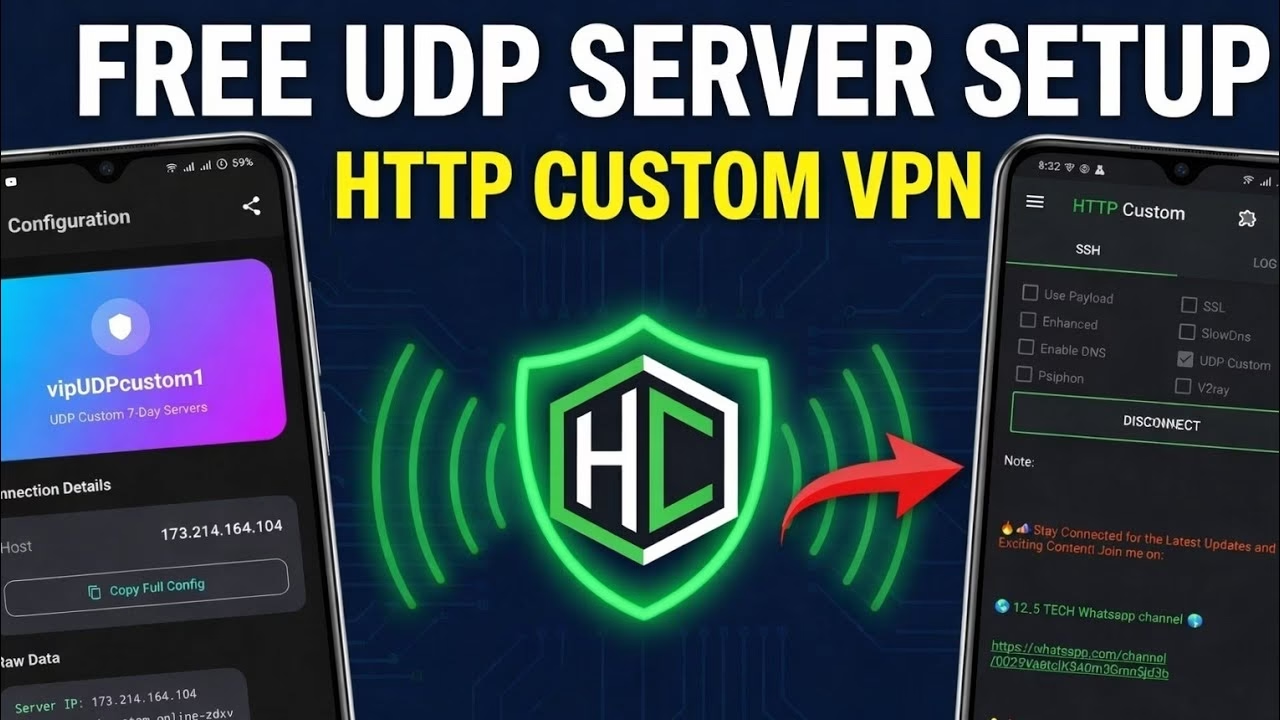
How to Create UDP custom for Http Custom VPN

To optimize mobile browsing speeds and bypass strict ISP network filters, network administrators and power users frequently deploy custom UDP tunnels. Unlike standard TCP connections, UDP tunnels avoid connection-tracking packet delays, making them ideal for high-speed browsing. This guide details how to manually set up a custom UDP server inside the HTTP Custom VPN client on Android by extracting server details from the Custom UDP app, saving configurations, and managing config expiration dates.
Table of Contents
- 1. What is HTTP Custom VPN & Custom UDP?
- 2. Installing Custom UDP and HTTP Custom VPN
- 3. Activating the UDP Custom Protocol in HTTP Custom
- 4. Generating and Extracting Server Credentials
- 5. Configuring the VPN Client and Connecting
- 6. Saving, Locking, and Importing Custom Configuration Files
- 7. Managing Expiration Dates and Renewals
- 8. Frequently Asked Questions (FAQ)
1. What is HTTP Custom VPN & Custom UDP?
HTTP Custom VPN is a comprehensive SSH and VPN client for Android that routes device traffic through secure, encrypted gateways. The client supports custom network configurations, SNI host headers, and transport protocols. Custom UDP is a companion application that acts as a database and manager for high-speed UDP servers. By linking these two applications, you can establish custom UDP tunnel connections that mask your IP address and route traffic through optimized ports to bypass carrier throttling.
2. Installing Custom UDP and HTTP Custom VPN
To prepare your device for the setup, download the requisite applications from the Google Play Store:
- Open the Play Store, search for
Custom UDP, download and install the official app. - Return to the Play Store search bar, type
HTTP Custom VPN, download and install the official client.
3. Activating the UDP Custom Protocol in HTTP Custom
Before importing server credentials, you must configure the client to handle UDP Custom encapsulation:
- Launch the **HTTP Custom VPN** application on your device.
- On the primary dashboard, look for the list of protocol checkboxes.
- Tap to check the **UDP Custom** box. This signals the client to route outgoing payloads using the UDP Custom handshake wrapper.
4. Generating and Extracting Server Credentials
With the protocol activated, retrieve the server credentials:
- Open the **Custom UDP** application.
- Tap on the **UDP Custom Server** card.
- A directory of high-performance global servers will load. Choose a server location (e.g. US, Singapore, or Germany).
- Tap the **Copy** button to copy the server parameters (consisting of the IP address, Port, Username, and Password) directly to your clipboard.
5. Configuring the VPN Client and Connecting
Now, map the server parameters to the VPN client:
- Return to the **HTTP Custom VPN** application.
- Paste the copied server details (IP, Port, Username, and Password) into the input fields on the dashboard.
- Tap the **Connect** button. Approve the standard Android VPN notification request dialog.
- To view live logs and troubleshoot connection states, swipe left on the screen to view the connection log terminal. Once connected, your device’s traffic is secured.
6. Saving, Locking, and Importing Custom Configuration Files
To avoid entering server credentials manually on every launch, export your settings as a reusable configuration file:
- Disconnect the active VPN connection.
- Tap the **Plus (+)** button on the dashboard and select **Save Config**.
- Enter a name for your configuration (e.g., “My Custom UDP US”).
- Lock Options: You can choose to lock the configuration (preventing other users from seeing the server IP and credentials) or leave it unlocked if you are sharing it with friends.
- Tap **Save**. The configuration file will be exported to the HTTP Custom folder. To reuse it later, simply tap the Plus (+) button, select “Open Config”, and select the saved profile.
7. Managing Expiration Dates and Renewals
To ensure server stability and prevent congestion, public UDP servers use expiration limits (typically 3 to 7 days). It is important to monitor the config expiration date: if your config expires, the connection handshake will fail. When a config expires, open the Custom UDP app, select a fresh active server, copy the new credentials, paste them into the HTTP Custom input fields, and export a new config profile.
8. Frequently Asked Questions (FAQ)
Q1: What should I do if the connection logs show “Connection Rejected”?
A: This error indicates that the server credentials (username or password) are incorrect or the server account has expired. Return to the Custom UDP app, choose a different server, copy the updated credentials, and paste them into HTTP Custom to retry.
Q2: Why does HTTP Custom slow down on some server nodes?
A: Connection speed is influenced by physical distance and server load. To maximize performance, choose a server located geographically closest to your physical location, and try to select servers with low user load percentages.
Q3: Can I run this UDP configuration on a Wi-Fi connection?
A: Yes, HTTP Custom’s UDP Custom protocol runs over both mobile data and Wi-Fi networks. It is particularly useful on public Wi-Fi networks to secure browsing traffic from potential local packet sniffers.