
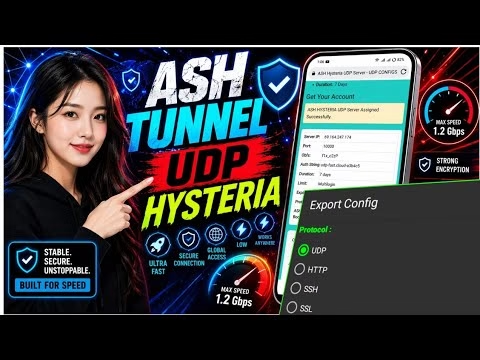
How to setup ASH Tunnel VPN for UDP Hysteria settings

Hysteria is an extremely fast, congestion-aware network tunnel protocol designed for high-latency, lossy networks. By wrapping traffic in UDP rather than TCP, Hysteria bypasses standard connection overheads to deliver high data throughput. This guide provides a detailed, step-by-step tutorial on how to download Ash Tunnel VPN, generate a custom premium UDP Hysteria server, export the custom configuration, and import it to achieve a secure, accelerated internet connection on your Android device.
Table of Contents
- 1. What is Ash Tunnel VPN and UDP Hysteria?
- 2. Downloading and Installing Ash Tunnel VPN
- 3. Creating a Premium UDP Hysteria Server
- 4. Configuring and Exporting the Server in the App
- 5. Importing the Configuration and Connecting
- 6. Connection Diagnostics and Verification
- 7. Frequently Asked Questions (FAQ)
1. What is Ash Tunnel VPN and UDP Hysteria?
Ash Tunnel VPN is a specialized tunneling client for Android built to route internet traffic through secure protocols. One of its standout capabilities is support for UDP Hysteria. While traditional VPNs slow down on congested networks or mobile connections due to TCP packet loss recovery overhead, Hysteria uses a custom UDP-based protocol optimized to maintain high-speed throughput even in severe network conditions. This makes it an exceptional option for streaming, downloading, and gaming under suboptimal carrier coverage.
2. Downloading and Installing Ash Tunnel VPN
Because Ash Tunnel VPN is currently distributed directly by the developer rather than through Google Play Store, follow these instructions to install it safely:
- Open your web browser and search for
UDP Custom website. - Navigate to the homepage: udpcustom.online.
- Tap on the menu navigation bar and select the VPN section.
- Locate the Ash Tunnel VPN card and tap the download button.
- Confirm the download. If Android displays an installation warning regarding unknown sources, override it by allowing installation from your browser, then tap Install.
First Launch Note: Upon launching the application for the first time, grant the requested notification permissions. The app makes use of reward advertisements to maintain free servers; you can watch an ad to renew your connection session timer and load server lists.
3. Creating a Premium UDP Hysteria Server
Before you can configure the connection, you must generate server credentials:
- Return to your browser and access
udpcustom.online. - Tap the menu button and navigate to the UDP Server section.
- Choose the ASH UDP Hysteria option from the list of server types.
- Enter your chosen username and password, complete the reCAPTCHA verification, and click Create Server.
- Copy and save the generated server details, including the Host IP, Port, Username, and Password.
4. Configuring and Exporting the Server in the App
Now, map the server credentials to a configuration file inside the app:
- Open the Ash Tunnel VPN application.
- Tap on the **Config** icon at the top of the interface.
- Select **Export Config** from the dropdown menu.
- From the list of supported tunneling methods, select **UDP Hysteria**.
- Enter the server credentials you copied (IP, Username, Password, and Port) into the corresponding input fields.
- Tap **Save**. The application will package these settings into a configuration file and export it directly to your device’s Download folder.
5. Importing the Configuration and Connecting
To load the newly created configuration and establish the VPN tunnel:
- In Ash Tunnel VPN, tap the **Config** icon again.
- Select **Import Config** from the menu.
- Navigate to your Download folder and select the exported configuration file. The dashboard will load the server settings automatically.
- Tap the large circular **Start** button on the home screen.
- Approve the standard OS VPN connection request.
6. Connection Diagnostics and Verification
To verify that your tunnel is fully functional and encrypting your data correctly, use these diagnostics:
- Log Console: Tap the **Log** tab in the app’s header to inspect the connection logs. A successful connection will display confirmation logs indicating the tunnel handshake was completed.
- IP Verification: Open your browser and go to
whatismyaddress.com. If the page shows your location matching the remote server rather than your physical coordinates, your VPN is working perfectly.
7. Frequently Asked Questions (FAQ)
Q1: Why is my browser displaying a warning when installing the Ash Tunnel APK?
A: Android displays security warning prompts for any app installed from outside the official Google Play Store. As long as you download the package files directly from the official udpcustom.online site, the installer is verified and secure to run.
Q2: Why does the UDP Hysteria server connection disconnect after a few hours?
A: Ash Tunnel VPN utilizes an ad-based session model. Free connection time must occasionally be renewed by viewing short rewarded ad videos within the app dashboard. If your session runs out, simply click the “Add Time” button in the app.
Q3: Can I edit the exported configuration file manually on a PC?
A: Yes. The exported configuration is saved as a plain text file. You can open and edit the parameters, port numbers, or server hostnames using any text editor, and then import the modified configuration back into Ash Tunnel VPN.