
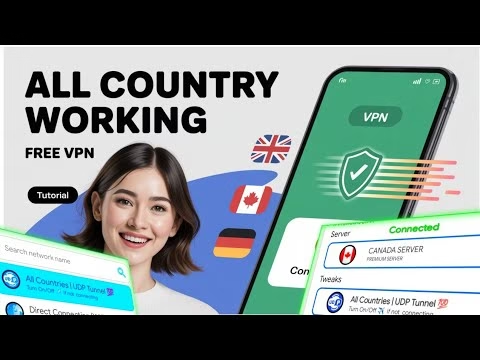
New All COUNTRY WORKING UDP VPN

Secure network connections often require robust clients that bypass carrier firewalls easily. **Rocket Tunnel VPN** is a premium, free connection client featuring built-in server networks and customized tweaks. Designed for stable mobile browsing and latency-optimized routing, Rocket Tunnel VPN allows users to secure their traffic with simple configuration options.
This technical guide explains how to download Rocket Tunnel VPN from the UDP Custom website, configure server nodes, apply tweak profiles, and tether connections.
Table of Contents
- Video Tutorial
- Step 1: Downloading Rocket Tunnel VPN Client
- Step 2: Server Selection and Applying Tweaks
- Step 3: Managing Time and Ad Credits
- Step 4: Hotspot Tethering (VPN Sharing)
- Frequently Asked Questions & Troubleshooting
Video Tutorial
Step 1: Downloading Rocket Tunnel VPN Client
To download the official application safely:
- Open your mobile browser (e.g. Chrome) and search for the **UDP Custom** website.
- Tap the menu button at the top right of the dashboard and select **All Country VPN**.
- Scroll down to locate **Rocket Tunnel VPN** and tap download to download the APK package.
- Launch the application to proceed. Accept the app notification request when prompted.
Step 2: Server Selection and Applying Tweaks
Ensure your mobile network connection is active. On launch, the client queries its database to download the latest server configuration profile updates. Once updated:
- Tap the **Server** dropdown menu. You will find locations including Canada, the UK, France, and Germany. Select a server closest to your region.
- Tap the **Tweaks** dropdown menu. Choose the profile that matches your network carrier. Tweaks apply the correct custom headers to bypass local blocks.
- Return to the main page and click **Connect**. Approve the system VPN prompt.
Step 3: Managing Time and Ad Credits
Rocket Tunnel VPN utilizes a credit system for free usage:
- On connection, you will see a connection timer showing your available tunnel time.
- To extend the connection time, click the **Add Time** button.
- This will load a short advertisement video. Once watched, the app will award additional time credits (typically 2 to 4 hours per ad) to your active connection.
Step 4: Hotspot Tethering (VPN Sharing)
To share your secure VPN connection with other computers or devices:
- Tap the hamburger menu in the top left corner of the app.
- Select **Hotspot Tethering** from the options list.
- Toggle the sharing feature to ON to activate the local proxy client. Configure your PC to connect to this proxy.
FAQ & Troubleshooting Guide
1. Why does my Rocket Tunnel VPN connection disconnect when the timer hits zero?
567:This is because the free tier requires valid time credits to operate. When the time credits run out, the tunnel terminates automatically. To prevent this, click the Add Time button to watch an ad and add time credits before it expires.
2. What should I do if the tweak settings fail to bypass my carrier block?
567:If your specific carrier tweak profile fails, try selecting another general tweak profile for your country. If none are functional, try a direct connection or test different server nodes in adjacent countries.
3. Can I monitor the data transmission speed?
567:Yes. Rocket Tunnel VPN features an active log and speed monitor console on the home screen, displaying upload and download metrics in real-time while the VPN is connected.