
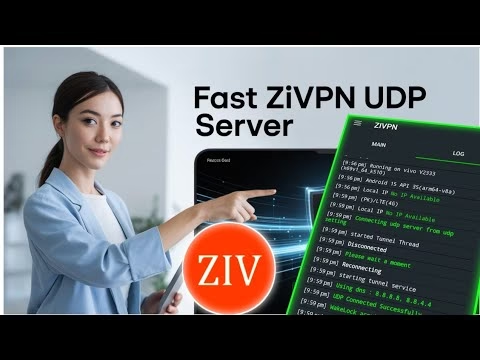
How to ZIVPN UDP Premium Server in 2025

- Verify Server Details: Double-check every character of the Server IP/Hostname, Port, Username, and Password entered in the ZIVPN client’s UDP Tunneling section. A single typo can prevent connection.
- Internet Connectivity: Ensure your device has an active and stable internet connection. Try browsing a website without the VPN to confirm.
- UDP Setting: Confirm that the “UDP server” box is checked in the ZIVPN app’s main connection type settings.
- Server Status: Check the UDP Custom website or any provided status page to ensure your premium UDP server is active and not undergoing maintenance.
- App Permissions: Ensure ZIVPN has all necessary network permissions on your device, particularly if you are on Android and it’s requesting VPN permissions.
- Reboot: Sometimes, a simple device reboot can resolve transient network or application issues.
- Firewall/Antivirus: Temporarily disable any third-party firewalls or antivirus software on your device that might be blocking the VPN connection.
Q3: Can I change my premium UDP server location after initial setup?
A3: Yes, typically you can change your premium UDP server location. The exact process depends on the UDP Custom service’s policy. Generally, you would need to revisit the UDP Custom website, log in to your account, and navigate to the server management or creation section. There, you might have options to generate a new server in a different location or modify your existing server’s configuration. After generating a new server with a different location, you would then need to update the Server IP Address/Hostname and potentially the Port Number in your ZIVPN client’s UDP Tunneling settings with the new details. Always ensure to copy the latest configuration details accurately from UDP Custom and paste them into the ZIVPN app.
Q4: What if UDP Custom does not offer my desired server location?
A4: If UDP Custom does not list your specific desired server location, you have a few options: Firstly, choose the closest available geographical location to your desired region or your physical location, as this often provides a good balance of speed and regional content access. Secondly, explore other premium VPN services that might offer server locations tailored to your specific needs. While this guide focuses on ZIVPN with UDP Custom, the broader VPN market is extensive. Thirdly, consider contacting UDP Custom support; they might have plans to expand their server infrastructure or offer advanced options that aren’t immediately visible. Remember that while proximity often means speed, sometimes a slightly more distant, less congested server can perform better than a closer, overloaded one.
Phase 4: Verifying Your Secure Connection
After initiating the connection, it’s crucial to verify that the VPN tunnel is successfully established and your IP address has changed, confirming your online privacy and security.
Checking Connection Logs
The ZIVPN client provides logs that offer insight into the connection status:
- Access Logs: Look for a “Logs” or “Status” section within the ZIVPN app.
- Confirm Success: Verify that the logs indicate a “Successful Connection” or similar confirmation message. This confirms that the client has authenticated with the server and the VPN tunnel is active.
IP Address Verification
The most definitive way to confirm your VPN is active and protecting your privacy is to check your public IP address:
- Use IP Check Feature: Re-open your web browser and visit a reputable IP address checker website. The UDP Custom website often includes its own IP check feature, which is convenient. Alternatively, use sites like WhatIsMyIPAddress.com or IPInfo.io.
- Confirm New IP: Your displayed IP address should now reflect the location of your chosen ZIVPN UDP Premium Server, not your actual physical location. This confirms that your internet traffic is being routed through the secure VPN tunnel.
Congratulations! You have successfully set up and connected to a fast and secure ZIVPN UDP Premium Server. You can now enjoy enhanced online privacy and high-speed internet browsing.
Frequently Asked Questions (FAQ)
Q1: What is the primary advantage of using UDP over TCP for a VPN connection?
A1: The primary advantage of UDP (User Datagram Protocol) for VPN connections, especially premium ones, is its emphasis on speed and low latency. Unlike TCP (Transmission Control Protocol), UDP does not establish a persistent connection or guarantee packet delivery, nor does it reorder packets or perform error checking at the transport layer. This reduced overhead means data can be transmitted much faster, making UDP ideal for real-time applications such as online gaming, streaming high-definition video, and VoIP calls, where minimizing lag and maximizing throughput are critical. While TCP offers higher reliability, UDP delivers a more responsive browsing and application experience when network conditions are stable and packet loss is minimal.
Q2: My ZIVPN connection isn’t establishing. What are the common troubleshooting steps?
A2: If your ZIVPN connection fails, consider the following troubleshooting steps:
- Verify Server Details: Double-check every character of the Server IP/Hostname, Port, Username, and Password entered in the ZIVPN client’s UDP Tunneling section. A single typo can prevent connection.
- Internet Connectivity: Ensure your device has an active and stable internet connection. Try browsing a website without the VPN to confirm.
- UDP Setting: Confirm that the “UDP server” box is checked in the ZIVPN app’s main connection type settings.
- Server Status: Check the UDP Custom website or any provided status page to ensure your premium UDP server is active and not undergoing maintenance.
- App Permissions: Ensure ZIVPN has all necessary network permissions on your device, particularly if you are on Android and it’s requesting VPN permissions.
- Reboot: Sometimes, a simple device reboot can resolve transient network or application issues.
- Firewall/Antivirus: Temporarily disable any third-party firewalls or antivirus software on your device that might be blocking the VPN connection.
Q3: Can I change my premium UDP server location after initial setup?
A3: Yes, typically you can change your premium UDP server location. The exact process depends on the UDP Custom service’s policy. Generally, you would need to revisit the UDP Custom website, log in to your account, and navigate to the server management or creation section. There, you might have options to generate a new server in a different location or modify your existing server’s configuration. After generating a new server with a different location, you would then need to update the Server IP Address/Hostname and potentially the Port Number in your ZIVPN client’s UDP Tunneling settings with the new details. Always ensure to copy the latest configuration details accurately from UDP Custom and paste them into the ZIVPN app.
Q4: What if UDP Custom does not offer my desired server location?
A4: If UDP Custom does not list your specific desired server location, you have a few options: Firstly, choose the closest available geographical location to your desired region or your physical location, as this often provides a good balance of speed and regional content access. Secondly, explore other premium VPN services that might offer server locations tailored to your specific needs. While this guide focuses on ZIVPN with UDP Custom, the broader VPN market is extensive. Thirdly, consider contacting UDP Custom support; they might have plans to expand their server infrastructure or offer advanced options that aren’t immediately visible. Remember that while proximity often means speed, sometimes a slightly more distant, less congested server can perform better than a closer, overloaded one.
- Return to Home Screen: Navigate back to the ZIVPN app’s main screen.
- Tap Start: Locate and tap the “Start” or “Connect” button. The ZIVPN client will now attempt to establish a secure UDP tunnel to your premium server using the provided credentials and configuration.
Phase 4: Verifying Your Secure Connection
After initiating the connection, it’s crucial to verify that the VPN tunnel is successfully established and your IP address has changed, confirming your online privacy and security.
Checking Connection Logs
The ZIVPN client provides logs that offer insight into the connection status:
- Access Logs: Look for a “Logs” or “Status” section within the ZIVPN app.
- Confirm Success: Verify that the logs indicate a “Successful Connection” or similar confirmation message. This confirms that the client has authenticated with the server and the VPN tunnel is active.
IP Address Verification
The most definitive way to confirm your VPN is active and protecting your privacy is to check your public IP address:
- Use IP Check Feature: Re-open your web browser and visit a reputable IP address checker website. The UDP Custom website often includes its own IP check feature, which is convenient. Alternatively, use sites like WhatIsMyIPAddress.com or IPInfo.io.
- Confirm New IP: Your displayed IP address should now reflect the location of your chosen ZIVPN UDP Premium Server, not your actual physical location. This confirms that your internet traffic is being routed through the secure VPN tunnel.
Congratulations! You have successfully set up and connected to a fast and secure ZIVPN UDP Premium Server. You can now enjoy enhanced online privacy and high-speed internet browsing.
Frequently Asked Questions (FAQ)
Q1: What is the primary advantage of using UDP over TCP for a VPN connection?
A1: The primary advantage of UDP (User Datagram Protocol) for VPN connections, especially premium ones, is its emphasis on speed and low latency. Unlike TCP (Transmission Control Protocol), UDP does not establish a persistent connection or guarantee packet delivery, nor does it reorder packets or perform error checking at the transport layer. This reduced overhead means data can be transmitted much faster, making UDP ideal for real-time applications such as online gaming, streaming high-definition video, and VoIP calls, where minimizing lag and maximizing throughput are critical. While TCP offers higher reliability, UDP delivers a more responsive browsing and application experience when network conditions are stable and packet loss is minimal.
Q2: My ZIVPN connection isn’t establishing. What are the common troubleshooting steps?
A2: If your ZIVPN connection fails, consider the following troubleshooting steps:
- Verify Server Details: Double-check every character of the Server IP/Hostname, Port, Username, and Password entered in the ZIVPN client’s UDP Tunneling section. A single typo can prevent connection.
- Internet Connectivity: Ensure your device has an active and stable internet connection. Try browsing a website without the VPN to confirm.
- UDP Setting: Confirm that the “UDP server” box is checked in the ZIVPN app’s main connection type settings.
- Server Status: Check the UDP Custom website or any provided status page to ensure your premium UDP server is active and not undergoing maintenance.
- App Permissions: Ensure ZIVPN has all necessary network permissions on your device, particularly if you are on Android and it’s requesting VPN permissions.
- Reboot: Sometimes, a simple device reboot can resolve transient network or application issues.
- Firewall/Antivirus: Temporarily disable any third-party firewalls or antivirus software on your device that might be blocking the VPN connection.
Q3: Can I change my premium UDP server location after initial setup?
A3: Yes, typically you can change your premium UDP server location. The exact process depends on the UDP Custom service’s policy. Generally, you would need to revisit the UDP Custom website, log in to your account, and navigate to the server management or creation section. There, you might have options to generate a new server in a different location or modify your existing server’s configuration. After generating a new server with a different location, you would then need to update the Server IP Address/Hostname and potentially the Port Number in your ZIVPN client’s UDP Tunneling settings with the new details. Always ensure to copy the latest configuration details accurately from UDP Custom and paste them into the ZIVPN app.
Q4: What if UDP Custom does not offer my desired server location?
A4: If UDP Custom does not list your specific desired server location, you have a few options: Firstly, choose the closest available geographical location to your desired region or your physical location, as this often provides a good balance of speed and regional content access. Secondly, explore other premium VPN services that might offer server locations tailored to your specific needs. While this guide focuses on ZIVPN with UDP Custom, the broader VPN market is extensive. Thirdly, consider contacting UDP Custom support; they might have plans to expand their server infrastructure or offer advanced options that aren’t immediately visible. Remember that while proximity often means speed, sometimes a slightly more distant, less congested server can perform better than a closer, overloaded one.
- Return to Home Screen: Navigate back to the ZIVPN app’s main screen.
- Tap Start: Locate and tap the “Start” or “Connect” button. The ZIVPN client will now attempt to establish a secure UDP tunnel to your premium server using the provided credentials and configuration.
Phase 4: Verifying Your Secure Connection
After initiating the connection, it’s crucial to verify that the VPN tunnel is successfully established and your IP address has changed, confirming your online privacy and security.
Checking Connection Logs
The ZIVPN client provides logs that offer insight into the connection status:
- Access Logs: Look for a “Logs” or “Status” section within the ZIVPN app.
- Confirm Success: Verify that the logs indicate a “Successful Connection” or similar confirmation message. This confirms that the client has authenticated with the server and the VPN tunnel is active.
IP Address Verification
The most definitive way to confirm your VPN is active and protecting your privacy is to check your public IP address:
- Use IP Check Feature: Re-open your web browser and visit a reputable IP address checker website. The UDP Custom website often includes its own IP check feature, which is convenient. Alternatively, use sites like WhatIsMyIPAddress.com or IPInfo.io.
- Confirm New IP: Your displayed IP address should now reflect the location of your chosen ZIVPN UDP Premium Server, not your actual physical location. This confirms that your internet traffic is being routed through the secure VPN tunnel.
Congratulations! You have successfully set up and connected to a fast and secure ZIVPN UDP Premium Server. You can now enjoy enhanced online privacy and high-speed internet browsing.
Frequently Asked Questions (FAQ)
Q1: What is the primary advantage of using UDP over TCP for a VPN connection?
A1: The primary advantage of UDP (User Datagram Protocol) for VPN connections, especially premium ones, is its emphasis on speed and low latency. Unlike TCP (Transmission Control Protocol), UDP does not establish a persistent connection or guarantee packet delivery, nor does it reorder packets or perform error checking at the transport layer. This reduced overhead means data can be transmitted much faster, making UDP ideal for real-time applications such as online gaming, streaming high-definition video, and VoIP calls, where minimizing lag and maximizing throughput are critical. While TCP offers higher reliability, UDP delivers a more responsive browsing and application experience when network conditions are stable and packet loss is minimal.
Q2: My ZIVPN connection isn’t establishing. What are the common troubleshooting steps?
A2: If your ZIVPN connection fails, consider the following troubleshooting steps:
- Verify Server Details: Double-check every character of the Server IP/Hostname, Port, Username, and Password entered in the ZIVPN client’s UDP Tunneling section. A single typo can prevent connection.
- Internet Connectivity: Ensure your device has an active and stable internet connection. Try browsing a website without the VPN to confirm.
- UDP Setting: Confirm that the “UDP server” box is checked in the ZIVPN app’s main connection type settings.
- Server Status: Check the UDP Custom website or any provided status page to ensure your premium UDP server is active and not undergoing maintenance.
- App Permissions: Ensure ZIVPN has all necessary network permissions on your device, particularly if you are on Android and it’s requesting VPN permissions.
- Reboot: Sometimes, a simple device reboot can resolve transient network or application issues.
- Firewall/Antivirus: Temporarily disable any third-party firewalls or antivirus software on your device that might be blocking the VPN connection.
Q3: Can I change my premium UDP server location after initial setup?
A3: Yes, typically you can change your premium UDP server location. The exact process depends on the UDP Custom service’s policy. Generally, you would need to revisit the UDP Custom website, log in to your account, and navigate to the server management or creation section. There, you might have options to generate a new server in a different location or modify your existing server’s configuration. After generating a new server with a different location, you would then need to update the Server IP Address/Hostname and potentially the Port Number in your ZIVPN client’s UDP Tunneling settings with the new details. Always ensure to copy the latest configuration details accurately from UDP Custom and paste them into the ZIVPN app.
Q4: What if UDP Custom does not offer my desired server location?
A4: If UDP Custom does not list your specific desired server location, you have a few options: Firstly, choose the closest available geographical location to your desired region or your physical location, as this often provides a good balance of speed and regional content access. Secondly, explore other premium VPN services that might offer server locations tailored to your specific needs. While this guide focuses on ZIVPN with UDP Custom, the broader VPN market is extensive. Thirdly, consider contacting UDP Custom support; they might have plans to expand their server infrastructure or offer advanced options that aren’t immediately visible. Remember that while proximity often means speed, sometimes a slightly more distant, less congested server can perform better than a closer, overloaded one.
- Fill Account Form: Complete the provided form by entering your desired username and a strong password. These credentials will be used by the ZIVPN client to authenticate with your server.
- Complete CAPTCHA: Fulfill any CAPTCHA verification to prove you are not a bot.
- Create Server: Tap on “Create Server.” The system will then process your request and generate your dedicated UDP server. This typically takes a few moments.
Retrieving Server Configuration Details
Once your server is successfully created, the UDP Custom website will display all necessary configuration parameters. These are crucial for connecting your ZIVPN client:
- Copy All Details: Carefully copy all provided server details. This typically includes, but is not limited to:
- Server IP Address or Hostname: The network address of your VPN server.
- Port Number: The specific UDP port your server is listening on (e.g., 53, 443, 1194).
- Username: The username you created for server authentication.
- Password: The password you created for server authentication.
- Custom Payload/Configuration String: Sometimes, specific VPN setups require a custom string or payload for advanced tunneling, which UDP Custom may provide.
Ensure you copy these details accurately, perhaps by using a “copy all” button if available, or by manually highlighting and copying each field. These details are sensitive and should not be shared publicly.
Phase 3: Integrating Server Details into the ZIVPN Client
With your premium UDP server details at hand, the next step is to input them into the ZIVPN client application.
Accessing UDP Tunneling Settings
- Return to ZIVPN App: Switch back to the ZIVPN client application.
- Navigate to UDP Tunneling: Access the app’s side menu (often a hamburger icon in the top corner). From the menu options, select “UDP Tunneling” or a similarly named section dedicated to custom UDP configurations. This is where you will input your server’s specifics.
Pasting Server Details
Carefully transfer the copied server details into the respective fields within the ZIVPN app’s UDP Tunneling section:
- Match Fields: Paste the Server IP Address/Hostname into the “Server Host” or “IP Address” field. Enter the Port Number into the “Port” field. Input your Username and Password into their designated fields. If a custom payload or configuration string was provided, paste it into the appropriate “Custom Payload” or “Config String” area.
- Verify Accuracy: Double-check all entered details for accuracy. Even a single misplaced character can prevent a successful connection.
Initiating the VPN Connection
With all server details correctly entered, you are now ready to establish the VPN connection:
- Return to Home Screen: Navigate back to the ZIVPN app’s main screen.
- Tap Start: Locate and tap the “Start” or “Connect” button. The ZIVPN client will now attempt to establish a secure UDP tunnel to your premium server using the provided credentials and configuration.
Phase 4: Verifying Your Secure Connection
After initiating the connection, it’s crucial to verify that the VPN tunnel is successfully established and your IP address has changed, confirming your online privacy and security.
Checking Connection Logs
The ZIVPN client provides logs that offer insight into the connection status:
- Access Logs: Look for a “Logs” or “Status” section within the ZIVPN app.
- Confirm Success: Verify that the logs indicate a “Successful Connection” or similar confirmation message. This confirms that the client has authenticated with the server and the VPN tunnel is active.
IP Address Verification
The most definitive way to confirm your VPN is active and protecting your privacy is to check your public IP address:
- Use IP Check Feature: Re-open your web browser and visit a reputable IP address checker website. The UDP Custom website often includes its own IP check feature, which is convenient. Alternatively, use sites like WhatIsMyIPAddress.com or IPInfo.io.
- Confirm New IP: Your displayed IP address should now reflect the location of your chosen ZIVPN UDP Premium Server, not your actual physical location. This confirms that your internet traffic is being routed through the secure VPN tunnel.
Congratulations! You have successfully set up and connected to a fast and secure ZIVPN UDP Premium Server. You can now enjoy enhanced online privacy and high-speed internet browsing.
Frequently Asked Questions (FAQ)
Q1: What is the primary advantage of using UDP over TCP for a VPN connection?
A1: The primary advantage of UDP (User Datagram Protocol) for VPN connections, especially premium ones, is its emphasis on speed and low latency. Unlike TCP (Transmission Control Protocol), UDP does not establish a persistent connection or guarantee packet delivery, nor does it reorder packets or perform error checking at the transport layer. This reduced overhead means data can be transmitted much faster, making UDP ideal for real-time applications such as online gaming, streaming high-definition video, and VoIP calls, where minimizing lag and maximizing throughput are critical. While TCP offers higher reliability, UDP delivers a more responsive browsing and application experience when network conditions are stable and packet loss is minimal.
Q2: My ZIVPN connection isn’t establishing. What are the common troubleshooting steps?
A2: If your ZIVPN connection fails, consider the following troubleshooting steps:
- Verify Server Details: Double-check every character of the Server IP/Hostname, Port, Username, and Password entered in the ZIVPN client’s UDP Tunneling section. A single typo can prevent connection.
- Internet Connectivity: Ensure your device has an active and stable internet connection. Try browsing a website without the VPN to confirm.
- UDP Setting: Confirm that the “UDP server” box is checked in the ZIVPN app’s main connection type settings.
- Server Status: Check the UDP Custom website or any provided status page to ensure your premium UDP server is active and not undergoing maintenance.
- App Permissions: Ensure ZIVPN has all necessary network permissions on your device, particularly if you are on Android and it’s requesting VPN permissions.
- Reboot: Sometimes, a simple device reboot can resolve transient network or application issues.
- Firewall/Antivirus: Temporarily disable any third-party firewalls or antivirus software on your device that might be blocking the VPN connection.
Q3: Can I change my premium UDP server location after initial setup?
A3: Yes, typically you can change your premium UDP server location. The exact process depends on the UDP Custom service’s policy. Generally, you would need to revisit the UDP Custom website, log in to your account, and navigate to the server management or creation section. There, you might have options to generate a new server in a different location or modify your existing server’s configuration. After generating a new server with a different location, you would then need to update the Server IP Address/Hostname and potentially the Port Number in your ZIVPN client’s UDP Tunneling settings with the new details. Always ensure to copy the latest configuration details accurately from UDP Custom and paste them into the ZIVPN app.
Q4: What if UDP Custom does not offer my desired server location?
A4: If UDP Custom does not list your specific desired server location, you have a few options: Firstly, choose the closest available geographical location to your desired region or your physical location, as this often provides a good balance of speed and regional content access. Secondly, explore other premium VPN services that might offer server locations tailored to your specific needs. While this guide focuses on ZIVPN with UDP Custom, the broader VPN market is extensive. Thirdly, consider contacting UDP Custom support; they might have plans to expand their server infrastructure or offer advanced options that aren’t immediately visible. Remember that while proximity often means speed, sometimes a slightly more distant, less congested server can perform better than a closer, overloaded one.
- Fill Account Form: Complete the provided form by entering your desired username and a strong password. These credentials will be used by the ZIVPN client to authenticate with your server.
- Complete CAPTCHA: Fulfill any CAPTCHA verification to prove you are not a bot.
- Create Server: Tap on “Create Server.” The system will then process your request and generate your dedicated UDP server. This typically takes a few moments.
Retrieving Server Configuration Details
Once your server is successfully created, the UDP Custom website will display all necessary configuration parameters. These are crucial for connecting your ZIVPN client:
- Copy All Details: Carefully copy all provided server details. This typically includes, but is not limited to:
- Server IP Address or Hostname: The network address of your VPN server.
- Port Number: The specific UDP port your server is listening on (e.g., 53, 443, 1194).
- Username: The username you created for server authentication.
- Password: The password you created for server authentication.
- Custom Payload/Configuration String: Sometimes, specific VPN setups require a custom string or payload for advanced tunneling, which UDP Custom may provide.
Ensure you copy these details accurately, perhaps by using a “copy all” button if available, or by manually highlighting and copying each field. These details are sensitive and should not be shared publicly.
Phase 3: Integrating Server Details into the ZIVPN Client
With your premium UDP server details at hand, the next step is to input them into the ZIVPN client application.
Accessing UDP Tunneling Settings
- Return to ZIVPN App: Switch back to the ZIVPN client application.
- Navigate to UDP Tunneling: Access the app’s side menu (often a hamburger icon in the top corner). From the menu options, select “UDP Tunneling” or a similarly named section dedicated to custom UDP configurations. This is where you will input your server’s specifics.
Pasting Server Details
Carefully transfer the copied server details into the respective fields within the ZIVPN app’s UDP Tunneling section:
- Match Fields: Paste the Server IP Address/Hostname into the “Server Host” or “IP Address” field. Enter the Port Number into the “Port” field. Input your Username and Password into their designated fields. If a custom payload or configuration string was provided, paste it into the appropriate “Custom Payload” or “Config String” area.
- Verify Accuracy: Double-check all entered details for accuracy. Even a single misplaced character can prevent a successful connection.
Initiating the VPN Connection
With all server details correctly entered, you are now ready to establish the VPN connection:
- Return to Home Screen: Navigate back to the ZIVPN app’s main screen.
- Tap Start: Locate and tap the “Start” or “Connect” button. The ZIVPN client will now attempt to establish a secure UDP tunnel to your premium server using the provided credentials and configuration.
Phase 4: Verifying Your Secure Connection
After initiating the connection, it’s crucial to verify that the VPN tunnel is successfully established and your IP address has changed, confirming your online privacy and security.
Checking Connection Logs
The ZIVPN client provides logs that offer insight into the connection status:
- Access Logs: Look for a “Logs” or “Status” section within the ZIVPN app.
- Confirm Success: Verify that the logs indicate a “Successful Connection” or similar confirmation message. This confirms that the client has authenticated with the server and the VPN tunnel is active.
IP Address Verification
The most definitive way to confirm your VPN is active and protecting your privacy is to check your public IP address:
- Use IP Check Feature: Re-open your web browser and visit a reputable IP address checker website. The UDP Custom website often includes its own IP check feature, which is convenient. Alternatively, use sites like WhatIsMyIPAddress.com or IPInfo.io.
- Confirm New IP: Your displayed IP address should now reflect the location of your chosen ZIVPN UDP Premium Server, not your actual physical location. This confirms that your internet traffic is being routed through the secure VPN tunnel.
Congratulations! You have successfully set up and connected to a fast and secure ZIVPN UDP Premium Server. You can now enjoy enhanced online privacy and high-speed internet browsing.
Frequently Asked Questions (FAQ)
Q1: What is the primary advantage of using UDP over TCP for a VPN connection?
A1: The primary advantage of UDP (User Datagram Protocol) for VPN connections, especially premium ones, is its emphasis on speed and low latency. Unlike TCP (Transmission Control Protocol), UDP does not establish a persistent connection or guarantee packet delivery, nor does it reorder packets or perform error checking at the transport layer. This reduced overhead means data can be transmitted much faster, making UDP ideal for real-time applications such as online gaming, streaming high-definition video, and VoIP calls, where minimizing lag and maximizing throughput are critical. While TCP offers higher reliability, UDP delivers a more responsive browsing and application experience when network conditions are stable and packet loss is minimal.
Q2: My ZIVPN connection isn’t establishing. What are the common troubleshooting steps?
A2: If your ZIVPN connection fails, consider the following troubleshooting steps:
- Verify Server Details: Double-check every character of the Server IP/Hostname, Port, Username, and Password entered in the ZIVPN client’s UDP Tunneling section. A single typo can prevent connection.
- Internet Connectivity: Ensure your device has an active and stable internet connection. Try browsing a website without the VPN to confirm.
- UDP Setting: Confirm that the “UDP server” box is checked in the ZIVPN app’s main connection type settings.
- Server Status: Check the UDP Custom website or any provided status page to ensure your premium UDP server is active and not undergoing maintenance.
- App Permissions: Ensure ZIVPN has all necessary network permissions on your device, particularly if you are on Android and it’s requesting VPN permissions.
- Reboot: Sometimes, a simple device reboot can resolve transient network or application issues.
- Firewall/Antivirus: Temporarily disable any third-party firewalls or antivirus software on your device that might be blocking the VPN connection.
Q3: Can I change my premium UDP server location after initial setup?
A3: Yes, typically you can change your premium UDP server location. The exact process depends on the UDP Custom service’s policy. Generally, you would need to revisit the UDP Custom website, log in to your account, and navigate to the server management or creation section. There, you might have options to generate a new server in a different location or modify your existing server’s configuration. After generating a new server with a different location, you would then need to update the Server IP Address/Hostname and potentially the Port Number in your ZIVPN client’s UDP Tunneling settings with the new details. Always ensure to copy the latest configuration details accurately from UDP Custom and paste them into the ZIVPN app.
Q4: What if UDP Custom does not offer my desired server location?
A4: If UDP Custom does not list your specific desired server location, you have a few options: Firstly, choose the closest available geographical location to your desired region or your physical location, as this often provides a good balance of speed and regional content access. Secondly, explore other premium VPN services that might offer server locations tailored to your specific needs. While this guide focuses on ZIVPN with UDP Custom, the broader VPN market is extensive. Thirdly, consider contacting UDP Custom support; they might have plans to expand their server infrastructure or offer advanced options that aren’t immediately visible. Remember that while proximity often means speed, sometimes a slightly more distant, less congested server can perform better than a closer, overloaded one.
- Select Location: On the server configuration page, tap the “Select Location” button or dropdown.
- Choose Region: Browse through the available server regions and select your preferred location. Consider factors such as proximity for speed, or a specific region if you need to bypass geo-restrictions for certain content.
Creating Your Server Account
To finalize your server generation, you’ll need to create a unique account associated with this premium UDP server:
- Fill Account Form: Complete the provided form by entering your desired username and a strong password. These credentials will be used by the ZIVPN client to authenticate with your server.
- Complete CAPTCHA: Fulfill any CAPTCHA verification to prove you are not a bot.
- Create Server: Tap on “Create Server.” The system will then process your request and generate your dedicated UDP server. This typically takes a few moments.
Retrieving Server Configuration Details
Once your server is successfully created, the UDP Custom website will display all necessary configuration parameters. These are crucial for connecting your ZIVPN client:
- Copy All Details: Carefully copy all provided server details. This typically includes, but is not limited to:
- Server IP Address or Hostname: The network address of your VPN server.
- Port Number: The specific UDP port your server is listening on (e.g., 53, 443, 1194).
- Username: The username you created for server authentication.
- Password: The password you created for server authentication.
- Custom Payload/Configuration String: Sometimes, specific VPN setups require a custom string or payload for advanced tunneling, which UDP Custom may provide.
Ensure you copy these details accurately, perhaps by using a “copy all” button if available, or by manually highlighting and copying each field. These details are sensitive and should not be shared publicly.
Phase 3: Integrating Server Details into the ZIVPN Client
With your premium UDP server details at hand, the next step is to input them into the ZIVPN client application.
Accessing UDP Tunneling Settings
- Return to ZIVPN App: Switch back to the ZIVPN client application.
- Navigate to UDP Tunneling: Access the app’s side menu (often a hamburger icon in the top corner). From the menu options, select “UDP Tunneling” or a similarly named section dedicated to custom UDP configurations. This is where you will input your server’s specifics.
Pasting Server Details
Carefully transfer the copied server details into the respective fields within the ZIVPN app’s UDP Tunneling section:
- Match Fields: Paste the Server IP Address/Hostname into the “Server Host” or “IP Address” field. Enter the Port Number into the “Port” field. Input your Username and Password into their designated fields. If a custom payload or configuration string was provided, paste it into the appropriate “Custom Payload” or “Config String” area.
- Verify Accuracy: Double-check all entered details for accuracy. Even a single misplaced character can prevent a successful connection.
Initiating the VPN Connection
With all server details correctly entered, you are now ready to establish the VPN connection:
- Return to Home Screen: Navigate back to the ZIVPN app’s main screen.
- Tap Start: Locate and tap the “Start” or “Connect” button. The ZIVPN client will now attempt to establish a secure UDP tunnel to your premium server using the provided credentials and configuration.
Phase 4: Verifying Your Secure Connection
After initiating the connection, it’s crucial to verify that the VPN tunnel is successfully established and your IP address has changed, confirming your online privacy and security.
Checking Connection Logs
The ZIVPN client provides logs that offer insight into the connection status:
- Access Logs: Look for a “Logs” or “Status” section within the ZIVPN app.
- Confirm Success: Verify that the logs indicate a “Successful Connection” or similar confirmation message. This confirms that the client has authenticated with the server and the VPN tunnel is active.
IP Address Verification
The most definitive way to confirm your VPN is active and protecting your privacy is to check your public IP address:
- Use IP Check Feature: Re-open your web browser and visit a reputable IP address checker website. The UDP Custom website often includes its own IP check feature, which is convenient. Alternatively, use sites like WhatIsMyIPAddress.com or IPInfo.io.
- Confirm New IP: Your displayed IP address should now reflect the location of your chosen ZIVPN UDP Premium Server, not your actual physical location. This confirms that your internet traffic is being routed through the secure VPN tunnel.
Congratulations! You have successfully set up and connected to a fast and secure ZIVPN UDP Premium Server. You can now enjoy enhanced online privacy and high-speed internet browsing.
Frequently Asked Questions (FAQ)
Q1: What is the primary advantage of using UDP over TCP for a VPN connection?
A1: The primary advantage of UDP (User Datagram Protocol) for VPN connections, especially premium ones, is its emphasis on speed and low latency. Unlike TCP (Transmission Control Protocol), UDP does not establish a persistent connection or guarantee packet delivery, nor does it reorder packets or perform error checking at the transport layer. This reduced overhead means data can be transmitted much faster, making UDP ideal for real-time applications such as online gaming, streaming high-definition video, and VoIP calls, where minimizing lag and maximizing throughput are critical. While TCP offers higher reliability, UDP delivers a more responsive browsing and application experience when network conditions are stable and packet loss is minimal.
Q2: My ZIVPN connection isn’t establishing. What are the common troubleshooting steps?
A2: If your ZIVPN connection fails, consider the following troubleshooting steps:
- Verify Server Details: Double-check every character of the Server IP/Hostname, Port, Username, and Password entered in the ZIVPN client’s UDP Tunneling section. A single typo can prevent connection.
- Internet Connectivity: Ensure your device has an active and stable internet connection. Try browsing a website without the VPN to confirm.
- UDP Setting: Confirm that the “UDP server” box is checked in the ZIVPN app’s main connection type settings.
- Server Status: Check the UDP Custom website or any provided status page to ensure your premium UDP server is active and not undergoing maintenance.
- App Permissions: Ensure ZIVPN has all necessary network permissions on your device, particularly if you are on Android and it’s requesting VPN permissions.
- Reboot: Sometimes, a simple device reboot can resolve transient network or application issues.
- Firewall/Antivirus: Temporarily disable any third-party firewalls or antivirus software on your device that might be blocking the VPN connection.
Q3: Can I change my premium UDP server location after initial setup?
A3: Yes, typically you can change your premium UDP server location. The exact process depends on the UDP Custom service’s policy. Generally, you would need to revisit the UDP Custom website, log in to your account, and navigate to the server management or creation section. There, you might have options to generate a new server in a different location or modify your existing server’s configuration. After generating a new server with a different location, you would then need to update the Server IP Address/Hostname and potentially the Port Number in your ZIVPN client’s UDP Tunneling settings with the new details. Always ensure to copy the latest configuration details accurately from UDP Custom and paste them into the ZIVPN app.
Q4: What if UDP Custom does not offer my desired server location?
A4: If UDP Custom does not list your specific desired server location, you have a few options: Firstly, choose the closest available geographical location to your desired region or your physical location, as this often provides a good balance of speed and regional content access. Secondly, explore other premium VPN services that might offer server locations tailored to your specific needs. While this guide focuses on ZIVPN with UDP Custom, the broader VPN market is extensive. Thirdly, consider contacting UDP Custom support; they might have plans to expand their server infrastructure or offer advanced options that aren’t immediately visible. Remember that while proximity often means speed, sometimes a slightly more distant, less congested server can perform better than a closer, overloaded one.
- Open a Web Browser: Temporarily minimize the ZIVPN app and open any web browser (e.g., Chrome, Firefox, Safari) on your device.
- Search and Navigate: In the browser’s search bar, type “UDP custom” and perform a search. From the search results, carefully locate and click on the official UDP Custom website to ensure you are accessing the legitimate service.
Navigating to Premium UDP Servers
Once on the UDP Custom homepage, you’ll need to navigate to the premium server creation section:
- Access the Menu: Tap on the menu button, typically represented by three horizontal lines (a “hamburger” icon), usually located in a corner of the website.
- Select Premium UDP: From the displayed menu options, select “Premium UDP.” This action will direct you to a page listing available premium UDP server configurations.
Selecting the ZIVPN UDP Server Configuration
Within the list of premium UDP servers, you must specifically choose the ZIVPN configuration:
- Identify ZIVPN UDP Server: Carefully review the server list and tap on the option clearly labeled “ZIVPN UDP server.” This initiates the specific server configuration process tailored for compatibility with the ZIVPN client.
Choosing Your Server Location
Server location plays a significant role in connection speed and latency. Selecting a server geographically closer to your physical location will generally result in better performance:
- Select Location: On the server configuration page, tap the “Select Location” button or dropdown.
- Choose Region: Browse through the available server regions and select your preferred location. Consider factors such as proximity for speed, or a specific region if you need to bypass geo-restrictions for certain content.
Creating Your Server Account
To finalize your server generation, you’ll need to create a unique account associated with this premium UDP server:
- Fill Account Form: Complete the provided form by entering your desired username and a strong password. These credentials will be used by the ZIVPN client to authenticate with your server.
- Complete CAPTCHA: Fulfill any CAPTCHA verification to prove you are not a bot.
- Create Server: Tap on “Create Server.” The system will then process your request and generate your dedicated UDP server. This typically takes a few moments.
Retrieving Server Configuration Details
Once your server is successfully created, the UDP Custom website will display all necessary configuration parameters. These are crucial for connecting your ZIVPN client:
- Copy All Details: Carefully copy all provided server details. This typically includes, but is not limited to:
- Server IP Address or Hostname: The network address of your VPN server.
- Port Number: The specific UDP port your server is listening on (e.g., 53, 443, 1194).
- Username: The username you created for server authentication.
- Password: The password you created for server authentication.
- Custom Payload/Configuration String: Sometimes, specific VPN setups require a custom string or payload for advanced tunneling, which UDP Custom may provide.
Ensure you copy these details accurately, perhaps by using a “copy all” button if available, or by manually highlighting and copying each field. These details are sensitive and should not be shared publicly.
Phase 3: Integrating Server Details into the ZIVPN Client
With your premium UDP server details at hand, the next step is to input them into the ZIVPN client application.
Accessing UDP Tunneling Settings
- Return to ZIVPN App: Switch back to the ZIVPN client application.
- Navigate to UDP Tunneling: Access the app’s side menu (often a hamburger icon in the top corner). From the menu options, select “UDP Tunneling” or a similarly named section dedicated to custom UDP configurations. This is where you will input your server’s specifics.
Pasting Server Details
Carefully transfer the copied server details into the respective fields within the ZIVPN app’s UDP Tunneling section:
- Match Fields: Paste the Server IP Address/Hostname into the “Server Host” or “IP Address” field. Enter the Port Number into the “Port” field. Input your Username and Password into their designated fields. If a custom payload or configuration string was provided, paste it into the appropriate “Custom Payload” or “Config String” area.
- Verify Accuracy: Double-check all entered details for accuracy. Even a single misplaced character can prevent a successful connection.
Initiating the VPN Connection
With all server details correctly entered, you are now ready to establish the VPN connection:
- Return to Home Screen: Navigate back to the ZIVPN app’s main screen.
- Tap Start: Locate and tap the “Start” or “Connect” button. The ZIVPN client will now attempt to establish a secure UDP tunnel to your premium server using the provided credentials and configuration.
Phase 4: Verifying Your Secure Connection
After initiating the connection, it’s crucial to verify that the VPN tunnel is successfully established and your IP address has changed, confirming your online privacy and security.
Checking Connection Logs
The ZIVPN client provides logs that offer insight into the connection status:
- Access Logs: Look for a “Logs” or “Status” section within the ZIVPN app.
- Confirm Success: Verify that the logs indicate a “Successful Connection” or similar confirmation message. This confirms that the client has authenticated with the server and the VPN tunnel is active.
IP Address Verification
The most definitive way to confirm your VPN is active and protecting your privacy is to check your public IP address:
- Use IP Check Feature: Re-open your web browser and visit a reputable IP address checker website. The UDP Custom website often includes its own IP check feature, which is convenient. Alternatively, use sites like WhatIsMyIPAddress.com or IPInfo.io.
- Confirm New IP: Your displayed IP address should now reflect the location of your chosen ZIVPN UDP Premium Server, not your actual physical location. This confirms that your internet traffic is being routed through the secure VPN tunnel.
Congratulations! You have successfully set up and connected to a fast and secure ZIVPN UDP Premium Server. You can now enjoy enhanced online privacy and high-speed internet browsing.
Frequently Asked Questions (FAQ)
Q1: What is the primary advantage of using UDP over TCP for a VPN connection?
A1: The primary advantage of UDP (User Datagram Protocol) for VPN connections, especially premium ones, is its emphasis on speed and low latency. Unlike TCP (Transmission Control Protocol), UDP does not establish a persistent connection or guarantee packet delivery, nor does it reorder packets or perform error checking at the transport layer. This reduced overhead means data can be transmitted much faster, making UDP ideal for real-time applications such as online gaming, streaming high-definition video, and VoIP calls, where minimizing lag and maximizing throughput are critical. While TCP offers higher reliability, UDP delivers a more responsive browsing and application experience when network conditions are stable and packet loss is minimal.
Q2: My ZIVPN connection isn’t establishing. What are the common troubleshooting steps?
A2: If your ZIVPN connection fails, consider the following troubleshooting steps:
- Verify Server Details: Double-check every character of the Server IP/Hostname, Port, Username, and Password entered in the ZIVPN client’s UDP Tunneling section. A single typo can prevent connection.
- Internet Connectivity: Ensure your device has an active and stable internet connection. Try browsing a website without the VPN to confirm.
- UDP Setting: Confirm that the “UDP server” box is checked in the ZIVPN app’s main connection type settings.
- Server Status: Check the UDP Custom website or any provided status page to ensure your premium UDP server is active and not undergoing maintenance.
- App Permissions: Ensure ZIVPN has all necessary network permissions on your device, particularly if you are on Android and it’s requesting VPN permissions.
- Reboot: Sometimes, a simple device reboot can resolve transient network or application issues.
- Firewall/Antivirus: Temporarily disable any third-party firewalls or antivirus software on your device that might be blocking the VPN connection.
Q3: Can I change my premium UDP server location after initial setup?
A3: Yes, typically you can change your premium UDP server location. The exact process depends on the UDP Custom service’s policy. Generally, you would need to revisit the UDP Custom website, log in to your account, and navigate to the server management or creation section. There, you might have options to generate a new server in a different location or modify your existing server’s configuration. After generating a new server with a different location, you would then need to update the Server IP Address/Hostname and potentially the Port Number in your ZIVPN client’s UDP Tunneling settings with the new details. Always ensure to copy the latest configuration details accurately from UDP Custom and paste them into the ZIVPN app.
Q4: What if UDP Custom does not offer my desired server location?
A4: If UDP Custom does not list your specific desired server location, you have a few options: Firstly, choose the closest available geographical location to your desired region or your physical location, as this often provides a good balance of speed and regional content access. Secondly, explore other premium VPN services that might offer server locations tailored to your specific needs. While this guide focuses on ZIVPN with UDP Custom, the broader VPN market is extensive. Thirdly, consider contacting UDP Custom support; they might have plans to expand their server infrastructure or offer advanced options that aren’t immediately visible. Remember that while proximity often means speed, sometimes a slightly more distant, less congested server can perform better than a closer, overloaded one.
Understanding ZIVPN and the UDP Protocol
ZIVPN is a client application designed to facilitate secure and efficient VPN connections. At its core, a VPN creates an encrypted tunnel over a public network, safeguarding your internet traffic from surveillance and censorship. The choice of protocol significantly impacts a VPN’s performance characteristics. While Transmission Control Protocol (TCP) offers reliable, ordered, and error-checked data delivery, User Datagram Protocol (UDP) is a connectionless protocol that prioritizes speed and low latency over guaranteed delivery.
For VPNs, UDP is often preferred for applications where speed is paramount, such as online gaming, video streaming, and VoIP calls. By forgoing the overhead of connection establishment and error retransmission inherent in TCP, UDP can deliver data packets much faster, resulting in a more responsive and fluid online experience. The “Premium Server” designation typically indicates optimized infrastructure, higher bandwidth allocations, and potentially dedicated resources for superior performance and stability.
Phase 1: ZIVPN Client Application Setup
Downloading and Installing the ZIVPN App
The initial step involves acquiring the ZIVPN client application on your device. This process is straightforward and consistent with most mobile application installations:
- Access Your App Store: Open the Google Play Store on your Android device. For other operating systems, locate the respective official app store.
- Search for ZIVPN: Utilize the search bar within the app store and enter “ZIVPN”.
- Install the Application: From the search results, identify the official ZIVPN application. Tap the “Install” button to download and automatically install the app on your device. This process typically completes within a few moments, depending on your internet speed.
Initial ZIVPN App Configuration for UDP
Once the ZIVPN app is successfully installed, it requires a preliminary configuration to prepare it for a UDP connection:
- Launch the ZIVPN App: Open the newly installed ZIVPN application from your device’s app drawer or home screen. You will typically land on the main connection interface.
- Enable UDP Server Setting: Within the app’s interface, locate the “Connection Type” or similar settings section. It is critical to find and check the “UDP server” box. This action instructs the ZIVPN client to prepare for a VPN tunnel established over the UDP protocol, which is essential for leveraging the speed and low latency characteristics of your upcoming premium server. Without this setting enabled, the client will attempt to use other protocols, which may not be compatible with your custom UDP server.
At this stage, the ZIVPN client is ready to receive server configuration. Do not attempt to connect yet, as we first need to generate your unique premium UDP server.
Phase 2: Generating Your Premium ZIVPN UDP Server (UDP Custom)
To establish a premium ZIVPN UDP connection, you will utilize the UDP Custom service to generate a personalized server. This ensures a dedicated, high-performance endpoint for your VPN tunnel.
Accessing the UDP Custom Website
- Open a Web Browser: Temporarily minimize the ZIVPN app and open any web browser (e.g., Chrome, Firefox, Safari) on your device.
- Search and Navigate: In the browser’s search bar, type “UDP custom” and perform a search. From the search results, carefully locate and click on the official UDP Custom website to ensure you are accessing the legitimate service.
Navigating to Premium UDP Servers
Once on the UDP Custom homepage, you’ll need to navigate to the premium server creation section:
- Access the Menu: Tap on the menu button, typically represented by three horizontal lines (a “hamburger” icon), usually located in a corner of the website.
- Select Premium UDP: From the displayed menu options, select “Premium UDP.” This action will direct you to a page listing available premium UDP server configurations.
Selecting the ZIVPN UDP Server Configuration
Within the list of premium UDP servers, you must specifically choose the ZIVPN configuration:
- Identify ZIVPN UDP Server: Carefully review the server list and tap on the option clearly labeled “ZIVPN UDP server.” This initiates the specific server configuration process tailored for compatibility with the ZIVPN client.
Choosing Your Server Location
Server location plays a significant role in connection speed and latency. Selecting a server geographically closer to your physical location will generally result in better performance:
- Select Location: On the server configuration page, tap the “Select Location” button or dropdown.
- Choose Region: Browse through the available server regions and select your preferred location. Consider factors such as proximity for speed, or a specific region if you need to bypass geo-restrictions for certain content.
Creating Your Server Account
To finalize your server generation, you’ll need to create a unique account associated with this premium UDP server:
- Fill Account Form: Complete the provided form by entering your desired username and a strong password. These credentials will be used by the ZIVPN client to authenticate with your server.
- Complete CAPTCHA: Fulfill any CAPTCHA verification to prove you are not a bot.
- Create Server: Tap on “Create Server.” The system will then process your request and generate your dedicated UDP server. This typically takes a few moments.
Retrieving Server Configuration Details
Once your server is successfully created, the UDP Custom website will display all necessary configuration parameters. These are crucial for connecting your ZIVPN client:
- Copy All Details: Carefully copy all provided server details. This typically includes, but is not limited to:
- Server IP Address or Hostname: The network address of your VPN server.
- Port Number: The specific UDP port your server is listening on (e.g., 53, 443, 1194).
- Username: The username you created for server authentication.
- Password: The password you created for server authentication.
- Custom Payload/Configuration String: Sometimes, specific VPN setups require a custom string or payload for advanced tunneling, which UDP Custom may provide.
Ensure you copy these details accurately, perhaps by using a “copy all” button if available, or by manually highlighting and copying each field. These details are sensitive and should not be shared publicly.
Phase 3: Integrating Server Details into the ZIVPN Client
With your premium UDP server details at hand, the next step is to input them into the ZIVPN client application.
Accessing UDP Tunneling Settings
- Return to ZIVPN App: Switch back to the ZIVPN client application.
- Navigate to UDP Tunneling: Access the app’s side menu (often a hamburger icon in the top corner). From the menu options, select “UDP Tunneling” or a similarly named section dedicated to custom UDP configurations. This is where you will input your server’s specifics.
Pasting Server Details
Carefully transfer the copied server details into the respective fields within the ZIVPN app’s UDP Tunneling section:
- Match Fields: Paste the Server IP Address/Hostname into the “Server Host” or “IP Address” field. Enter the Port Number into the “Port” field. Input your Username and Password into their designated fields. If a custom payload or configuration string was provided, paste it into the appropriate “Custom Payload” or “Config String” area.
- Verify Accuracy: Double-check all entered details for accuracy. Even a single misplaced character can prevent a successful connection.
Initiating the VPN Connection
With all server details correctly entered, you are now ready to establish the VPN connection:
- Return to Home Screen: Navigate back to the ZIVPN app’s main screen.
- Tap Start: Locate and tap the “Start” or “Connect” button. The ZIVPN client will now attempt to establish a secure UDP tunnel to your premium server using the provided credentials and configuration.
Phase 4: Verifying Your Secure Connection
After initiating the connection, it’s crucial to verify that the VPN tunnel is successfully established and your IP address has changed, confirming your online privacy and security.
Checking Connection Logs
The ZIVPN client provides logs that offer insight into the connection status:
- Access Logs: Look for a “Logs” or “Status” section within the ZIVPN app.
- Confirm Success: Verify that the logs indicate a “Successful Connection” or similar confirmation message. This confirms that the client has authenticated with the server and the VPN tunnel is active.
IP Address Verification
The most definitive way to confirm your VPN is active and protecting your privacy is to check your public IP address:
- Use IP Check Feature: Re-open your web browser and visit a reputable IP address checker website. The UDP Custom website often includes its own IP check feature, which is convenient. Alternatively, use sites like WhatIsMyIPAddress.com or IPInfo.io.
- Confirm New IP: Your displayed IP address should now reflect the location of your chosen ZIVPN UDP Premium Server, not your actual physical location. This confirms that your internet traffic is being routed through the secure VPN tunnel.
Congratulations! You have successfully set up and connected to a fast and secure ZIVPN UDP Premium Server. You can now enjoy enhanced online privacy and high-speed internet browsing.
Frequently Asked Questions (FAQ)
Q1: What is the primary advantage of using UDP over TCP for a VPN connection?
A1: The primary advantage of UDP (User Datagram Protocol) for VPN connections, especially premium ones, is its emphasis on speed and low latency. Unlike TCP (Transmission Control Protocol), UDP does not establish a persistent connection or guarantee packet delivery, nor does it reorder packets or perform error checking at the transport layer. This reduced overhead means data can be transmitted much faster, making UDP ideal for real-time applications such as online gaming, streaming high-definition video, and VoIP calls, where minimizing lag and maximizing throughput are critical. While TCP offers higher reliability, UDP delivers a more responsive browsing and application experience when network conditions are stable and packet loss is minimal.
Q2: My ZIVPN connection isn’t establishing. What are the common troubleshooting steps?
A2: If your ZIVPN connection fails, consider the following troubleshooting steps:
- Verify Server Details: Double-check every character of the Server IP/Hostname, Port, Username, and Password entered in the ZIVPN client’s UDP Tunneling section. A single typo can prevent connection.
- Internet Connectivity: Ensure your device has an active and stable internet connection. Try browsing a website without the VPN to confirm.
- UDP Setting: Confirm that the “UDP server” box is checked in the ZIVPN app’s main connection type settings.
- Server Status: Check the UDP Custom website or any provided status page to ensure your premium UDP server is active and not undergoing maintenance.
- App Permissions: Ensure ZIVPN has all necessary network permissions on your device, particularly if you are on Android and it’s requesting VPN permissions.
- Reboot: Sometimes, a simple device reboot can resolve transient network or application issues.
- Firewall/Antivirus: Temporarily disable any third-party firewalls or antivirus software on your device that might be blocking the VPN connection.
Q3: Can I change my premium UDP server location after initial setup?
A3: Yes, typically you can change your premium UDP server location. The exact process depends on the UDP Custom service’s policy. Generally, you would need to revisit the UDP Custom website, log in to your account, and navigate to the server management or creation section. There, you might have options to generate a new server in a different location or modify your existing server’s configuration. After generating a new server with a different location, you would then need to update the Server IP Address/Hostname and potentially the Port Number in your ZIVPN client’s UDP Tunneling settings with the new details. Always ensure to copy the latest configuration details accurately from UDP Custom and paste them into the ZIVPN app.
Q4: What if UDP Custom does not offer my desired server location?
A4: If UDP Custom does not list your specific desired server location, you have a few options: Firstly, choose the closest available geographical location to your desired region or your physical location, as this often provides a good balance of speed and regional content access. Secondly, explore other premium VPN services that might offer server locations tailored to your specific needs. While this guide focuses on ZIVPN with UDP Custom, the broader VPN market is extensive. Thirdly, consider contacting UDP Custom support; they might have plans to expand their server infrastructure or offer advanced options that aren’t immediately visible. Remember that while proximity often means speed, sometimes a slightly more distant, less congested server can perform better than a closer, overloaded one.
Understanding ZIVPN and the UDP Protocol
ZIVPN is a client application designed to facilitate secure and efficient VPN connections. At its core, a VPN creates an encrypted tunnel over a public network, safeguarding your internet traffic from surveillance and censorship. The choice of protocol significantly impacts a VPN’s performance characteristics. While Transmission Control Protocol (TCP) offers reliable, ordered, and error-checked data delivery, User Datagram Protocol (UDP) is a connectionless protocol that prioritizes speed and low latency over guaranteed delivery.
For VPNs, UDP is often preferred for applications where speed is paramount, such as online gaming, video streaming, and VoIP calls. By forgoing the overhead of connection establishment and error retransmission inherent in TCP, UDP can deliver data packets much faster, resulting in a more responsive and fluid online experience. The “Premium Server” designation typically indicates optimized infrastructure, higher bandwidth allocations, and potentially dedicated resources for superior performance and stability.
Phase 1: ZIVPN Client Application Setup
Downloading and Installing the ZIVPN App
The initial step involves acquiring the ZIVPN client application on your device. This process is straightforward and consistent with most mobile application installations:
- Access Your App Store: Open the Google Play Store on your Android device. For other operating systems, locate the respective official app store.
- Search for ZIVPN: Utilize the search bar within the app store and enter “ZIVPN”.
- Install the Application: From the search results, identify the official ZIVPN application. Tap the “Install” button to download and automatically install the app on your device. This process typically completes within a few moments, depending on your internet speed.
Initial ZIVPN App Configuration for UDP
Once the ZIVPN app is successfully installed, it requires a preliminary configuration to prepare it for a UDP connection:
- Launch the ZIVPN App: Open the newly installed ZIVPN application from your device’s app drawer or home screen. You will typically land on the main connection interface.
- Enable UDP Server Setting: Within the app’s interface, locate the “Connection Type” or similar settings section. It is critical to find and check the “UDP server” box. This action instructs the ZIVPN client to prepare for a VPN tunnel established over the UDP protocol, which is essential for leveraging the speed and low latency characteristics of your upcoming premium server. Without this setting enabled, the client will attempt to use other protocols, which may not be compatible with your custom UDP server.
At this stage, the ZIVPN client is ready to receive server configuration. Do not attempt to connect yet, as we first need to generate your unique premium UDP server.
Phase 2: Generating Your Premium ZIVPN UDP Server (UDP Custom)
To establish a premium ZIVPN UDP connection, you will utilize the UDP Custom service to generate a personalized server. This ensures a dedicated, high-performance endpoint for your VPN tunnel.
Accessing the UDP Custom Website
- Open a Web Browser: Temporarily minimize the ZIVPN app and open any web browser (e.g., Chrome, Firefox, Safari) on your device.
- Search and Navigate: In the browser’s search bar, type “UDP custom” and perform a search. From the search results, carefully locate and click on the official UDP Custom website to ensure you are accessing the legitimate service.
Navigating to Premium UDP Servers
Once on the UDP Custom homepage, you’ll need to navigate to the premium server creation section:
- Access the Menu: Tap on the menu button, typically represented by three horizontal lines (a “hamburger” icon), usually located in a corner of the website.
- Select Premium UDP: From the displayed menu options, select “Premium UDP.” This action will direct you to a page listing available premium UDP server configurations.
Selecting the ZIVPN UDP Server Configuration
Within the list of premium UDP servers, you must specifically choose the ZIVPN configuration:
- Identify ZIVPN UDP Server: Carefully review the server list and tap on the option clearly labeled “ZIVPN UDP server.” This initiates the specific server configuration process tailored for compatibility with the ZIVPN client.
Choosing Your Server Location
Server location plays a significant role in connection speed and latency. Selecting a server geographically closer to your physical location will generally result in better performance:
- Select Location: On the server configuration page, tap the “Select Location” button or dropdown.
- Choose Region: Browse through the available server regions and select your preferred location. Consider factors such as proximity for speed, or a specific region if you need to bypass geo-restrictions for certain content.
Creating Your Server Account
To finalize your server generation, you’ll need to create a unique account associated with this premium UDP server:
- Fill Account Form: Complete the provided form by entering your desired username and a strong password. These credentials will be used by the ZIVPN client to authenticate with your server.
- Complete CAPTCHA: Fulfill any CAPTCHA verification to prove you are not a bot.
- Create Server: Tap on “Create Server.” The system will then process your request and generate your dedicated UDP server. This typically takes a few moments.
Retrieving Server Configuration Details
Once your server is successfully created, the UDP Custom website will display all necessary configuration parameters. These are crucial for connecting your ZIVPN client:
- Copy All Details: Carefully copy all provided server details. This typically includes, but is not limited to:
- Server IP Address or Hostname: The network address of your VPN server.
- Port Number: The specific UDP port your server is listening on (e.g., 53, 443, 1194).
- Username: The username you created for server authentication.
- Password: The password you created for server authentication.
- Custom Payload/Configuration String: Sometimes, specific VPN setups require a custom string or payload for advanced tunneling, which UDP Custom may provide.
Ensure you copy these details accurately, perhaps by using a “copy all” button if available, or by manually highlighting and copying each field. These details are sensitive and should not be shared publicly.
Phase 3: Integrating Server Details into the ZIVPN Client
With your premium UDP server details at hand, the next step is to input them into the ZIVPN client application.
Accessing UDP Tunneling Settings
- Return to ZIVPN App: Switch back to the ZIVPN client application.
- Navigate to UDP Tunneling: Access the app’s side menu (often a hamburger icon in the top corner). From the menu options, select “UDP Tunneling” or a similarly named section dedicated to custom UDP configurations. This is where you will input your server’s specifics.
Pasting Server Details
Carefully transfer the copied server details into the respective fields within the ZIVPN app’s UDP Tunneling section:
- Match Fields: Paste the Server IP Address/Hostname into the “Server Host” or “IP Address” field. Enter the Port Number into the “Port” field. Input your Username and Password into their designated fields. If a custom payload or configuration string was provided, paste it into the appropriate “Custom Payload” or “Config String” area.
- Verify Accuracy: Double-check all entered details for accuracy. Even a single misplaced character can prevent a successful connection.
Initiating the VPN Connection
With all server details correctly entered, you are now ready to establish the VPN connection:
- Return to Home Screen: Navigate back to the ZIVPN app’s main screen.
- Tap Start: Locate and tap the “Start” or “Connect” button. The ZIVPN client will now attempt to establish a secure UDP tunnel to your premium server using the provided credentials and configuration.
Phase 4: Verifying Your Secure Connection
After initiating the connection, it’s crucial to verify that the VPN tunnel is successfully established and your IP address has changed, confirming your online privacy and security.
Checking Connection Logs
The ZIVPN client provides logs that offer insight into the connection status:
- Access Logs: Look for a “Logs” or “Status” section within the ZIVPN app.
- Confirm Success: Verify that the logs indicate a “Successful Connection” or similar confirmation message. This confirms that the client has authenticated with the server and the VPN tunnel is active.
IP Address Verification
The most definitive way to confirm your VPN is active and protecting your privacy is to check your public IP address:
- Use IP Check Feature: Re-open your web browser and visit a reputable IP address checker website. The UDP Custom website often includes its own IP check feature, which is convenient. Alternatively, use sites like WhatIsMyIPAddress.com or IPInfo.io.
- Confirm New IP: Your displayed IP address should now reflect the location of your chosen ZIVPN UDP Premium Server, not your actual physical location. This confirms that your internet traffic is being routed through the secure VPN tunnel.
Congratulations! You have successfully set up and connected to a fast and secure ZIVPN UDP Premium Server. You can now enjoy enhanced online privacy and high-speed internet browsing.
Frequently Asked Questions (FAQ)
Q1: What is the primary advantage of using UDP over TCP for a VPN connection?
A1: The primary advantage of UDP (User Datagram Protocol) for VPN connections, especially premium ones, is its emphasis on speed and low latency. Unlike TCP (Transmission Control Protocol), UDP does not establish a persistent connection or guarantee packet delivery, nor does it reorder packets or perform error checking at the transport layer. This reduced overhead means data can be transmitted much faster, making UDP ideal for real-time applications such as online gaming, streaming high-definition video, and VoIP calls, where minimizing lag and maximizing throughput are critical. While TCP offers higher reliability, UDP delivers a more responsive browsing and application experience when network conditions are stable and packet loss is minimal.
Q2: My ZIVPN connection isn’t establishing. What are the common troubleshooting steps?
A2: If your ZIVPN connection fails, consider the following troubleshooting steps:
- Verify Server Details: Double-check every character of the Server IP/Hostname, Port, Username, and Password entered in the ZIVPN client’s UDP Tunneling section. A single typo can prevent connection.
- Internet Connectivity: Ensure your device has an active and stable internet connection. Try browsing a website without the VPN to confirm.
- UDP Setting: Confirm that the “UDP server” box is checked in the ZIVPN app’s main connection type settings.
- Server Status: Check the UDP Custom website or any provided status page to ensure your premium UDP server is active and not undergoing maintenance.
- App Permissions: Ensure ZIVPN has all necessary network permissions on your device, particularly if you are on Android and it’s requesting VPN permissions.
- Reboot: Sometimes, a simple device reboot can resolve transient network or application issues.
- Firewall/Antivirus: Temporarily disable any third-party firewalls or antivirus software on your device that might be blocking the VPN connection.
Q3: Can I change my premium UDP server location after initial setup?
A3: Yes, typically you can change your premium UDP server location. The exact process depends on the UDP Custom service’s policy. Generally, you would need to revisit the UDP Custom website, log in to your account, and navigate to the server management or creation section. There, you might have options to generate a new server in a different location or modify your existing server’s configuration. After generating a new server with a different location, you would then need to update the Server IP Address/Hostname and potentially the Port Number in your ZIVPN client’s UDP Tunneling settings with the new details. Always ensure to copy the latest configuration details accurately from UDP Custom and paste them into the ZIVPN app.
Q4: What if UDP Custom does not offer my desired server location?
A4: If UDP Custom does not list your specific desired server location, you have a few options: Firstly, choose the closest available geographical location to your desired region or your physical location, as this often provides a good balance of speed and regional content access. Secondly, explore other premium VPN services that might offer server locations tailored to your specific needs. While this guide focuses on ZIVPN with UDP Custom, the broader VPN market is extensive. Thirdly, consider contacting UDP Custom support; they might have plans to expand their server infrastructure or offer advanced options that aren’t immediately visible. Remember that while proximity often means speed, sometimes a slightly more distant, less congested server can perform better than a closer, overloaded one.
Understanding ZIVPN and the UDP Protocol
ZIVPN is a client application designed to facilitate secure and efficient VPN connections. At its core, a VPN creates an encrypted tunnel over a public network, safeguarding your internet traffic from surveillance and censorship. The choice of protocol significantly impacts a VPN’s performance characteristics. While Transmission Control Protocol (TCP) offers reliable, ordered, and error-checked data delivery, User Datagram Protocol (UDP) is a connectionless protocol that prioritizes speed and low latency over guaranteed delivery.
For VPNs, UDP is often preferred for applications where speed is paramount, such as online gaming, video streaming, and VoIP calls. By forgoing the overhead of connection establishment and error retransmission inherent in TCP, UDP can deliver data packets much faster, resulting in a more responsive and fluid online experience. The “Premium Server” designation typically indicates optimized infrastructure, higher bandwidth allocations, and potentially dedicated resources for superior performance and stability.
Phase 1: ZIVPN Client Application Setup
Downloading and Installing the ZIVPN App
The initial step involves acquiring the ZIVPN client application on your device. This process is straightforward and consistent with most mobile application installations:
- Access Your App Store: Open the Google Play Store on your Android device. For other operating systems, locate the respective official app store.
- Search for ZIVPN: Utilize the search bar within the app store and enter “ZIVPN”.
- Install the Application: From the search results, identify the official ZIVPN application. Tap the “Install” button to download and automatically install the app on your device. This process typically completes within a few moments, depending on your internet speed.
Initial ZIVPN App Configuration for UDP
Once the ZIVPN app is successfully installed, it requires a preliminary configuration to prepare it for a UDP connection:
- Launch the ZIVPN App: Open the newly installed ZIVPN application from your device’s app drawer or home screen. You will typically land on the main connection interface.
- Enable UDP Server Setting: Within the app’s interface, locate the “Connection Type” or similar settings section. It is critical to find and check the “UDP server” box. This action instructs the ZIVPN client to prepare for a VPN tunnel established over the UDP protocol, which is essential for leveraging the speed and low latency characteristics of your upcoming premium server. Without this setting enabled, the client will attempt to use other protocols, which may not be compatible with your custom UDP server.
At this stage, the ZIVPN client is ready to receive server configuration. Do not attempt to connect yet, as we first need to generate your unique premium UDP server.
Phase 2: Generating Your Premium ZIVPN UDP Server (UDP Custom)
To establish a premium ZIVPN UDP connection, you will utilize the UDP Custom service to generate a personalized server. This ensures a dedicated, high-performance endpoint for your VPN tunnel.
Accessing the UDP Custom Website
- Open a Web Browser: Temporarily minimize the ZIVPN app and open any web browser (e.g., Chrome, Firefox, Safari) on your device.
- Search and Navigate: In the browser’s search bar, type “UDP custom” and perform a search. From the search results, carefully locate and click on the official UDP Custom website to ensure you are accessing the legitimate service.
Navigating to Premium UDP Servers
Once on the UDP Custom homepage, you’ll need to navigate to the premium server creation section:
- Access the Menu: Tap on the menu button, typically represented by three horizontal lines (a “hamburger” icon), usually located in a corner of the website.
- Select Premium UDP: From the displayed menu options, select “Premium UDP.” This action will direct you to a page listing available premium UDP server configurations.
Selecting the ZIVPN UDP Server Configuration
Within the list of premium UDP servers, you must specifically choose the ZIVPN configuration:
- Identify ZIVPN UDP Server: Carefully review the server list and tap on the option clearly labeled “ZIVPN UDP server.” This initiates the specific server configuration process tailored for compatibility with the ZIVPN client.
Choosing Your Server Location
Server location plays a significant role in connection speed and latency. Selecting a server geographically closer to your physical location will generally result in better performance:
- Select Location: On the server configuration page, tap the “Select Location” button or dropdown.
- Choose Region: Browse through the available server regions and select your preferred location. Consider factors such as proximity for speed, or a specific region if you need to bypass geo-restrictions for certain content.
Creating Your Server Account
To finalize your server generation, you’ll need to create a unique account associated with this premium UDP server:
- Fill Account Form: Complete the provided form by entering your desired username and a strong password. These credentials will be used by the ZIVPN client to authenticate with your server.
- Complete CAPTCHA: Fulfill any CAPTCHA verification to prove you are not a bot.
- Create Server: Tap on “Create Server.” The system will then process your request and generate your dedicated UDP server. This typically takes a few moments.
Retrieving Server Configuration Details
Once your server is successfully created, the UDP Custom website will display all necessary configuration parameters. These are crucial for connecting your ZIVPN client:
- Copy All Details: Carefully copy all provided server details. This typically includes, but is not limited to:
- Server IP Address or Hostname: The network address of your VPN server.
- Port Number: The specific UDP port your server is listening on (e.g., 53, 443, 1194).
- Username: The username you created for server authentication.
- Password: The password you created for server authentication.
- Custom Payload/Configuration String: Sometimes, specific VPN setups require a custom string or payload for advanced tunneling, which UDP Custom may provide.
Ensure you copy these details accurately, perhaps by using a “copy all” button if available, or by manually highlighting and copying each field. These details are sensitive and should not be shared publicly.
Phase 3: Integrating Server Details into the ZIVPN Client
With your premium UDP server details at hand, the next step is to input them into the ZIVPN client application.
Accessing UDP Tunneling Settings
- Return to ZIVPN App: Switch back to the ZIVPN client application.
- Navigate to UDP Tunneling: Access the app’s side menu (often a hamburger icon in the top corner). From the menu options, select “UDP Tunneling” or a similarly named section dedicated to custom UDP configurations. This is where you will input your server’s specifics.
Pasting Server Details
Carefully transfer the copied server details into the respective fields within the ZIVPN app’s UDP Tunneling section:
- Match Fields: Paste the Server IP Address/Hostname into the “Server Host” or “IP Address” field. Enter the Port Number into the “Port” field. Input your Username and Password into their designated fields. If a custom payload or configuration string was provided, paste it into the appropriate “Custom Payload” or “Config String” area.
- Verify Accuracy: Double-check all entered details for accuracy. Even a single misplaced character can prevent a successful connection.
Initiating the VPN Connection
With all server details correctly entered, you are now ready to establish the VPN connection:
- Return to Home Screen: Navigate back to the ZIVPN app’s main screen.
- Tap Start: Locate and tap the “Start” or “Connect” button. The ZIVPN client will now attempt to establish a secure UDP tunnel to your premium server using the provided credentials and configuration.
Phase 4: Verifying Your Secure Connection
After initiating the connection, it’s crucial to verify that the VPN tunnel is successfully established and your IP address has changed, confirming your online privacy and security.
Checking Connection Logs
The ZIVPN client provides logs that offer insight into the connection status:
- Access Logs: Look for a “Logs” or “Status” section within the ZIVPN app.
- Confirm Success: Verify that the logs indicate a “Successful Connection” or similar confirmation message. This confirms that the client has authenticated with the server and the VPN tunnel is active.
IP Address Verification
The most definitive way to confirm your VPN is active and protecting your privacy is to check your public IP address:
- Use IP Check Feature: Re-open your web browser and visit a reputable IP address checker website. The UDP Custom website often includes its own IP check feature, which is convenient. Alternatively, use sites like WhatIsMyIPAddress.com or IPInfo.io.
- Confirm New IP: Your displayed IP address should now reflect the location of your chosen ZIVPN UDP Premium Server, not your actual physical location. This confirms that your internet traffic is being routed through the secure VPN tunnel.
Congratulations! You have successfully set up and connected to a fast and secure ZIVPN UDP Premium Server. You can now enjoy enhanced online privacy and high-speed internet browsing.
Frequently Asked Questions (FAQ)
Q1: What is the primary advantage of using UDP over TCP for a VPN connection?
A1: The primary advantage of UDP (User Datagram Protocol) for VPN connections, especially premium ones, is its emphasis on speed and low latency. Unlike TCP (Transmission Control Protocol), UDP does not establish a persistent connection or guarantee packet delivery, nor does it reorder packets or perform error checking at the transport layer. This reduced overhead means data can be transmitted much faster, making UDP ideal for real-time applications such as online gaming, streaming high-definition video, and VoIP calls, where minimizing lag and maximizing throughput are critical. While TCP offers higher reliability, UDP delivers a more responsive browsing and application experience when network conditions are stable and packet loss is minimal.
Q2: My ZIVPN connection isn’t establishing. What are the common troubleshooting steps?
A2: If your ZIVPN connection fails, consider the following troubleshooting steps:
- Verify Server Details: Double-check every character of the Server IP/Hostname, Port, Username, and Password entered in the ZIVPN client’s UDP Tunneling section. A single typo can prevent connection.
- Internet Connectivity: Ensure your device has an active and stable internet connection. Try browsing a website without the VPN to confirm.
- UDP Setting: Confirm that the “UDP server” box is checked in the ZIVPN app’s main connection type settings.
- Server Status: Check the UDP Custom website or any provided status page to ensure your premium UDP server is active and not undergoing maintenance.
- App Permissions: Ensure ZIVPN has all necessary network permissions on your device, particularly if you are on Android and it’s requesting VPN permissions.
- Reboot: Sometimes, a simple device reboot can resolve transient network or application issues.
- Firewall/Antivirus: Temporarily disable any third-party firewalls or antivirus software on your device that might be blocking the VPN connection.
Q3: Can I change my premium UDP server location after initial setup?
A3: Yes, typically you can change your premium UDP server location. The exact process depends on the UDP Custom service’s policy. Generally, you would need to revisit the UDP Custom website, log in to your account, and navigate to the server management or creation section. There, you might have options to generate a new server in a different location or modify your existing server’s configuration. After generating a new server with a different location, you would then need to update the Server IP Address/Hostname and potentially the Port Number in your ZIVPN client’s UDP Tunneling settings with the new details. Always ensure to copy the latest configuration details accurately from UDP Custom and paste them into the ZIVPN app.
Q4: What if UDP Custom does not offer my desired server location?
A4: If UDP Custom does not list your specific desired server location, you have a few options: Firstly, choose the closest available geographical location to your desired region or your physical location, as this often provides a good balance of speed and regional content access. Secondly, explore other premium VPN services that might offer server locations tailored to your specific needs. While this guide focuses on ZIVPN with UDP Custom, the broader VPN market is extensive. Thirdly, consider contacting UDP Custom support; they might have plans to expand their server infrastructure or offer advanced options that aren’t immediately visible. Remember that while proximity often means speed, sometimes a slightly more distant, less congested server can perform better than a closer, overloaded one.
Understanding ZIVPN and the UDP Protocol
ZIVPN is a client application designed to facilitate secure and efficient VPN connections. At its core, a VPN creates an encrypted tunnel over a public network, safeguarding your internet traffic from surveillance and censorship. The choice of protocol significantly impacts a VPN’s performance characteristics. While Transmission Control Protocol (TCP) offers reliable, ordered, and error-checked data delivery, User Datagram Protocol (UDP) is a connectionless protocol that prioritizes speed and low latency over guaranteed delivery.
For VPNs, UDP is often preferred for applications where speed is paramount, such as online gaming, video streaming, and VoIP calls. By forgoing the overhead of connection establishment and error retransmission inherent in TCP, UDP can deliver data packets much faster, resulting in a more responsive and fluid online experience. The “Premium Server” designation typically indicates optimized infrastructure, higher bandwidth allocations, and potentially dedicated resources for superior performance and stability.
Phase 1: ZIVPN Client Application Setup
Downloading and Installing the ZIVPN App
The initial step involves acquiring the ZIVPN client application on your device. This process is straightforward and consistent with most mobile application installations:
- Access Your App Store: Open the Google Play Store on your Android device. For other operating systems, locate the respective official app store.
- Search for ZIVPN: Utilize the search bar within the app store and enter “ZIVPN”.
- Install the Application: From the search results, identify the official ZIVPN application. Tap the “Install” button to download and automatically install the app on your device. This process typically completes within a few moments, depending on your internet speed.
Initial ZIVPN App Configuration for UDP
Once the ZIVPN app is successfully installed, it requires a preliminary configuration to prepare it for a UDP connection:
- Launch the ZIVPN App: Open the newly installed ZIVPN application from your device’s app drawer or home screen. You will typically land on the main connection interface.
- Enable UDP Server Setting: Within the app’s interface, locate the “Connection Type” or similar settings section. It is critical to find and check the “UDP server” box. This action instructs the ZIVPN client to prepare for a VPN tunnel established over the UDP protocol, which is essential for leveraging the speed and low latency characteristics of your upcoming premium server. Without this setting enabled, the client will attempt to use other protocols, which may not be compatible with your custom UDP server.
At this stage, the ZIVPN client is ready to receive server configuration. Do not attempt to connect yet, as we first need to generate your unique premium UDP server.
Phase 2: Generating Your Premium ZIVPN UDP Server (UDP Custom)
To establish a premium ZIVPN UDP connection, you will utilize the UDP Custom service to generate a personalized server. This ensures a dedicated, high-performance endpoint for your VPN tunnel.
Accessing the UDP Custom Website
- Open a Web Browser: Temporarily minimize the ZIVPN app and open any web browser (e.g., Chrome, Firefox, Safari) on your device.
- Search and Navigate: In the browser’s search bar, type “UDP custom” and perform a search. From the search results, carefully locate and click on the official UDP Custom website to ensure you are accessing the legitimate service.
Navigating to Premium UDP Servers
Once on the UDP Custom homepage, you’ll need to navigate to the premium server creation section:
- Access the Menu: Tap on the menu button, typically represented by three horizontal lines (a “hamburger” icon), usually located in a corner of the website.
- Select Premium UDP: From the displayed menu options, select “Premium UDP.” This action will direct you to a page listing available premium UDP server configurations.
Selecting the ZIVPN UDP Server Configuration
Within the list of premium UDP servers, you must specifically choose the ZIVPN configuration:
- Identify ZIVPN UDP Server: Carefully review the server list and tap on the option clearly labeled “ZIVPN UDP server.” This initiates the specific server configuration process tailored for compatibility with the ZIVPN client.
Choosing Your Server Location
Server location plays a significant role in connection speed and latency. Selecting a server geographically closer to your physical location will generally result in better performance:
- Select Location: On the server configuration page, tap the “Select Location” button or dropdown.
- Choose Region: Browse through the available server regions and select your preferred location. Consider factors such as proximity for speed, or a specific region if you need to bypass geo-restrictions for certain content.
Creating Your Server Account
To finalize your server generation, you’ll need to create a unique account associated with this premium UDP server:
- Fill Account Form: Complete the provided form by entering your desired username and a strong password. These credentials will be used by the ZIVPN client to authenticate with your server.
- Complete CAPTCHA: Fulfill any CAPTCHA verification to prove you are not a bot.
- Create Server: Tap on “Create Server.” The system will then process your request and generate your dedicated UDP server. This typically takes a few moments.
Retrieving Server Configuration Details
Once your server is successfully created, the UDP Custom website will display all necessary configuration parameters. These are crucial for connecting your ZIVPN client:
- Copy All Details: Carefully copy all provided server details. This typically includes, but is not limited to:
- Server IP Address or Hostname: The network address of your VPN server.
- Port Number: The specific UDP port your server is listening on (e.g., 53, 443, 1194).
- Username: The username you created for server authentication.
- Password: The password you created for server authentication.
- Custom Payload/Configuration String: Sometimes, specific VPN setups require a custom string or payload for advanced tunneling, which UDP Custom may provide.
Ensure you copy these details accurately, perhaps by using a “copy all” button if available, or by manually highlighting and copying each field. These details are sensitive and should not be shared publicly.
Phase 3: Integrating Server Details into the ZIVPN Client
With your premium UDP server details at hand, the next step is to input them into the ZIVPN client application.
Accessing UDP Tunneling Settings
- Return to ZIVPN App: Switch back to the ZIVPN client application.
- Navigate to UDP Tunneling: Access the app’s side menu (often a hamburger icon in the top corner). From the menu options, select “UDP Tunneling” or a similarly named section dedicated to custom UDP configurations. This is where you will input your server’s specifics.
Pasting Server Details
Carefully transfer the copied server details into the respective fields within the ZIVPN app’s UDP Tunneling section:
- Match Fields: Paste the Server IP Address/Hostname into the “Server Host” or “IP Address” field. Enter the Port Number into the “Port” field. Input your Username and Password into their designated fields. If a custom payload or configuration string was provided, paste it into the appropriate “Custom Payload” or “Config String” area.
- Verify Accuracy: Double-check all entered details for accuracy. Even a single misplaced character can prevent a successful connection.
Initiating the VPN Connection
With all server details correctly entered, you are now ready to establish the VPN connection:
- Return to Home Screen: Navigate back to the ZIVPN app’s main screen.
- Tap Start: Locate and tap the “Start” or “Connect” button. The ZIVPN client will now attempt to establish a secure UDP tunnel to your premium server using the provided credentials and configuration.
Phase 4: Verifying Your Secure Connection
After initiating the connection, it’s crucial to verify that the VPN tunnel is successfully established and your IP address has changed, confirming your online privacy and security.
Checking Connection Logs
The ZIVPN client provides logs that offer insight into the connection status:
- Access Logs: Look for a “Logs” or “Status” section within the ZIVPN app.
- Confirm Success: Verify that the logs indicate a “Successful Connection” or similar confirmation message. This confirms that the client has authenticated with the server and the VPN tunnel is active.
IP Address Verification
The most definitive way to confirm your VPN is active and protecting your privacy is to check your public IP address:
- Use IP Check Feature: Re-open your web browser and visit a reputable IP address checker website. The UDP Custom website often includes its own IP check feature, which is convenient. Alternatively, use sites like WhatIsMyIPAddress.com or IPInfo.io.
- Confirm New IP: Your displayed IP address should now reflect the location of your chosen ZIVPN UDP Premium Server, not your actual physical location. This confirms that your internet traffic is being routed through the secure VPN tunnel.
Congratulations! You have successfully set up and connected to a fast and secure ZIVPN UDP Premium Server. You can now enjoy enhanced online privacy and high-speed internet browsing.
Frequently Asked Questions (FAQ)
Q1: What is the primary advantage of using UDP over TCP for a VPN connection?
A1: The primary advantage of UDP (User Datagram Protocol) for VPN connections, especially premium ones, is its emphasis on speed and low latency. Unlike TCP (Transmission Control Protocol), UDP does not establish a persistent connection or guarantee packet delivery, nor does it reorder packets or perform error checking at the transport layer. This reduced overhead means data can be transmitted much faster, making UDP ideal for real-time applications such as online gaming, streaming high-definition video, and VoIP calls, where minimizing lag and maximizing throughput are critical. While TCP offers higher reliability, UDP delivers a more responsive browsing and application experience when network conditions are stable and packet loss is minimal.
Q2: My ZIVPN connection isn’t establishing. What are the common troubleshooting steps?
A2: If your ZIVPN connection fails, consider the following troubleshooting steps:
- Verify Server Details: Double-check every character of the Server IP/Hostname, Port, Username, and Password entered in the ZIVPN client’s UDP Tunneling section. A single typo can prevent connection.
- Internet Connectivity: Ensure your device has an active and stable internet connection. Try browsing a website without the VPN to confirm.
- UDP Setting: Confirm that the “UDP server” box is checked in the ZIVPN app’s main connection type settings.
- Server Status: Check the UDP Custom website or any provided status page to ensure your premium UDP server is active and not undergoing maintenance.
- App Permissions: Ensure ZIVPN has all necessary network permissions on your device, particularly if you are on Android and it’s requesting VPN permissions.
- Reboot: Sometimes, a simple device reboot can resolve transient network or application issues.
- Firewall/Antivirus: Temporarily disable any third-party firewalls or antivirus software on your device that might be blocking the VPN connection.
Q3: Can I change my premium UDP server location after initial setup?
A3: Yes, typically you can change your premium UDP server location. The exact process depends on the UDP Custom service’s policy. Generally, you would need to revisit the UDP Custom website, log in to your account, and navigate to the server management or creation section. There, you might have options to generate a new server in a different location or modify your existing server’s configuration. After generating a new server with a different location, you would then need to update the Server IP Address/Hostname and potentially the Port Number in your ZIVPN client’s UDP Tunneling settings with the new details. Always ensure to copy the latest configuration details accurately from UDP Custom and paste them into the ZIVPN app.
Q4: What if UDP Custom does not offer my desired server location?
A4: If UDP Custom does not list your specific desired server location, you have a few options: Firstly, choose the closest available geographical location to your desired region or your physical location, as this often provides a good balance of speed and regional content access. Secondly, explore other premium VPN services that might offer server locations tailored to your specific needs. While this guide focuses on ZIVPN with UDP Custom, the broader VPN market is extensive. Thirdly, consider contacting UDP Custom support; they might have plans to expand their server infrastructure or offer advanced options that aren’t immediately visible. Remember that while proximity often means speed, sometimes a slightly more distant, less congested server can perform better than a closer, overloaded one.
Understanding ZIVPN and the UDP Protocol
ZIVPN is a client application designed to facilitate secure and efficient VPN connections. At its core, a VPN creates an encrypted tunnel over a public network, safeguarding your internet traffic from surveillance and censorship. The choice of protocol significantly impacts a VPN’s performance characteristics. While Transmission Control Protocol (TCP) offers reliable, ordered, and error-checked data delivery, User Datagram Protocol (UDP) is a connectionless protocol that prioritizes speed and low latency over guaranteed delivery.
For VPNs, UDP is often preferred for applications where speed is paramount, such as online gaming, video streaming, and VoIP calls. By forgoing the overhead of connection establishment and error retransmission inherent in TCP, UDP can deliver data packets much faster, resulting in a more responsive and fluid online experience. The “Premium Server” designation typically indicates optimized infrastructure, higher bandwidth allocations, and potentially dedicated resources for superior performance and stability.
Phase 1: ZIVPN Client Application Setup
Downloading and Installing the ZIVPN App
The initial step involves acquiring the ZIVPN client application on your device. This process is straightforward and consistent with most mobile application installations:
- Access Your App Store: Open the Google Play Store on your Android device. For other operating systems, locate the respective official app store.
- Search for ZIVPN: Utilize the search bar within the app store and enter “ZIVPN”.
- Install the Application: From the search results, identify the official ZIVPN application. Tap the “Install” button to download and automatically install the app on your device. This process typically completes within a few moments, depending on your internet speed.
Initial ZIVPN App Configuration for UDP
Once the ZIVPN app is successfully installed, it requires a preliminary configuration to prepare it for a UDP connection:
- Launch the ZIVPN App: Open the newly installed ZIVPN application from your device’s app drawer or home screen. You will typically land on the main connection interface.
- Enable UDP Server Setting: Within the app’s interface, locate the “Connection Type” or similar settings section. It is critical to find and check the “UDP server” box. This action instructs the ZIVPN client to prepare for a VPN tunnel established over the UDP protocol, which is essential for leveraging the speed and low latency characteristics of your upcoming premium server. Without this setting enabled, the client will attempt to use other protocols, which may not be compatible with your custom UDP server.
At this stage, the ZIVPN client is ready to receive server configuration. Do not attempt to connect yet, as we first need to generate your unique premium UDP server.
Phase 2: Generating Your Premium ZIVPN UDP Server (UDP Custom)
To establish a premium ZIVPN UDP connection, you will utilize the UDP Custom service to generate a personalized server. This ensures a dedicated, high-performance endpoint for your VPN tunnel.
Accessing the UDP Custom Website
- Open a Web Browser: Temporarily minimize the ZIVPN app and open any web browser (e.g., Chrome, Firefox, Safari) on your device.
- Search and Navigate: In the browser’s search bar, type “UDP custom” and perform a search. From the search results, carefully locate and click on the official UDP Custom website to ensure you are accessing the legitimate service.
Navigating to Premium UDP Servers
Once on the UDP Custom homepage, you’ll need to navigate to the premium server creation section:
- Access the Menu: Tap on the menu button, typically represented by three horizontal lines (a “hamburger” icon), usually located in a corner of the website.
- Select Premium UDP: From the displayed menu options, select “Premium UDP.” This action will direct you to a page listing available premium UDP server configurations.
Selecting the ZIVPN UDP Server Configuration
Within the list of premium UDP servers, you must specifically choose the ZIVPN configuration:
- Identify ZIVPN UDP Server: Carefully review the server list and tap on the option clearly labeled “ZIVPN UDP server.” This initiates the specific server configuration process tailored for compatibility with the ZIVPN client.
Choosing Your Server Location
Server location plays a significant role in connection speed and latency. Selecting a server geographically closer to your physical location will generally result in better performance:
- Select Location: On the server configuration page, tap the “Select Location” button or dropdown.
- Choose Region: Browse through the available server regions and select your preferred location. Consider factors such as proximity for speed, or a specific region if you need to bypass geo-restrictions for certain content.
Creating Your Server Account
To finalize your server generation, you’ll need to create a unique account associated with this premium UDP server:
- Fill Account Form: Complete the provided form by entering your desired username and a strong password. These credentials will be used by the ZIVPN client to authenticate with your server.
- Complete CAPTCHA: Fulfill any CAPTCHA verification to prove you are not a bot.
- Create Server: Tap on “Create Server.” The system will then process your request and generate your dedicated UDP server. This typically takes a few moments.
Retrieving Server Configuration Details
Once your server is successfully created, the UDP Custom website will display all necessary configuration parameters. These are crucial for connecting your ZIVPN client:
- Copy All Details: Carefully copy all provided server details. This typically includes, but is not limited to:
- Server IP Address or Hostname: The network address of your VPN server.
- Port Number: The specific UDP port your server is listening on (e.g., 53, 443, 1194).
- Username: The username you created for server authentication.
- Password: The password you created for server authentication.
- Custom Payload/Configuration String: Sometimes, specific VPN setups require a custom string or payload for advanced tunneling, which UDP Custom may provide.
Ensure you copy these details accurately, perhaps by using a “copy all” button if available, or by manually highlighting and copying each field. These details are sensitive and should not be shared publicly.
Phase 3: Integrating Server Details into the ZIVPN Client
With your premium UDP server details at hand, the next step is to input them into the ZIVPN client application.
Accessing UDP Tunneling Settings
- Return to ZIVPN App: Switch back to the ZIVPN client application.
- Navigate to UDP Tunneling: Access the app’s side menu (often a hamburger icon in the top corner). From the menu options, select “UDP Tunneling” or a similarly named section dedicated to custom UDP configurations. This is where you will input your server’s specifics.
Pasting Server Details
Carefully transfer the copied server details into the respective fields within the ZIVPN app’s UDP Tunneling section:
- Match Fields: Paste the Server IP Address/Hostname into the “Server Host” or “IP Address” field. Enter the Port Number into the “Port” field. Input your Username and Password into their designated fields. If a custom payload or configuration string was provided, paste it into the appropriate “Custom Payload” or “Config String” area.
- Verify Accuracy: Double-check all entered details for accuracy. Even a single misplaced character can prevent a successful connection.
Initiating the VPN Connection
With all server details correctly entered, you are now ready to establish the VPN connection:
- Return to Home Screen: Navigate back to the ZIVPN app’s main screen.
- Tap Start: Locate and tap the “Start” or “Connect” button. The ZIVPN client will now attempt to establish a secure UDP tunnel to your premium server using the provided credentials and configuration.
Phase 4: Verifying Your Secure Connection
After initiating the connection, it’s crucial to verify that the VPN tunnel is successfully established and your IP address has changed, confirming your online privacy and security.
Checking Connection Logs
The ZIVPN client provides logs that offer insight into the connection status:
- Access Logs: Look for a “Logs” or “Status” section within the ZIVPN app.
- Confirm Success: Verify that the logs indicate a “Successful Connection” or similar confirmation message. This confirms that the client has authenticated with the server and the VPN tunnel is active.
IP Address Verification
The most definitive way to confirm your VPN is active and protecting your privacy is to check your public IP address:
- Use IP Check Feature: Re-open your web browser and visit a reputable IP address checker website. The UDP Custom website often includes its own IP check feature, which is convenient. Alternatively, use sites like WhatIsMyIPAddress.com or IPInfo.io.
- Confirm New IP: Your displayed IP address should now reflect the location of your chosen ZIVPN UDP Premium Server, not your actual physical location. This confirms that your internet traffic is being routed through the secure VPN tunnel.
Congratulations! You have successfully set up and connected to a fast and secure ZIVPN UDP Premium Server. You can now enjoy enhanced online privacy and high-speed internet browsing.
Frequently Asked Questions (FAQ)
Q1: What is the primary advantage of using UDP over TCP for a VPN connection?
A1: The primary advantage of UDP (User Datagram Protocol) for VPN connections, especially premium ones, is its emphasis on speed and low latency. Unlike TCP (Transmission Control Protocol), UDP does not establish a persistent connection or guarantee packet delivery, nor does it reorder packets or perform error checking at the transport layer. This reduced overhead means data can be transmitted much faster, making UDP ideal for real-time applications such as online gaming, streaming high-definition video, and VoIP calls, where minimizing lag and maximizing throughput are critical. While TCP offers higher reliability, UDP delivers a more responsive browsing and application experience when network conditions are stable and packet loss is minimal.
Q2: My ZIVPN connection isn’t establishing. What are the common troubleshooting steps?
A2: If your ZIVPN connection fails, consider the following troubleshooting steps:
- Verify Server Details: Double-check every character of the Server IP/Hostname, Port, Username, and Password entered in the ZIVPN client’s UDP Tunneling section. A single typo can prevent connection.
- Internet Connectivity: Ensure your device has an active and stable internet connection. Try browsing a website without the VPN to confirm.
- UDP Setting: Confirm that the “UDP server” box is checked in the ZIVPN app’s main connection type settings.
- Server Status: Check the UDP Custom website or any provided status page to ensure your premium UDP server is active and not undergoing maintenance.
- App Permissions: Ensure ZIVPN has all necessary network permissions on your device, particularly if you are on Android and it’s requesting VPN permissions.
- Reboot: Sometimes, a simple device reboot can resolve transient network or application issues.
- Firewall/Antivirus: Temporarily disable any third-party firewalls or antivirus software on your device that might be blocking the VPN connection.
Q3: Can I change my premium UDP server location after initial setup?
A3: Yes, typically you can change your premium UDP server location. The exact process depends on the UDP Custom service’s policy. Generally, you would need to revisit the UDP Custom website, log in to your account, and navigate to the server management or creation section. There, you might have options to generate a new server in a different location or modify your existing server’s configuration. After generating a new server with a different location, you would then need to update the Server IP Address/Hostname and potentially the Port Number in your ZIVPN client’s UDP Tunneling settings with the new details. Always ensure to copy the latest configuration details accurately from UDP Custom and paste them into the ZIVPN app.
Q4: What if UDP Custom does not offer my desired server location?
A4: If UDP Custom does not list your specific desired server location, you have a few options: Firstly, choose the closest available geographical location to your desired region or your physical location, as this often provides a good balance of speed and regional content access. Secondly, explore other premium VPN services that might offer server locations tailored to your specific needs. While this guide focuses on ZIVPN with UDP Custom, the broader VPN market is extensive. Thirdly, consider contacting UDP Custom support; they might have plans to expand their server infrastructure or offer advanced options that aren’t immediately visible. Remember that while proximity often means speed, sometimes a slightly more distant, less congested server can perform better than a closer, overloaded one.
Understanding ZIVPN and the UDP Protocol
ZIVPN is a client application designed to facilitate secure and efficient VPN connections. At its core, a VPN creates an encrypted tunnel over a public network, safeguarding your internet traffic from surveillance and censorship. The choice of protocol significantly impacts a VPN’s performance characteristics. While Transmission Control Protocol (TCP) offers reliable, ordered, and error-checked data delivery, User Datagram Protocol (UDP) is a connectionless protocol that prioritizes speed and low latency over guaranteed delivery.
For VPNs, UDP is often preferred for applications where speed is paramount, such as online gaming, video streaming, and VoIP calls. By forgoing the overhead of connection establishment and error retransmission inherent in TCP, UDP can deliver data packets much faster, resulting in a more responsive and fluid online experience. The “Premium Server” designation typically indicates optimized infrastructure, higher bandwidth allocations, and potentially dedicated resources for superior performance and stability.
Phase 1: ZIVPN Client Application Setup
Downloading and Installing the ZIVPN App
The initial step involves acquiring the ZIVPN client application on your device. This process is straightforward and consistent with most mobile application installations:
- Access Your App Store: Open the Google Play Store on your Android device. For other operating systems, locate the respective official app store.
- Search for ZIVPN: Utilize the search bar within the app store and enter “ZIVPN”.
- Install the Application: From the search results, identify the official ZIVPN application. Tap the “Install” button to download and automatically install the app on your device. This process typically completes within a few moments, depending on your internet speed.
Initial ZIVPN App Configuration for UDP
Once the ZIVPN app is successfully installed, it requires a preliminary configuration to prepare it for a UDP connection:
- Launch the ZIVPN App: Open the newly installed ZIVPN application from your device’s app drawer or home screen. You will typically land on the main connection interface.
- Enable UDP Server Setting: Within the app’s interface, locate the “Connection Type” or similar settings section. It is critical to find and check the “UDP server” box. This action instructs the ZIVPN client to prepare for a VPN tunnel established over the UDP protocol, which is essential for leveraging the speed and low latency characteristics of your upcoming premium server. Without this setting enabled, the client will attempt to use other protocols, which may not be compatible with your custom UDP server.
At this stage, the ZIVPN client is ready to receive server configuration. Do not attempt to connect yet, as we first need to generate your unique premium UDP server.
Phase 2: Generating Your Premium ZIVPN UDP Server (UDP Custom)
To establish a premium ZIVPN UDP connection, you will utilize the UDP Custom service to generate a personalized server. This ensures a dedicated, high-performance endpoint for your VPN tunnel.
Accessing the UDP Custom Website
- Open a Web Browser: Temporarily minimize the ZIVPN app and open any web browser (e.g., Chrome, Firefox, Safari) on your device.
- Search and Navigate: In the browser’s search bar, type “UDP custom” and perform a search. From the search results, carefully locate and click on the official UDP Custom website to ensure you are accessing the legitimate service.
Navigating to Premium UDP Servers
Once on the UDP Custom homepage, you’ll need to navigate to the premium server creation section:
- Access the Menu: Tap on the menu button, typically represented by three horizontal lines (a “hamburger” icon), usually located in a corner of the website.
- Select Premium UDP: From the displayed menu options, select “Premium UDP.” This action will direct you to a page listing available premium UDP server configurations.
Selecting the ZIVPN UDP Server Configuration
Within the list of premium UDP servers, you must specifically choose the ZIVPN configuration:
- Identify ZIVPN UDP Server: Carefully review the server list and tap on the option clearly labeled “ZIVPN UDP server.” This initiates the specific server configuration process tailored for compatibility with the ZIVPN client.
Choosing Your Server Location
Server location plays a significant role in connection speed and latency. Selecting a server geographically closer to your physical location will generally result in better performance:
- Select Location: On the server configuration page, tap the “Select Location” button or dropdown.
- Choose Region: Browse through the available server regions and select your preferred location. Consider factors such as proximity for speed, or a specific region if you need to bypass geo-restrictions for certain content.
Creating Your Server Account
To finalize your server generation, you’ll need to create a unique account associated with this premium UDP server:
- Fill Account Form: Complete the provided form by entering your desired username and a strong password. These credentials will be used by the ZIVPN client to authenticate with your server.
- Complete CAPTCHA: Fulfill any CAPTCHA verification to prove you are not a bot.
- Create Server: Tap on “Create Server.” The system will then process your request and generate your dedicated UDP server. This typically takes a few moments.
Retrieving Server Configuration Details
Once your server is successfully created, the UDP Custom website will display all necessary configuration parameters. These are crucial for connecting your ZIVPN client:
- Copy All Details: Carefully copy all provided server details. This typically includes, but is not limited to:
- Server IP Address or Hostname: The network address of your VPN server.
- Port Number: The specific UDP port your server is listening on (e.g., 53, 443, 1194).
- Username: The username you created for server authentication.
- Password: The password you created for server authentication.
- Custom Payload/Configuration String: Sometimes, specific VPN setups require a custom string or payload for advanced tunneling, which UDP Custom may provide.
Ensure you copy these details accurately, perhaps by using a “copy all” button if available, or by manually highlighting and copying each field. These details are sensitive and should not be shared publicly.
Phase 3: Integrating Server Details into the ZIVPN Client
With your premium UDP server details at hand, the next step is to input them into the ZIVPN client application.
Accessing UDP Tunneling Settings
- Return to ZIVPN App: Switch back to the ZIVPN client application.
- Navigate to UDP Tunneling: Access the app’s side menu (often a hamburger icon in the top corner). From the menu options, select “UDP Tunneling” or a similarly named section dedicated to custom UDP configurations. This is where you will input your server’s specifics.
Pasting Server Details
Carefully transfer the copied server details into the respective fields within the ZIVPN app’s UDP Tunneling section:
- Match Fields: Paste the Server IP Address/Hostname into the “Server Host” or “IP Address” field. Enter the Port Number into the “Port” field. Input your Username and Password into their designated fields. If a custom payload or configuration string was provided, paste it into the appropriate “Custom Payload” or “Config String” area.
- Verify Accuracy: Double-check all entered details for accuracy. Even a single misplaced character can prevent a successful connection.
Initiating the VPN Connection
With all server details correctly entered, you are now ready to establish the VPN connection:
- Return to Home Screen: Navigate back to the ZIVPN app’s main screen.
- Tap Start: Locate and tap the “Start” or “Connect” button. The ZIVPN client will now attempt to establish a secure UDP tunnel to your premium server using the provided credentials and configuration.
Phase 4: Verifying Your Secure Connection
After initiating the connection, it’s crucial to verify that the VPN tunnel is successfully established and your IP address has changed, confirming your online privacy and security.
Checking Connection Logs
The ZIVPN client provides logs that offer insight into the connection status:
- Access Logs: Look for a “Logs” or “Status” section within the ZIVPN app.
- Confirm Success: Verify that the logs indicate a “Successful Connection” or similar confirmation message. This confirms that the client has authenticated with the server and the VPN tunnel is active.
IP Address Verification
The most definitive way to confirm your VPN is active and protecting your privacy is to check your public IP address:
- Use IP Check Feature: Re-open your web browser and visit a reputable IP address checker website. The UDP Custom website often includes its own IP check feature, which is convenient. Alternatively, use sites like WhatIsMyIPAddress.com or IPInfo.io.
- Confirm New IP: Your displayed IP address should now reflect the location of your chosen ZIVPN UDP Premium Server, not your actual physical location. This confirms that your internet traffic is being routed through the secure VPN tunnel.
Congratulations! You have successfully set up and connected to a fast and secure ZIVPN UDP Premium Server. You can now enjoy enhanced online privacy and high-speed internet browsing.
Frequently Asked Questions (FAQ)
Q1: What is the primary advantage of using UDP over TCP for a VPN connection?
A1: The primary advantage of UDP (User Datagram Protocol) for VPN connections, especially premium ones, is its emphasis on speed and low latency. Unlike TCP (Transmission Control Protocol), UDP does not establish a persistent connection or guarantee packet delivery, nor does it reorder packets or perform error checking at the transport layer. This reduced overhead means data can be transmitted much faster, making UDP ideal for real-time applications such as online gaming, streaming high-definition video, and VoIP calls, where minimizing lag and maximizing throughput are critical. While TCP offers higher reliability, UDP delivers a more responsive browsing and application experience when network conditions are stable and packet loss is minimal.
Q2: My ZIVPN connection isn’t establishing. What are the common troubleshooting steps?
A2: If your ZIVPN connection fails, consider the following troubleshooting steps:
- Verify Server Details: Double-check every character of the Server IP/Hostname, Port, Username, and Password entered in the ZIVPN client’s UDP Tunneling section. A single typo can prevent connection.
- Internet Connectivity: Ensure your device has an active and stable internet connection. Try browsing a website without the VPN to confirm.
- UDP Setting: Confirm that the “UDP server” box is checked in the ZIVPN app’s main connection type settings.
- Server Status: Check the UDP Custom website or any provided status page to ensure your premium UDP server is active and not undergoing maintenance.
- App Permissions: Ensure ZIVPN has all necessary network permissions on your device, particularly if you are on Android and it’s requesting VPN permissions.
- Reboot: Sometimes, a simple device reboot can resolve transient network or application issues.
- Firewall/Antivirus: Temporarily disable any third-party firewalls or antivirus software on your device that might be blocking the VPN connection.
Q3: Can I change my premium UDP server location after initial setup?
A3: Yes, typically you can change your premium UDP server location. The exact process depends on the UDP Custom service’s policy. Generally, you would need to revisit the UDP Custom website, log in to your account, and navigate to the server management or creation section. There, you might have options to generate a new server in a different location or modify your existing server’s configuration. After generating a new server with a different location, you would then need to update the Server IP Address/Hostname and potentially the Port Number in your ZIVPN client’s UDP Tunneling settings with the new details. Always ensure to copy the latest configuration details accurately from UDP Custom and paste them into the ZIVPN app.
Q4: What if UDP Custom does not offer my desired server location?
A4: If UDP Custom does not list your specific desired server location, you have a few options: Firstly, choose the closest available geographical location to your desired region or your physical location, as this often provides a good balance of speed and regional content access. Secondly, explore other premium VPN services that might offer server locations tailored to your specific needs. While this guide focuses on ZIVPN with UDP Custom, the broader VPN market is extensive. Thirdly, consider contacting UDP Custom support; they might have plans to expand their server infrastructure or offer advanced options that aren’t immediately visible. Remember that while proximity often means speed, sometimes a slightly more distant, less congested server can perform better than a closer, overloaded one.
Understanding ZIVPN and the UDP Protocol
ZIVPN is a client application designed to facilitate secure and efficient VPN connections. At its core, a VPN creates an encrypted tunnel over a public network, safeguarding your internet traffic from surveillance and censorship. The choice of protocol significantly impacts a VPN’s performance characteristics. While Transmission Control Protocol (TCP) offers reliable, ordered, and error-checked data delivery, User Datagram Protocol (UDP) is a connectionless protocol that prioritizes speed and low latency over guaranteed delivery.
For VPNs, UDP is often preferred for applications where speed is paramount, such as online gaming, video streaming, and VoIP calls. By forgoing the overhead of connection establishment and error retransmission inherent in TCP, UDP can deliver data packets much faster, resulting in a more responsive and fluid online experience. The “Premium Server” designation typically indicates optimized infrastructure, higher bandwidth allocations, and potentially dedicated resources for superior performance and stability.
Phase 1: ZIVPN Client Application Setup
Downloading and Installing the ZIVPN App
The initial step involves acquiring the ZIVPN client application on your device. This process is straightforward and consistent with most mobile application installations:
- Access Your App Store: Open the Google Play Store on your Android device. For other operating systems, locate the respective official app store.
- Search for ZIVPN: Utilize the search bar within the app store and enter “ZIVPN”.
- Install the Application: From the search results, identify the official ZIVPN application. Tap the “Install” button to download and automatically install the app on your device. This process typically completes within a few moments, depending on your internet speed.
Initial ZIVPN App Configuration for UDP
Once the ZIVPN app is successfully installed, it requires a preliminary configuration to prepare it for a UDP connection:
- Launch the ZIVPN App: Open the newly installed ZIVPN application from your device’s app drawer or home screen. You will typically land on the main connection interface.
- Enable UDP Server Setting: Within the app’s interface, locate the “Connection Type” or similar settings section. It is critical to find and check the “UDP server” box. This action instructs the ZIVPN client to prepare for a VPN tunnel established over the UDP protocol, which is essential for leveraging the speed and low latency characteristics of your upcoming premium server. Without this setting enabled, the client will attempt to use other protocols, which may not be compatible with your custom UDP server.
At this stage, the ZIVPN client is ready to receive server configuration. Do not attempt to connect yet, as we first need to generate your unique premium UDP server.
Phase 2: Generating Your Premium ZIVPN UDP Server (UDP Custom)
To establish a premium ZIVPN UDP connection, you will utilize the UDP Custom service to generate a personalized server. This ensures a dedicated, high-performance endpoint for your VPN tunnel.
Accessing the UDP Custom Website
- Open a Web Browser: Temporarily minimize the ZIVPN app and open any web browser (e.g., Chrome, Firefox, Safari) on your device.
- Search and Navigate: In the browser’s search bar, type “UDP custom” and perform a search. From the search results, carefully locate and click on the official UDP Custom website to ensure you are accessing the legitimate service.
Navigating to Premium UDP Servers
Once on the UDP Custom homepage, you’ll need to navigate to the premium server creation section:
- Access the Menu: Tap on the menu button, typically represented by three horizontal lines (a “hamburger” icon), usually located in a corner of the website.
- Select Premium UDP: From the displayed menu options, select “Premium UDP.” This action will direct you to a page listing available premium UDP server configurations.
Selecting the ZIVPN UDP Server Configuration
Within the list of premium UDP servers, you must specifically choose the ZIVPN configuration:
- Identify ZIVPN UDP Server: Carefully review the server list and tap on the option clearly labeled “ZIVPN UDP server.” This initiates the specific server configuration process tailored for compatibility with the ZIVPN client.
Choosing Your Server Location
Server location plays a significant role in connection speed and latency. Selecting a server geographically closer to your physical location will generally result in better performance:
- Select Location: On the server configuration page, tap the “Select Location” button or dropdown.
- Choose Region: Browse through the available server regions and select your preferred location. Consider factors such as proximity for speed, or a specific region if you need to bypass geo-restrictions for certain content.
Creating Your Server Account
To finalize your server generation, you’ll need to create a unique account associated with this premium UDP server:
- Fill Account Form: Complete the provided form by entering your desired username and a strong password. These credentials will be used by the ZIVPN client to authenticate with your server.
- Complete CAPTCHA: Fulfill any CAPTCHA verification to prove you are not a bot.
- Create Server: Tap on “Create Server.” The system will then process your request and generate your dedicated UDP server. This typically takes a few moments.
Retrieving Server Configuration Details
Once your server is successfully created, the UDP Custom website will display all necessary configuration parameters. These are crucial for connecting your ZIVPN client:
- Copy All Details: Carefully copy all provided server details. This typically includes, but is not limited to:
- Server IP Address or Hostname: The network address of your VPN server.
- Port Number: The specific UDP port your server is listening on (e.g., 53, 443, 1194).
- Username: The username you created for server authentication.
- Password: The password you created for server authentication.
- Custom Payload/Configuration String: Sometimes, specific VPN setups require a custom string or payload for advanced tunneling, which UDP Custom may provide.
Ensure you copy these details accurately, perhaps by using a “copy all” button if available, or by manually highlighting and copying each field. These details are sensitive and should not be shared publicly.
Phase 3: Integrating Server Details into the ZIVPN Client
With your premium UDP server details at hand, the next step is to input them into the ZIVPN client application.
Accessing UDP Tunneling Settings
- Return to ZIVPN App: Switch back to the ZIVPN client application.
- Navigate to UDP Tunneling: Access the app’s side menu (often a hamburger icon in the top corner). From the menu options, select “UDP Tunneling” or a similarly named section dedicated to custom UDP configurations. This is where you will input your server’s specifics.
Pasting Server Details
Carefully transfer the copied server details into the respective fields within the ZIVPN app’s UDP Tunneling section:
- Match Fields: Paste the Server IP Address/Hostname into the “Server Host” or “IP Address” field. Enter the Port Number into the “Port” field. Input your Username and Password into their designated fields. If a custom payload or configuration string was provided, paste it into the appropriate “Custom Payload” or “Config String” area.
- Verify Accuracy: Double-check all entered details for accuracy. Even a single misplaced character can prevent a successful connection.
Initiating the VPN Connection
With all server details correctly entered, you are now ready to establish the VPN connection:
- Return to Home Screen: Navigate back to the ZIVPN app’s main screen.
- Tap Start: Locate and tap the “Start” or “Connect” button. The ZIVPN client will now attempt to establish a secure UDP tunnel to your premium server using the provided credentials and configuration.
Phase 4: Verifying Your Secure Connection
After initiating the connection, it’s crucial to verify that the VPN tunnel is successfully established and your IP address has changed, confirming your online privacy and security.
Checking Connection Logs
The ZIVPN client provides logs that offer insight into the connection status:
- Access Logs: Look for a “Logs” or “Status” section within the ZIVPN app.
- Confirm Success: Verify that the logs indicate a “Successful Connection” or similar confirmation message. This confirms that the client has authenticated with the server and the VPN tunnel is active.
IP Address Verification
The most definitive way to confirm your VPN is active and protecting your privacy is to check your public IP address:
- Use IP Check Feature: Re-open your web browser and visit a reputable IP address checker website. The UDP Custom website often includes its own IP check feature, which is convenient. Alternatively, use sites like WhatIsMyIPAddress.com or IPInfo.io.
- Confirm New IP: Your displayed IP address should now reflect the location of your chosen ZIVPN UDP Premium Server, not your actual physical location. This confirms that your internet traffic is being routed through the secure VPN tunnel.
Congratulations! You have successfully set up and connected to a fast and secure ZIVPN UDP Premium Server. You can now enjoy enhanced online privacy and high-speed internet browsing.
Frequently Asked Questions (FAQ)
Q1: What is the primary advantage of using UDP over TCP for a VPN connection?
A1: The primary advantage of UDP (User Datagram Protocol) for VPN connections, especially premium ones, is its emphasis on speed and low latency. Unlike TCP (Transmission Control Protocol), UDP does not establish a persistent connection or guarantee packet delivery, nor does it reorder packets or perform error checking at the transport layer. This reduced overhead means data can be transmitted much faster, making UDP ideal for real-time applications such as online gaming, streaming high-definition video, and VoIP calls, where minimizing lag and maximizing throughput are critical. While TCP offers higher reliability, UDP delivers a more responsive browsing and application experience when network conditions are stable and packet loss is minimal.
Q2: My ZIVPN connection isn’t establishing. What are the common troubleshooting steps?
A2: If your ZIVPN connection fails, consider the following troubleshooting steps:
- Verify Server Details: Double-check every character of the Server IP/Hostname, Port, Username, and Password entered in the ZIVPN client’s UDP Tunneling section. A single typo can prevent connection.
- Internet Connectivity: Ensure your device has an active and stable internet connection. Try browsing a website without the VPN to confirm.
- UDP Setting: Confirm that the “UDP server” box is checked in the ZIVPN app’s main connection type settings.
- Server Status: Check the UDP Custom website or any provided status page to ensure your premium UDP server is active and not undergoing maintenance.
- App Permissions: Ensure ZIVPN has all necessary network permissions on your device, particularly if you are on Android and it’s requesting VPN permissions.
- Reboot: Sometimes, a simple device reboot can resolve transient network or application issues.
- Firewall/Antivirus: Temporarily disable any third-party firewalls or antivirus software on your device that might be blocking the VPN connection.
Q3: Can I change my premium UDP server location after initial setup?
A3: Yes, typically you can change your premium UDP server location. The exact process depends on the UDP Custom service’s policy. Generally, you would need to revisit the UDP Custom website, log in to your account, and navigate to the server management or creation section. There, you might have options to generate a new server in a different location or modify your existing server’s configuration. After generating a new server with a different location, you would then need to update the Server IP Address/Hostname and potentially the Port Number in your ZIVPN client’s UDP Tunneling settings with the new details. Always ensure to copy the latest configuration details accurately from UDP Custom and paste them into the ZIVPN app.
Q4: What if UDP Custom does not offer my desired server location?
A4: If UDP Custom does not list your specific desired server location, you have a few options: Firstly, choose the closest available geographical location to your desired region or your physical location, as this often provides a good balance of speed and regional content access. Secondly, explore other premium VPN services that might offer server locations tailored to your specific needs. While this guide focuses on ZIVPN with UDP Custom, the broader VPN market is extensive. Thirdly, consider contacting UDP Custom support; they might have plans to expand their server infrastructure or offer advanced options that aren’t immediately visible. Remember that while proximity often means speed, sometimes a slightly more distant, less congested server can perform better than a closer, overloaded one.
Understanding ZIVPN and the UDP Protocol
ZIVPN is a client application designed to facilitate secure and efficient VPN connections. At its core, a VPN creates an encrypted tunnel over a public network, safeguarding your internet traffic from surveillance and censorship. The choice of protocol significantly impacts a VPN’s performance characteristics. While Transmission Control Protocol (TCP) offers reliable, ordered, and error-checked data delivery, User Datagram Protocol (UDP) is a connectionless protocol that prioritizes speed and low latency over guaranteed delivery.
For VPNs, UDP is often preferred for applications where speed is paramount, such as online gaming, video streaming, and VoIP calls. By forgoing the overhead of connection establishment and error retransmission inherent in TCP, UDP can deliver data packets much faster, resulting in a more responsive and fluid online experience. The “Premium Server” designation typically indicates optimized infrastructure, higher bandwidth allocations, and potentially dedicated resources for superior performance and stability.
Phase 1: ZIVPN Client Application Setup
Downloading and Installing the ZIVPN App
The initial step involves acquiring the ZIVPN client application on your device. This process is straightforward and consistent with most mobile application installations:
- Access Your App Store: Open the Google Play Store on your Android device. For other operating systems, locate the respective official app store.
- Search for ZIVPN: Utilize the search bar within the app store and enter “ZIVPN”.
- Install the Application: From the search results, identify the official ZIVPN application. Tap the “Install” button to download and automatically install the app on your device. This process typically completes within a few moments, depending on your internet speed.
Initial ZIVPN App Configuration for UDP
Once the ZIVPN app is successfully installed, it requires a preliminary configuration to prepare it for a UDP connection:
- Launch the ZIVPN App: Open the newly installed ZIVPN application from your device’s app drawer or home screen. You will typically land on the main connection interface.
- Enable UDP Server Setting: Within the app’s interface, locate the “Connection Type” or similar settings section. It is critical to find and check the “UDP server” box. This action instructs the ZIVPN client to prepare for a VPN tunnel established over the UDP protocol, which is essential for leveraging the speed and low latency characteristics of your upcoming premium server. Without this setting enabled, the client will attempt to use other protocols, which may not be compatible with your custom UDP server.
At this stage, the ZIVPN client is ready to receive server configuration. Do not attempt to connect yet, as we first need to generate your unique premium UDP server.
Phase 2: Generating Your Premium ZIVPN UDP Server (UDP Custom)
To establish a premium ZIVPN UDP connection, you will utilize the UDP Custom service to generate a personalized server. This ensures a dedicated, high-performance endpoint for your VPN tunnel.
Accessing the UDP Custom Website
- Open a Web Browser: Temporarily minimize the ZIVPN app and open any web browser (e.g., Chrome, Firefox, Safari) on your device.
- Search and Navigate: In the browser’s search bar, type “UDP custom” and perform a search. From the search results, carefully locate and click on the official UDP Custom website to ensure you are accessing the legitimate service.
Navigating to Premium UDP Servers
Once on the UDP Custom homepage, you’ll need to navigate to the premium server creation section:
- Access the Menu: Tap on the menu button, typically represented by three horizontal lines (a “hamburger” icon), usually located in a corner of the website.
- Select Premium UDP: From the displayed menu options, select “Premium UDP.” This action will direct you to a page listing available premium UDP server configurations.
Selecting the ZIVPN UDP Server Configuration
Within the list of premium UDP servers, you must specifically choose the ZIVPN configuration:
- Identify ZIVPN UDP Server: Carefully review the server list and tap on the option clearly labeled “ZIVPN UDP server.” This initiates the specific server configuration process tailored for compatibility with the ZIVPN client.
Choosing Your Server Location
Server location plays a significant role in connection speed and latency. Selecting a server geographically closer to your physical location will generally result in better performance:
- Select Location: On the server configuration page, tap the “Select Location” button or dropdown.
- Choose Region: Browse through the available server regions and select your preferred location. Consider factors such as proximity for speed, or a specific region if you need to bypass geo-restrictions for certain content.
Creating Your Server Account
To finalize your server generation, you’ll need to create a unique account associated with this premium UDP server:
- Fill Account Form: Complete the provided form by entering your desired username and a strong password. These credentials will be used by the ZIVPN client to authenticate with your server.
- Complete CAPTCHA: Fulfill any CAPTCHA verification to prove you are not a bot.
- Create Server: Tap on “Create Server.” The system will then process your request and generate your dedicated UDP server. This typically takes a few moments.
Retrieving Server Configuration Details
Once your server is successfully created, the UDP Custom website will display all necessary configuration parameters. These are crucial for connecting your ZIVPN client:
- Copy All Details: Carefully copy all provided server details. This typically includes, but is not limited to:
- Server IP Address or Hostname: The network address of your VPN server.
- Port Number: The specific UDP port your server is listening on (e.g., 53, 443, 1194).
- Username: The username you created for server authentication.
- Password: The password you created for server authentication.
- Custom Payload/Configuration String: Sometimes, specific VPN setups require a custom string or payload for advanced tunneling, which UDP Custom may provide.
Ensure you copy these details accurately, perhaps by using a “copy all” button if available, or by manually highlighting and copying each field. These details are sensitive and should not be shared publicly.
Phase 3: Integrating Server Details into the ZIVPN Client
With your premium UDP server details at hand, the next step is to input them into the ZIVPN client application.
Accessing UDP Tunneling Settings
- Return to ZIVPN App: Switch back to the ZIVPN client application.
- Navigate to UDP Tunneling: Access the app’s side menu (often a hamburger icon in the top corner). From the menu options, select “UDP Tunneling” or a similarly named section dedicated to custom UDP configurations. This is where you will input your server’s specifics.
Pasting Server Details
Carefully transfer the copied server details into the respective fields within the ZIVPN app’s UDP Tunneling section:
- Match Fields: Paste the Server IP Address/Hostname into the “Server Host” or “IP Address” field. Enter the Port Number into the “Port” field. Input your Username and Password into their designated fields. If a custom payload or configuration string was provided, paste it into the appropriate “Custom Payload” or “Config String” area.
- Verify Accuracy: Double-check all entered details for accuracy. Even a single misplaced character can prevent a successful connection.
Initiating the VPN Connection
With all server details correctly entered, you are now ready to establish the VPN connection:
- Return to Home Screen: Navigate back to the ZIVPN app’s main screen.
- Tap Start: Locate and tap the “Start” or “Connect” button. The ZIVPN client will now attempt to establish a secure UDP tunnel to your premium server using the provided credentials and configuration.
Phase 4: Verifying Your Secure Connection
After initiating the connection, it’s crucial to verify that the VPN tunnel is successfully established and your IP address has changed, confirming your online privacy and security.
Checking Connection Logs
The ZIVPN client provides logs that offer insight into the connection status:
- Access Logs: Look for a “Logs” or “Status” section within the ZIVPN app.
- Confirm Success: Verify that the logs indicate a “Successful Connection” or similar confirmation message. This confirms that the client has authenticated with the server and the VPN tunnel is active.
IP Address Verification
The most definitive way to confirm your VPN is active and protecting your privacy is to check your public IP address:
- Use IP Check Feature: Re-open your web browser and visit a reputable IP address checker website. The UDP Custom website often includes its own IP check feature, which is convenient. Alternatively, use sites like WhatIsMyIPAddress.com or IPInfo.io.
- Confirm New IP: Your displayed IP address should now reflect the location of your chosen ZIVPN UDP Premium Server, not your actual physical location. This confirms that your internet traffic is being routed through the secure VPN tunnel.
Congratulations! You have successfully set up and connected to a fast and secure ZIVPN UDP Premium Server. You can now enjoy enhanced online privacy and high-speed internet browsing.
Frequently Asked Questions (FAQ)
Q1: What is the primary advantage of using UDP over TCP for a VPN connection?
A1: The primary advantage of UDP (User Datagram Protocol) for VPN connections, especially premium ones, is its emphasis on speed and low latency. Unlike TCP (Transmission Control Protocol), UDP does not establish a persistent connection or guarantee packet delivery, nor does it reorder packets or perform error checking at the transport layer. This reduced overhead means data can be transmitted much faster, making UDP ideal for real-time applications such as online gaming, streaming high-definition video, and VoIP calls, where minimizing lag and maximizing throughput are critical. While TCP offers higher reliability, UDP delivers a more responsive browsing and application experience when network conditions are stable and packet loss is minimal.
Q2: My ZIVPN connection isn’t establishing. What are the common troubleshooting steps?
A2: If your ZIVPN connection fails, consider the following troubleshooting steps:
- Verify Server Details: Double-check every character of the Server IP/Hostname, Port, Username, and Password entered in the ZIVPN client’s UDP Tunneling section. A single typo can prevent connection.
- Internet Connectivity: Ensure your device has an active and stable internet connection. Try browsing a website without the VPN to confirm.
- UDP Setting: Confirm that the “UDP server” box is checked in the ZIVPN app’s main connection type settings.
- Server Status: Check the UDP Custom website or any provided status page to ensure your premium UDP server is active and not undergoing maintenance.
- App Permissions: Ensure ZIVPN has all necessary network permissions on your device, particularly if you are on Android and it’s requesting VPN permissions.
- Reboot: Sometimes, a simple device reboot can resolve transient network or application issues.
- Firewall/Antivirus: Temporarily disable any third-party firewalls or antivirus software on your device that might be blocking the VPN connection.
Q3: Can I change my premium UDP server location after initial setup?
A3: Yes, typically you can change your premium UDP server location. The exact process depends on the UDP Custom service’s policy. Generally, you would need to revisit the UDP Custom website, log in to your account, and navigate to the server management or creation section. There, you might have options to generate a new server in a different location or modify your existing server’s configuration. After generating a new server with a different location, you would then need to update the Server IP Address/Hostname and potentially the Port Number in your ZIVPN client’s UDP Tunneling settings with the new details. Always ensure to copy the latest configuration details accurately from UDP Custom and paste them into the ZIVPN app.
Q4: What if UDP Custom does not offer my desired server location?
A4: If UDP Custom does not list your specific desired server location, you have a few options: Firstly, choose the closest available geographical location to your desired region or your physical location, as this often provides a good balance of speed and regional content access. Secondly, explore other premium VPN services that might offer server locations tailored to your specific needs. While this guide focuses on ZIVPN with UDP Custom, the broader VPN market is extensive. Thirdly, consider contacting UDP Custom support; they might have plans to expand their server infrastructure or offer advanced options that aren’t immediately visible. Remember that while proximity often means speed, sometimes a slightly more distant, less congested server can perform better than a closer, overloaded one.
Understanding ZIVPN and the UDP Protocol
ZIVPN is a client application designed to facilitate secure and efficient VPN connections. At its core, a VPN creates an encrypted tunnel over a public network, safeguarding your internet traffic from surveillance and censorship. The choice of protocol significantly impacts a VPN’s performance characteristics. While Transmission Control Protocol (TCP) offers reliable, ordered, and error-checked data delivery, User Datagram Protocol (UDP) is a connectionless protocol that prioritizes speed and low latency over guaranteed delivery.
For VPNs, UDP is often preferred for applications where speed is paramount, such as online gaming, video streaming, and VoIP calls. By forgoing the overhead of connection establishment and error retransmission inherent in TCP, UDP can deliver data packets much faster, resulting in a more responsive and fluid online experience. The “Premium Server” designation typically indicates optimized infrastructure, higher bandwidth allocations, and potentially dedicated resources for superior performance and stability.
Phase 1: ZIVPN Client Application Setup
Downloading and Installing the ZIVPN App
The initial step involves acquiring the ZIVPN client application on your device. This process is straightforward and consistent with most mobile application installations:
- Access Your App Store: Open the Google Play Store on your Android device. For other operating systems, locate the respective official app store.
- Search for ZIVPN: Utilize the search bar within the app store and enter “ZIVPN”.
- Install the Application: From the search results, identify the official ZIVPN application. Tap the “Install” button to download and automatically install the app on your device. This process typically completes within a few moments, depending on your internet speed.
Initial ZIVPN App Configuration for UDP
Once the ZIVPN app is successfully installed, it requires a preliminary configuration to prepare it for a UDP connection:
- Launch the ZIVPN App: Open the newly installed ZIVPN application from your device’s app drawer or home screen. You will typically land on the main connection interface.
- Enable UDP Server Setting: Within the app’s interface, locate the “Connection Type” or similar settings section. It is critical to find and check the “UDP server” box. This action instructs the ZIVPN client to prepare for a VPN tunnel established over the UDP protocol, which is essential for leveraging the speed and low latency characteristics of your upcoming premium server. Without this setting enabled, the client will attempt to use other protocols, which may not be compatible with your custom UDP server.
At this stage, the ZIVPN client is ready to receive server configuration. Do not attempt to connect yet, as we first need to generate your unique premium UDP server.
Phase 2: Generating Your Premium ZIVPN UDP Server (UDP Custom)
To establish a premium ZIVPN UDP connection, you will utilize the UDP Custom service to generate a personalized server. This ensures a dedicated, high-performance endpoint for your VPN tunnel.
Accessing the UDP Custom Website
- Open a Web Browser: Temporarily minimize the ZIVPN app and open any web browser (e.g., Chrome, Firefox, Safari) on your device.
- Search and Navigate: In the browser’s search bar, type “UDP custom” and perform a search. From the search results, carefully locate and click on the official UDP Custom website to ensure you are accessing the legitimate service.
Navigating to Premium UDP Servers
Once on the UDP Custom homepage, you’ll need to navigate to the premium server creation section:
- Access the Menu: Tap on the menu button, typically represented by three horizontal lines (a “hamburger” icon), usually located in a corner of the website.
- Select Premium UDP: From the displayed menu options, select “Premium UDP.” This action will direct you to a page listing available premium UDP server configurations.
Selecting the ZIVPN UDP Server Configuration
Within the list of premium UDP servers, you must specifically choose the ZIVPN configuration:
- Identify ZIVPN UDP Server: Carefully review the server list and tap on the option clearly labeled “ZIVPN UDP server.” This initiates the specific server configuration process tailored for compatibility with the ZIVPN client.
Choosing Your Server Location
Server location plays a significant role in connection speed and latency. Selecting a server geographically closer to your physical location will generally result in better performance:
- Select Location: On the server configuration page, tap the “Select Location” button or dropdown.
- Choose Region: Browse through the available server regions and select your preferred location. Consider factors such as proximity for speed, or a specific region if you need to bypass geo-restrictions for certain content.
Creating Your Server Account
To finalize your server generation, you’ll need to create a unique account associated with this premium UDP server:
- Fill Account Form: Complete the provided form by entering your desired username and a strong password. These credentials will be used by the ZIVPN client to authenticate with your server.
- Complete CAPTCHA: Fulfill any CAPTCHA verification to prove you are not a bot.
- Create Server: Tap on “Create Server.” The system will then process your request and generate your dedicated UDP server. This typically takes a few moments.
Retrieving Server Configuration Details
Once your server is successfully created, the UDP Custom website will display all necessary configuration parameters. These are crucial for connecting your ZIVPN client:
- Copy All Details: Carefully copy all provided server details. This typically includes, but is not limited to:
- Server IP Address or Hostname: The network address of your VPN server.
- Port Number: The specific UDP port your server is listening on (e.g., 53, 443, 1194).
- Username: The username you created for server authentication.
- Password: The password you created for server authentication.
- Custom Payload/Configuration String: Sometimes, specific VPN setups require a custom string or payload for advanced tunneling, which UDP Custom may provide.
Ensure you copy these details accurately, perhaps by using a “copy all” button if available, or by manually highlighting and copying each field. These details are sensitive and should not be shared publicly.
Phase 3: Integrating Server Details into the ZIVPN Client
With your premium UDP server details at hand, the next step is to input them into the ZIVPN client application.
Accessing UDP Tunneling Settings
- Return to ZIVPN App: Switch back to the ZIVPN client application.
- Navigate to UDP Tunneling: Access the app’s side menu (often a hamburger icon in the top corner). From the menu options, select “UDP Tunneling” or a similarly named section dedicated to custom UDP configurations. This is where you will input your server’s specifics.
Pasting Server Details
Carefully transfer the copied server details into the respective fields within the ZIVPN app’s UDP Tunneling section:
- Match Fields: Paste the Server IP Address/Hostname into the “Server Host” or “IP Address” field. Enter the Port Number into the “Port” field. Input your Username and Password into their designated fields. If a custom payload or configuration string was provided, paste it into the appropriate “Custom Payload” or “Config String” area.
- Verify Accuracy: Double-check all entered details for accuracy. Even a single misplaced character can prevent a successful connection.
Initiating the VPN Connection
With all server details correctly entered, you are now ready to establish the VPN connection:
- Return to Home Screen: Navigate back to the ZIVPN app’s main screen.
- Tap Start: Locate and tap the “Start” or “Connect” button. The ZIVPN client will now attempt to establish a secure UDP tunnel to your premium server using the provided credentials and configuration.
Phase 4: Verifying Your Secure Connection
After initiating the connection, it’s crucial to verify that the VPN tunnel is successfully established and your IP address has changed, confirming your online privacy and security.
Checking Connection Logs
The ZIVPN client provides logs that offer insight into the connection status:
- Access Logs: Look for a “Logs” or “Status” section within the ZIVPN app.
- Confirm Success: Verify that the logs indicate a “Successful Connection” or similar confirmation message. This confirms that the client has authenticated with the server and the VPN tunnel is active.
IP Address Verification
The most definitive way to confirm your VPN is active and protecting your privacy is to check your public IP address:
- Use IP Check Feature: Re-open your web browser and visit a reputable IP address checker website. The UDP Custom website often includes its own IP check feature, which is convenient. Alternatively, use sites like WhatIsMyIPAddress.com or IPInfo.io.
- Confirm New IP: Your displayed IP address should now reflect the location of your chosen ZIVPN UDP Premium Server, not your actual physical location. This confirms that your internet traffic is being routed through the secure VPN tunnel.
Congratulations! You have successfully set up and connected to a fast and secure ZIVPN UDP Premium Server. You can now enjoy enhanced online privacy and high-speed internet browsing.
Frequently Asked Questions (FAQ)
Q1: What is the primary advantage of using UDP over TCP for a VPN connection?
A1: The primary advantage of UDP (User Datagram Protocol) for VPN connections, especially premium ones, is its emphasis on speed and low latency. Unlike TCP (Transmission Control Protocol), UDP does not establish a persistent connection or guarantee packet delivery, nor does it reorder packets or perform error checking at the transport layer. This reduced overhead means data can be transmitted much faster, making UDP ideal for real-time applications such as online gaming, streaming high-definition video, and VoIP calls, where minimizing lag and maximizing throughput are critical. While TCP offers higher reliability, UDP delivers a more responsive browsing and application experience when network conditions are stable and packet loss is minimal.
Q2: My ZIVPN connection isn’t establishing. What are the common troubleshooting steps?
A2: If your ZIVPN connection fails, consider the following troubleshooting steps:
- Verify Server Details: Double-check every character of the Server IP/Hostname, Port, Username, and Password entered in the ZIVPN client’s UDP Tunneling section. A single typo can prevent connection.
- Internet Connectivity: Ensure your device has an active and stable internet connection. Try browsing a website without the VPN to confirm.
- UDP Setting: Confirm that the “UDP server” box is checked in the ZIVPN app’s main connection type settings.
- Server Status: Check the UDP Custom website or any provided status page to ensure your premium UDP server is active and not undergoing maintenance.
- App Permissions: Ensure ZIVPN has all necessary network permissions on your device, particularly if you are on Android and it’s requesting VPN permissions.
- Reboot: Sometimes, a simple device reboot can resolve transient network or application issues.
- Firewall/Antivirus: Temporarily disable any third-party firewalls or antivirus software on your device that might be blocking the VPN connection.
Q3: Can I change my premium UDP server location after initial setup?
A3: Yes, typically you can change your premium UDP server location. The exact process depends on the UDP Custom service’s policy. Generally, you would need to revisit the UDP Custom website, log in to your account, and navigate to the server management or creation section. There, you might have options to generate a new server in a different location or modify your existing server’s configuration. After generating a new server with a different location, you would then need to update the Server IP Address/Hostname and potentially the Port Number in your ZIVPN client’s UDP Tunneling settings with the new details. Always ensure to copy the latest configuration details accurately from UDP Custom and paste them into the ZIVPN app.
Q4: What if UDP Custom does not offer my desired server location?
A4: If UDP Custom does not list your specific desired server location, you have a few options: Firstly, choose the closest available geographical location to your desired region or your physical location, as this often provides a good balance of speed and regional content access. Secondly, explore other premium VPN services that might offer server locations tailored to your specific needs. While this guide focuses on ZIVPN with UDP Custom, the broader VPN market is extensive. Thirdly, consider contacting UDP Custom support; they might have plans to expand their server infrastructure or offer advanced options that aren’t immediately visible. Remember that while proximity often means speed, sometimes a slightly more distant, less congested server can perform better than a closer, overloaded one.
Understanding ZIVPN and the UDP Protocol
ZIVPN is a client application designed to facilitate secure and efficient VPN connections. At its core, a VPN creates an encrypted tunnel over a public network, safeguarding your internet traffic from surveillance and censorship. The choice of protocol significantly impacts a VPN’s performance characteristics. While Transmission Control Protocol (TCP) offers reliable, ordered, and error-checked data delivery, User Datagram Protocol (UDP) is a connectionless protocol that prioritizes speed and low latency over guaranteed delivery.
For VPNs, UDP is often preferred for applications where speed is paramount, such as online gaming, video streaming, and VoIP calls. By forgoing the overhead of connection establishment and error retransmission inherent in TCP, UDP can deliver data packets much faster, resulting in a more responsive and fluid online experience. The “Premium Server” designation typically indicates optimized infrastructure, higher bandwidth allocations, and potentially dedicated resources for superior performance and stability.
Phase 1: ZIVPN Client Application Setup
Downloading and Installing the ZIVPN App
The initial step involves acquiring the ZIVPN client application on your device. This process is straightforward and consistent with most mobile application installations:
- Access Your App Store: Open the Google Play Store on your Android device. For other operating systems, locate the respective official app store.
- Search for ZIVPN: Utilize the search bar within the app store and enter “ZIVPN”.
- Install the Application: From the search results, identify the official ZIVPN application. Tap the “Install” button to download and automatically install the app on your device. This process typically completes within a few moments, depending on your internet speed.
Initial ZIVPN App Configuration for UDP
Once the ZIVPN app is successfully installed, it requires a preliminary configuration to prepare it for a UDP connection:
- Launch the ZIVPN App: Open the newly installed ZIVPN application from your device’s app drawer or home screen. You will typically land on the main connection interface.
- Enable UDP Server Setting: Within the app’s interface, locate the “Connection Type” or similar settings section. It is critical to find and check the “UDP server” box. This action instructs the ZIVPN client to prepare for a VPN tunnel established over the UDP protocol, which is essential for leveraging the speed and low latency characteristics of your upcoming premium server. Without this setting enabled, the client will attempt to use other protocols, which may not be compatible with your custom UDP server.
At this stage, the ZIVPN client is ready to receive server configuration. Do not attempt to connect yet, as we first need to generate your unique premium UDP server.
Phase 2: Generating Your Premium ZIVPN UDP Server (UDP Custom)
To establish a premium ZIVPN UDP connection, you will utilize the UDP Custom service to generate a personalized server. This ensures a dedicated, high-performance endpoint for your VPN tunnel.
Accessing the UDP Custom Website
- Open a Web Browser: Temporarily minimize the ZIVPN app and open any web browser (e.g., Chrome, Firefox, Safari) on your device.
- Search and Navigate: In the browser’s search bar, type “UDP custom” and perform a search. From the search results, carefully locate and click on the official UDP Custom website to ensure you are accessing the legitimate service.
Navigating to Premium UDP Servers
Once on the UDP Custom homepage, you’ll need to navigate to the premium server creation section:
- Access the Menu: Tap on the menu button, typically represented by three horizontal lines (a “hamburger” icon), usually located in a corner of the website.
- Select Premium UDP: From the displayed menu options, select “Premium UDP.” This action will direct you to a page listing available premium UDP server configurations.
Selecting the ZIVPN UDP Server Configuration
Within the list of premium UDP servers, you must specifically choose the ZIVPN configuration:
- Identify ZIVPN UDP Server: Carefully review the server list and tap on the option clearly labeled “ZIVPN UDP server.” This initiates the specific server configuration process tailored for compatibility with the ZIVPN client.
Choosing Your Server Location
Server location plays a significant role in connection speed and latency. Selecting a server geographically closer to your physical location will generally result in better performance:
- Select Location: On the server configuration page, tap the “Select Location” button or dropdown.
- Choose Region: Browse through the available server regions and select your preferred location. Consider factors such as proximity for speed, or a specific region if you need to bypass geo-restrictions for certain content.
Creating Your Server Account
To finalize your server generation, you’ll need to create a unique account associated with this premium UDP server:
- Fill Account Form: Complete the provided form by entering your desired username and a strong password. These credentials will be used by the ZIVPN client to authenticate with your server.
- Complete CAPTCHA: Fulfill any CAPTCHA verification to prove you are not a bot.
- Create Server: Tap on “Create Server.” The system will then process your request and generate your dedicated UDP server. This typically takes a few moments.
Retrieving Server Configuration Details
Once your server is successfully created, the UDP Custom website will display all necessary configuration parameters. These are crucial for connecting your ZIVPN client:
- Copy All Details: Carefully copy all provided server details. This typically includes, but is not limited to:
- Server IP Address or Hostname: The network address of your VPN server.
- Port Number: The specific UDP port your server is listening on (e.g., 53, 443, 1194).
- Username: The username you created for server authentication.
- Password: The password you created for server authentication.
- Custom Payload/Configuration String: Sometimes, specific VPN setups require a custom string or payload for advanced tunneling, which UDP Custom may provide.
Ensure you copy these details accurately, perhaps by using a “copy all” button if available, or by manually highlighting and copying each field. These details are sensitive and should not be shared publicly.
Phase 3: Integrating Server Details into the ZIVPN Client
With your premium UDP server details at hand, the next step is to input them into the ZIVPN client application.
Accessing UDP Tunneling Settings
- Return to ZIVPN App: Switch back to the ZIVPN client application.
- Navigate to UDP Tunneling: Access the app’s side menu (often a hamburger icon in the top corner). From the menu options, select “UDP Tunneling” or a similarly named section dedicated to custom UDP configurations. This is where you will input your server’s specifics.
Pasting Server Details
Carefully transfer the copied server details into the respective fields within the ZIVPN app’s UDP Tunneling section:
- Match Fields: Paste the Server IP Address/Hostname into the “Server Host” or “IP Address” field. Enter the Port Number into the “Port” field. Input your Username and Password into their designated fields. If a custom payload or configuration string was provided, paste it into the appropriate “Custom Payload” or “Config String” area.
- Verify Accuracy: Double-check all entered details for accuracy. Even a single misplaced character can prevent a successful connection.
Initiating the VPN Connection
With all server details correctly entered, you are now ready to establish the VPN connection:
- Return to Home Screen: Navigate back to the ZIVPN app’s main screen.
- Tap Start: Locate and tap the “Start” or “Connect” button. The ZIVPN client will now attempt to establish a secure UDP tunnel to your premium server using the provided credentials and configuration.
Phase 4: Verifying Your Secure Connection
After initiating the connection, it’s crucial to verify that the VPN tunnel is successfully established and your IP address has changed, confirming your online privacy and security.
Checking Connection Logs
The ZIVPN client provides logs that offer insight into the connection status:
- Access Logs: Look for a “Logs” or “Status” section within the ZIVPN app.
- Confirm Success: Verify that the logs indicate a “Successful Connection” or similar confirmation message. This confirms that the client has authenticated with the server and the VPN tunnel is active.
IP Address Verification
The most definitive way to confirm your VPN is active and protecting your privacy is to check your public IP address:
- Use IP Check Feature: Re-open your web browser and visit a reputable IP address checker website. The UDP Custom website often includes its own IP check feature, which is convenient. Alternatively, use sites like WhatIsMyIPAddress.com or IPInfo.io.
- Confirm New IP: Your displayed IP address should now reflect the location of your chosen ZIVPN UDP Premium Server, not your actual physical location. This confirms that your internet traffic is being routed through the secure VPN tunnel.
Congratulations! You have successfully set up and connected to a fast and secure ZIVPN UDP Premium Server. You can now enjoy enhanced online privacy and high-speed internet browsing.
Frequently Asked Questions (FAQ)
Q1: What is the primary advantage of using UDP over TCP for a VPN connection?
A1: The primary advantage of UDP (User Datagram Protocol) for VPN connections, especially premium ones, is its emphasis on speed and low latency. Unlike TCP (Transmission Control Protocol), UDP does not establish a persistent connection or guarantee packet delivery, nor does it reorder packets or perform error checking at the transport layer. This reduced overhead means data can be transmitted much faster, making UDP ideal for real-time applications such as online gaming, streaming high-definition video, and VoIP calls, where minimizing lag and maximizing throughput are critical. While TCP offers higher reliability, UDP delivers a more responsive browsing and application experience when network conditions are stable and packet loss is minimal.
Q2: My ZIVPN connection isn’t establishing. What are the common troubleshooting steps?
A2: If your ZIVPN connection fails, consider the following troubleshooting steps:
- Verify Server Details: Double-check every character of the Server IP/Hostname, Port, Username, and Password entered in the ZIVPN client’s UDP Tunneling section. A single typo can prevent connection.
- Internet Connectivity: Ensure your device has an active and stable internet connection. Try browsing a website without the VPN to confirm.
- UDP Setting: Confirm that the “UDP server” box is checked in the ZIVPN app’s main connection type settings.
- Server Status: Check the UDP Custom website or any provided status page to ensure your premium UDP server is active and not undergoing maintenance.
- App Permissions: Ensure ZIVPN has all necessary network permissions on your device, particularly if you are on Android and it’s requesting VPN permissions.
- Reboot: Sometimes, a simple device reboot can resolve transient network or application issues.
- Firewall/Antivirus: Temporarily disable any third-party firewalls or antivirus software on your device that might be blocking the VPN connection.
Q3: Can I change my premium UDP server location after initial setup?
A3: Yes, typically you can change your premium UDP server location. The exact process depends on the UDP Custom service’s policy. Generally, you would need to revisit the UDP Custom website, log in to your account, and navigate to the server management or creation section. There, you might have options to generate a new server in a different location or modify your existing server’s configuration. After generating a new server with a different location, you would then need to update the Server IP Address/Hostname and potentially the Port Number in your ZIVPN client’s UDP Tunneling settings with the new details. Always ensure to copy the latest configuration details accurately from UDP Custom and paste them into the ZIVPN app.
Q4: What if UDP Custom does not offer my desired server location?
A4: If UDP Custom does not list your specific desired server location, you have a few options: Firstly, choose the closest available geographical location to your desired region or your physical location, as this often provides a good balance of speed and regional content access. Secondly, explore other premium VPN services that might offer server locations tailored to your specific needs. While this guide focuses on ZIVPN with UDP Custom, the broader VPN market is extensive. Thirdly, consider contacting UDP Custom support; they might have plans to expand their server infrastructure or offer advanced options that aren’t immediately visible. Remember that while proximity often means speed, sometimes a slightly more distant, less congested server can perform better than a closer, overloaded one.
Understanding ZIVPN and the UDP Protocol
ZIVPN is a client application designed to facilitate secure and efficient VPN connections. At its core, a VPN creates an encrypted tunnel over a public network, safeguarding your internet traffic from surveillance and censorship. The choice of protocol significantly impacts a VPN’s performance characteristics. While Transmission Control Protocol (TCP) offers reliable, ordered, and error-checked data delivery, User Datagram Protocol (UDP) is a connectionless protocol that prioritizes speed and low latency over guaranteed delivery.
For VPNs, UDP is often preferred for applications where speed is paramount, such as online gaming, video streaming, and VoIP calls. By forgoing the overhead of connection establishment and error retransmission inherent in TCP, UDP can deliver data packets much faster, resulting in a more responsive and fluid online experience. The “Premium Server” designation typically indicates optimized infrastructure, higher bandwidth allocations, and potentially dedicated resources for superior performance and stability.
Phase 1: ZIVPN Client Application Setup
Downloading and Installing the ZIVPN App
The initial step involves acquiring the ZIVPN client application on your device. This process is straightforward and consistent with most mobile application installations:
- Access Your App Store: Open the Google Play Store on your Android device. For other operating systems, locate the respective official app store.
- Search for ZIVPN: Utilize the search bar within the app store and enter “ZIVPN”.
- Install the Application: From the search results, identify the official ZIVPN application. Tap the “Install” button to download and automatically install the app on your device. This process typically completes within a few moments, depending on your internet speed.
Initial ZIVPN App Configuration for UDP
Once the ZIVPN app is successfully installed, it requires a preliminary configuration to prepare it for a UDP connection:
- Launch the ZIVPN App: Open the newly installed ZIVPN application from your device’s app drawer or home screen. You will typically land on the main connection interface.
- Enable UDP Server Setting: Within the app’s interface, locate the “Connection Type” or similar settings section. It is critical to find and check the “UDP server” box. This action instructs the ZIVPN client to prepare for a VPN tunnel established over the UDP protocol, which is essential for leveraging the speed and low latency characteristics of your upcoming premium server. Without this setting enabled, the client will attempt to use other protocols, which may not be compatible with your custom UDP server.
At this stage, the ZIVPN client is ready to receive server configuration. Do not attempt to connect yet, as we first need to generate your unique premium UDP server.
Phase 2: Generating Your Premium ZIVPN UDP Server (UDP Custom)
To establish a premium ZIVPN UDP connection, you will utilize the UDP Custom service to generate a personalized server. This ensures a dedicated, high-performance endpoint for your VPN tunnel.
Accessing the UDP Custom Website
- Open a Web Browser: Temporarily minimize the ZIVPN app and open any web browser (e.g., Chrome, Firefox, Safari) on your device.
- Search and Navigate: In the browser’s search bar, type “UDP custom” and perform a search. From the search results, carefully locate and click on the official UDP Custom website to ensure you are accessing the legitimate service.
Navigating to Premium UDP Servers
Once on the UDP Custom homepage, you’ll need to navigate to the premium server creation section:
- Access the Menu: Tap on the menu button, typically represented by three horizontal lines (a “hamburger” icon), usually located in a corner of the website.
- Select Premium UDP: From the displayed menu options, select “Premium UDP.” This action will direct you to a page listing available premium UDP server configurations.
Selecting the ZIVPN UDP Server Configuration
Within the list of premium UDP servers, you must specifically choose the ZIVPN configuration:
- Identify ZIVPN UDP Server: Carefully review the server list and tap on the option clearly labeled “ZIVPN UDP server.” This initiates the specific server configuration process tailored for compatibility with the ZIVPN client.
Choosing Your Server Location
Server location plays a significant role in connection speed and latency. Selecting a server geographically closer to your physical location will generally result in better performance:
- Select Location: On the server configuration page, tap the “Select Location” button or dropdown.
- Choose Region: Browse through the available server regions and select your preferred location. Consider factors such as proximity for speed, or a specific region if you need to bypass geo-restrictions for certain content.
Creating Your Server Account
To finalize your server generation, you’ll need to create a unique account associated with this premium UDP server:
- Fill Account Form: Complete the provided form by entering your desired username and a strong password. These credentials will be used by the ZIVPN client to authenticate with your server.
- Complete CAPTCHA: Fulfill any CAPTCHA verification to prove you are not a bot.
- Create Server: Tap on “Create Server.” The system will then process your request and generate your dedicated UDP server. This typically takes a few moments.
Retrieving Server Configuration Details
Once your server is successfully created, the UDP Custom website will display all necessary configuration parameters. These are crucial for connecting your ZIVPN client:
- Copy All Details: Carefully copy all provided server details. This typically includes, but is not limited to:
- Server IP Address or Hostname: The network address of your VPN server.
- Port Number: The specific UDP port your server is listening on (e.g., 53, 443, 1194).
- Username: The username you created for server authentication.
- Password: The password you created for server authentication.
- Custom Payload/Configuration String: Sometimes, specific VPN setups require a custom string or payload for advanced tunneling, which UDP Custom may provide.
Ensure you copy these details accurately, perhaps by using a “copy all” button if available, or by manually highlighting and copying each field. These details are sensitive and should not be shared publicly.
Phase 3: Integrating Server Details into the ZIVPN Client
With your premium UDP server details at hand, the next step is to input them into the ZIVPN client application.
Accessing UDP Tunneling Settings
- Return to ZIVPN App: Switch back to the ZIVPN client application.
- Navigate to UDP Tunneling: Access the app’s side menu (often a hamburger icon in the top corner). From the menu options, select “UDP Tunneling” or a similarly named section dedicated to custom UDP configurations. This is where you will input your server’s specifics.
Pasting Server Details
Carefully transfer the copied server details into the respective fields within the ZIVPN app’s UDP Tunneling section:
- Match Fields: Paste the Server IP Address/Hostname into the “Server Host” or “IP Address” field. Enter the Port Number into the “Port” field. Input your Username and Password into their designated fields. If a custom payload or configuration string was provided, paste it into the appropriate “Custom Payload” or “Config String” area.
- Verify Accuracy: Double-check all entered details for accuracy. Even a single misplaced character can prevent a successful connection.
Initiating the VPN Connection
With all server details correctly entered, you are now ready to establish the VPN connection:
- Return to Home Screen: Navigate back to the ZIVPN app’s main screen.
- Tap Start: Locate and tap the “Start” or “Connect” button. The ZIVPN client will now attempt to establish a secure UDP tunnel to your premium server using the provided credentials and configuration.
Phase 4: Verifying Your Secure Connection
After initiating the connection, it’s crucial to verify that the VPN tunnel is successfully established and your IP address has changed, confirming your online privacy and security.
Checking Connection Logs
The ZIVPN client provides logs that offer insight into the connection status:
- Access Logs: Look for a “Logs” or “Status” section within the ZIVPN app.
- Confirm Success: Verify that the logs indicate a “Successful Connection” or similar confirmation message. This confirms that the client has authenticated with the server and the VPN tunnel is active.
IP Address Verification
The most definitive way to confirm your VPN is active and protecting your privacy is to check your public IP address:
- Use IP Check Feature: Re-open your web browser and visit a reputable IP address checker website. The UDP Custom website often includes its own IP check feature, which is convenient. Alternatively, use sites like WhatIsMyIPAddress.com or IPInfo.io.
- Confirm New IP: Your displayed IP address should now reflect the location of your chosen ZIVPN UDP Premium Server, not your actual physical location. This confirms that your internet traffic is being routed through the secure VPN tunnel.
Congratulations! You have successfully set up and connected to a fast and secure ZIVPN UDP Premium Server. You can now enjoy enhanced online privacy and high-speed internet browsing.
Frequently Asked Questions (FAQ)
Q1: What is the primary advantage of using UDP over TCP for a VPN connection?
A1: The primary advantage of UDP (User Datagram Protocol) for VPN connections, especially premium ones, is its emphasis on speed and low latency. Unlike TCP (Transmission Control Protocol), UDP does not establish a persistent connection or guarantee packet delivery, nor does it reorder packets or perform error checking at the transport layer. This reduced overhead means data can be transmitted much faster, making UDP ideal for real-time applications such as online gaming, streaming high-definition video, and VoIP calls, where minimizing lag and maximizing throughput are critical. While TCP offers higher reliability, UDP delivers a more responsive browsing and application experience when network conditions are stable and packet loss is minimal.
Q2: My ZIVPN connection isn’t establishing. What are the common troubleshooting steps?
A2: If your ZIVPN connection fails, consider the following troubleshooting steps:
- Verify Server Details: Double-check every character of the Server IP/Hostname, Port, Username, and Password entered in the ZIVPN client’s UDP Tunneling section. A single typo can prevent connection.
- Internet Connectivity: Ensure your device has an active and stable internet connection. Try browsing a website without the VPN to confirm.
- UDP Setting: Confirm that the “UDP server” box is checked in the ZIVPN app’s main connection type settings.
- Server Status: Check the UDP Custom website or any provided status page to ensure your premium UDP server is active and not undergoing maintenance.
- App Permissions: Ensure ZIVPN has all necessary network permissions on your device, particularly if you are on Android and it’s requesting VPN permissions.
- Reboot: Sometimes, a simple device reboot can resolve transient network or application issues.
- Firewall/Antivirus: Temporarily disable any third-party firewalls or antivirus software on your device that might be blocking the VPN connection.
Q3: Can I change my premium UDP server location after initial setup?
A3: Yes, typically you can change your premium UDP server location. The exact process depends on the UDP Custom service’s policy. Generally, you would need to revisit the UDP Custom website, log in to your account, and navigate to the server management or creation section. There, you might have options to generate a new server in a different location or modify your existing server’s configuration. After generating a new server with a different location, you would then need to update the Server IP Address/Hostname and potentially the Port Number in your ZIVPN client’s UDP Tunneling settings with the new details. Always ensure to copy the latest configuration details accurately from UDP Custom and paste them into the ZIVPN app.
Q4: What if UDP Custom does not offer my desired server location?
A4: If UDP Custom does not list your specific desired server location, you have a few options: Firstly, choose the closest available geographical location to your desired region or your physical location, as this often provides a good balance of speed and regional content access. Secondly, explore other premium VPN services that might offer server locations tailored to your specific needs. While this guide focuses on ZIVPN with UDP Custom, the broader VPN market is extensive. Thirdly, consider contacting UDP Custom support; they might have plans to expand their server infrastructure or offer advanced options that aren’t immediately visible. Remember that while proximity often means speed, sometimes a slightly more distant, less congested server can perform better than a closer, overloaded one.
Understanding ZIVPN and the UDP Protocol
ZIVPN is a client application designed to facilitate secure and efficient VPN connections. At its core, a VPN creates an encrypted tunnel over a public network, safeguarding your internet traffic from surveillance and censorship. The choice of protocol significantly impacts a VPN’s performance characteristics. While Transmission Control Protocol (TCP) offers reliable, ordered, and error-checked data delivery, User Datagram Protocol (UDP) is a connectionless protocol that prioritizes speed and low latency over guaranteed delivery.
For VPNs, UDP is often preferred for applications where speed is paramount, such as online gaming, video streaming, and VoIP calls. By forgoing the overhead of connection establishment and error retransmission inherent in TCP, UDP can deliver data packets much faster, resulting in a more responsive and fluid online experience. The “Premium Server” designation typically indicates optimized infrastructure, higher bandwidth allocations, and potentially dedicated resources for superior performance and stability.
Phase 1: ZIVPN Client Application Setup
Downloading and Installing the ZIVPN App
The initial step involves acquiring the ZIVPN client application on your device. This process is straightforward and consistent with most mobile application installations:
- Access Your App Store: Open the Google Play Store on your Android device. For other operating systems, locate the respective official app store.
- Search for ZIVPN: Utilize the search bar within the app store and enter “ZIVPN”.
- Install the Application: From the search results, identify the official ZIVPN application. Tap the “Install” button to download and automatically install the app on your device. This process typically completes within a few moments, depending on your internet speed.
Initial ZIVPN App Configuration for UDP
Once the ZIVPN app is successfully installed, it requires a preliminary configuration to prepare it for a UDP connection:
- Launch the ZIVPN App: Open the newly installed ZIVPN application from your device’s app drawer or home screen. You will typically land on the main connection interface.
- Enable UDP Server Setting: Within the app’s interface, locate the “Connection Type” or similar settings section. It is critical to find and check the “UDP server” box. This action instructs the ZIVPN client to prepare for a VPN tunnel established over the UDP protocol, which is essential for leveraging the speed and low latency characteristics of your upcoming premium server. Without this setting enabled, the client will attempt to use other protocols, which may not be compatible with your custom UDP server.
At this stage, the ZIVPN client is ready to receive server configuration. Do not attempt to connect yet, as we first need to generate your unique premium UDP server.
Phase 2: Generating Your Premium ZIVPN UDP Server (UDP Custom)
To establish a premium ZIVPN UDP connection, you will utilize the UDP Custom service to generate a personalized server. This ensures a dedicated, high-performance endpoint for your VPN tunnel.
Accessing the UDP Custom Website
- Open a Web Browser: Temporarily minimize the ZIVPN app and open any web browser (e.g., Chrome, Firefox, Safari) on your device.
- Search and Navigate: In the browser’s search bar, type “UDP custom” and perform a search. From the search results, carefully locate and click on the official UDP Custom website to ensure you are accessing the legitimate service.
Navigating to Premium UDP Servers
Once on the UDP Custom homepage, you’ll need to navigate to the premium server creation section:
- Access the Menu: Tap on the menu button, typically represented by three horizontal lines (a “hamburger” icon), usually located in a corner of the website.
- Select Premium UDP: From the displayed menu options, select “Premium UDP.” This action will direct you to a page listing available premium UDP server configurations.
Selecting the ZIVPN UDP Server Configuration
Within the list of premium UDP servers, you must specifically choose the ZIVPN configuration:
- Identify ZIVPN UDP Server: Carefully review the server list and tap on the option clearly labeled “ZIVPN UDP server.” This initiates the specific server configuration process tailored for compatibility with the ZIVPN client.
Choosing Your Server Location
Server location plays a significant role in connection speed and latency. Selecting a server geographically closer to your physical location will generally result in better performance:
- Select Location: On the server configuration page, tap the “Select Location” button or dropdown.
- Choose Region: Browse through the available server regions and select your preferred location. Consider factors such as proximity for speed, or a specific region if you need to bypass geo-restrictions for certain content.
Creating Your Server Account
To finalize your server generation, you’ll need to create a unique account associated with this premium UDP server:
- Fill Account Form: Complete the provided form by entering your desired username and a strong password. These credentials will be used by the ZIVPN client to authenticate with your server.
- Complete CAPTCHA: Fulfill any CAPTCHA verification to prove you are not a bot.
- Create Server: Tap on “Create Server.” The system will then process your request and generate your dedicated UDP server. This typically takes a few moments.
Retrieving Server Configuration Details
Once your server is successfully created, the UDP Custom website will display all necessary configuration parameters. These are crucial for connecting your ZIVPN client:
- Copy All Details: Carefully copy all provided server details. This typically includes, but is not limited to:
- Server IP Address or Hostname: The network address of your VPN server.
- Port Number: The specific UDP port your server is listening on (e.g., 53, 443, 1194).
- Username: The username you created for server authentication.
- Password: The password you created for server authentication.
- Custom Payload/Configuration String: Sometimes, specific VPN setups require a custom string or payload for advanced tunneling, which UDP Custom may provide.
Ensure you copy these details accurately, perhaps by using a “copy all” button if available, or by manually highlighting and copying each field. These details are sensitive and should not be shared publicly.
Phase 3: Integrating Server Details into the ZIVPN Client
With your premium UDP server details at hand, the next step is to input them into the ZIVPN client application.
Accessing UDP Tunneling Settings
- Return to ZIVPN App: Switch back to the ZIVPN client application.
- Navigate to UDP Tunneling: Access the app’s side menu (often a hamburger icon in the top corner). From the menu options, select “UDP Tunneling” or a similarly named section dedicated to custom UDP configurations. This is where you will input your server’s specifics.
Pasting Server Details
Carefully transfer the copied server details into the respective fields within the ZIVPN app’s UDP Tunneling section:
- Match Fields: Paste the Server IP Address/Hostname into the “Server Host” or “IP Address” field. Enter the Port Number into the “Port” field. Input your Username and Password into their designated fields. If a custom payload or configuration string was provided, paste it into the appropriate “Custom Payload” or “Config String” area.
- Verify Accuracy: Double-check all entered details for accuracy. Even a single misplaced character can prevent a successful connection.
Initiating the VPN Connection
With all server details correctly entered, you are now ready to establish the VPN connection:
- Return to Home Screen: Navigate back to the ZIVPN app’s main screen.
- Tap Start: Locate and tap the “Start” or “Connect” button. The ZIVPN client will now attempt to establish a secure UDP tunnel to your premium server using the provided credentials and configuration.
Phase 4: Verifying Your Secure Connection
After initiating the connection, it’s crucial to verify that the VPN tunnel is successfully established and your IP address has changed, confirming your online privacy and security.
Checking Connection Logs
The ZIVPN client provides logs that offer insight into the connection status:
- Access Logs: Look for a “Logs” or “Status” section within the ZIVPN app.
- Confirm Success: Verify that the logs indicate a “Successful Connection” or similar confirmation message. This confirms that the client has authenticated with the server and the VPN tunnel is active.
IP Address Verification
The most definitive way to confirm your VPN is active and protecting your privacy is to check your public IP address:
- Use IP Check Feature: Re-open your web browser and visit a reputable IP address checker website. The UDP Custom website often includes its own IP check feature, which is convenient. Alternatively, use sites like WhatIsMyIPAddress.com or IPInfo.io.
- Confirm New IP: Your displayed IP address should now reflect the location of your chosen ZIVPN UDP Premium Server, not your actual physical location. This confirms that your internet traffic is being routed through the secure VPN tunnel.
Congratulations! You have successfully set up and connected to a fast and secure ZIVPN UDP Premium Server. You can now enjoy enhanced online privacy and high-speed internet browsing.
Frequently Asked Questions (FAQ)
Q1: What is the primary advantage of using UDP over TCP for a VPN connection?
A1: The primary advantage of UDP (User Datagram Protocol) for VPN connections, especially premium ones, is its emphasis on speed and low latency. Unlike TCP (Transmission Control Protocol), UDP does not establish a persistent connection or guarantee packet delivery, nor does it reorder packets or perform error checking at the transport layer. This reduced overhead means data can be transmitted much faster, making UDP ideal for real-time applications such as online gaming, streaming high-definition video, and VoIP calls, where minimizing lag and maximizing throughput are critical. While TCP offers higher reliability, UDP delivers a more responsive browsing and application experience when network conditions are stable and packet loss is minimal.
Q2: My ZIVPN connection isn’t establishing. What are the common troubleshooting steps?
A2: If your ZIVPN connection fails, consider the following troubleshooting steps:
- Verify Server Details: Double-check every character of the Server IP/Hostname, Port, Username, and Password entered in the ZIVPN client’s UDP Tunneling section. A single typo can prevent connection.
- Internet Connectivity: Ensure your device has an active and stable internet connection. Try browsing a website without the VPN to confirm.
- UDP Setting: Confirm that the “UDP server” box is checked in the ZIVPN app’s main connection type settings.
- Server Status: Check the UDP Custom website or any provided status page to ensure your premium UDP server is active and not undergoing maintenance.
- App Permissions: Ensure ZIVPN has all necessary network permissions on your device, particularly if you are on Android and it’s requesting VPN permissions.
- Reboot: Sometimes, a simple device reboot can resolve transient network or application issues.
- Firewall/Antivirus: Temporarily disable any third-party firewalls or antivirus software on your device that might be blocking the VPN connection.
Q3: Can I change my premium UDP server location after initial setup?
A3: Yes, typically you can change your premium UDP server location. The exact process depends on the UDP Custom service’s policy. Generally, you would need to revisit the UDP Custom website, log in to your account, and navigate to the server management or creation section. There, you might have options to generate a new server in a different location or modify your existing server’s configuration. After generating a new server with a different location, you would then need to update the Server IP Address/Hostname and potentially the Port Number in your ZIVPN client’s UDP Tunneling settings with the new details. Always ensure to copy the latest configuration details accurately from UDP Custom and paste them into the ZIVPN app.
Q4: What if UDP Custom does not offer my desired server location?
A4: If UDP Custom does not list your specific desired server location, you have a few options: Firstly, choose the closest available geographical location to your desired region or your physical location, as this often provides a good balance of speed and regional content access. Secondly, explore other premium VPN services that might offer server locations tailored to your specific needs. While this guide focuses on ZIVPN with UDP Custom, the broader VPN market is extensive. Thirdly, consider contacting UDP Custom support; they might have plans to expand their server infrastructure or offer advanced options that aren’t immediately visible. Remember that while proximity often means speed, sometimes a slightly more distant, less congested server can perform better than a closer, overloaded one.
Understanding ZIVPN and the UDP Protocol
ZIVPN is a client application designed to facilitate secure and efficient VPN connections. At its core, a VPN creates an encrypted tunnel over a public network, safeguarding your internet traffic from surveillance and censorship. The choice of protocol significantly impacts a VPN’s performance characteristics. While Transmission Control Protocol (TCP) offers reliable, ordered, and error-checked data delivery, User Datagram Protocol (UDP) is a connectionless protocol that prioritizes speed and low latency over guaranteed delivery.
For VPNs, UDP is often preferred for applications where speed is paramount, such as online gaming, video streaming, and VoIP calls. By forgoing the overhead of connection establishment and error retransmission inherent in TCP, UDP can deliver data packets much faster, resulting in a more responsive and fluid online experience. The “Premium Server” designation typically indicates optimized infrastructure, higher bandwidth allocations, and potentially dedicated resources for superior performance and stability.
Phase 1: ZIVPN Client Application Setup
Downloading and Installing the ZIVPN App
The initial step involves acquiring the ZIVPN client application on your device. This process is straightforward and consistent with most mobile application installations:
- Access Your App Store: Open the Google Play Store on your Android device. For other operating systems, locate the respective official app store.
- Search for ZIVPN: Utilize the search bar within the app store and enter “ZIVPN”.
- Install the Application: From the search results, identify the official ZIVPN application. Tap the “Install” button to download and automatically install the app on your device. This process typically completes within a few moments, depending on your internet speed.
Initial ZIVPN App Configuration for UDP
Once the ZIVPN app is successfully installed, it requires a preliminary configuration to prepare it for a UDP connection:
- Launch the ZIVPN App: Open the newly installed ZIVPN application from your device’s app drawer or home screen. You will typically land on the main connection interface.
- Enable UDP Server Setting: Within the app’s interface, locate the “Connection Type” or similar settings section. It is critical to find and check the “UDP server” box. This action instructs the ZIVPN client to prepare for a VPN tunnel established over the UDP protocol, which is essential for leveraging the speed and low latency characteristics of your upcoming premium server. Without this setting enabled, the client will attempt to use other protocols, which may not be compatible with your custom UDP server.
At this stage, the ZIVPN client is ready to receive server configuration. Do not attempt to connect yet, as we first need to generate your unique premium UDP server.
Phase 2: Generating Your Premium ZIVPN UDP Server (UDP Custom)
To establish a premium ZIVPN UDP connection, you will utilize the UDP Custom service to generate a personalized server. This ensures a dedicated, high-performance endpoint for your VPN tunnel.
Accessing the UDP Custom Website
- Open a Web Browser: Temporarily minimize the ZIVPN app and open any web browser (e.g., Chrome, Firefox, Safari) on your device.
- Search and Navigate: In the browser’s search bar, type “UDP custom” and perform a search. From the search results, carefully locate and click on the official UDP Custom website to ensure you are accessing the legitimate service.
Navigating to Premium UDP Servers
Once on the UDP Custom homepage, you’ll need to navigate to the premium server creation section:
- Access the Menu: Tap on the menu button, typically represented by three horizontal lines (a “hamburger” icon), usually located in a corner of the website.
- Select Premium UDP: From the displayed menu options, select “Premium UDP.” This action will direct you to a page listing available premium UDP server configurations.
Selecting the ZIVPN UDP Server Configuration
Within the list of premium UDP servers, you must specifically choose the ZIVPN configuration:
- Identify ZIVPN UDP Server: Carefully review the server list and tap on the option clearly labeled “ZIVPN UDP server.” This initiates the specific server configuration process tailored for compatibility with the ZIVPN client.
Choosing Your Server Location
Server location plays a significant role in connection speed and latency. Selecting a server geographically closer to your physical location will generally result in better performance:
- Select Location: On the server configuration page, tap the “Select Location” button or dropdown.
- Choose Region: Browse through the available server regions and select your preferred location. Consider factors such as proximity for speed, or a specific region if you need to bypass geo-restrictions for certain content.
Creating Your Server Account
To finalize your server generation, you’ll need to create a unique account associated with this premium UDP server:
- Fill Account Form: Complete the provided form by entering your desired username and a strong password. These credentials will be used by the ZIVPN client to authenticate with your server.
- Complete CAPTCHA: Fulfill any CAPTCHA verification to prove you are not a bot.
- Create Server: Tap on “Create Server.” The system will then process your request and generate your dedicated UDP server. This typically takes a few moments.
Retrieving Server Configuration Details
Once your server is successfully created, the UDP Custom website will display all necessary configuration parameters. These are crucial for connecting your ZIVPN client:
- Copy All Details: Carefully copy all provided server details. This typically includes, but is not limited to:
- Server IP Address or Hostname: The network address of your VPN server.
- Port Number: The specific UDP port your server is listening on (e.g., 53, 443, 1194).
- Username: The username you created for server authentication.
- Password: The password you created for server authentication.
- Custom Payload/Configuration String: Sometimes, specific VPN setups require a custom string or payload for advanced tunneling, which UDP Custom may provide.
Ensure you copy these details accurately, perhaps by using a “copy all” button if available, or by manually highlighting and copying each field. These details are sensitive and should not be shared publicly.
Phase 3: Integrating Server Details into the ZIVPN Client
With your premium UDP server details at hand, the next step is to input them into the ZIVPN client application.
Accessing UDP Tunneling Settings
- Return to ZIVPN App: Switch back to the ZIVPN client application.
- Navigate to UDP Tunneling: Access the app’s side menu (often a hamburger icon in the top corner). From the menu options, select “UDP Tunneling” or a similarly named section dedicated to custom UDP configurations. This is where you will input your server’s specifics.
Pasting Server Details
Carefully transfer the copied server details into the respective fields within the ZIVPN app’s UDP Tunneling section:
- Match Fields: Paste the Server IP Address/Hostname into the “Server Host” or “IP Address” field. Enter the Port Number into the “Port” field. Input your Username and Password into their designated fields. If a custom payload or configuration string was provided, paste it into the appropriate “Custom Payload” or “Config String” area.
- Verify Accuracy: Double-check all entered details for accuracy. Even a single misplaced character can prevent a successful connection.
Initiating the VPN Connection
With all server details correctly entered, you are now ready to establish the VPN connection:
- Return to Home Screen: Navigate back to the ZIVPN app’s main screen.
- Tap Start: Locate and tap the “Start” or “Connect” button. The ZIVPN client will now attempt to establish a secure UDP tunnel to your premium server using the provided credentials and configuration.
Phase 4: Verifying Your Secure Connection
After initiating the connection, it’s crucial to verify that the VPN tunnel is successfully established and your IP address has changed, confirming your online privacy and security.
Checking Connection Logs
The ZIVPN client provides logs that offer insight into the connection status:
- Access Logs: Look for a “Logs” or “Status” section within the ZIVPN app.
- Confirm Success: Verify that the logs indicate a “Successful Connection” or similar confirmation message. This confirms that the client has authenticated with the server and the VPN tunnel is active.
IP Address Verification
The most definitive way to confirm your VPN is active and protecting your privacy is to check your public IP address:
- Use IP Check Feature: Re-open your web browser and visit a reputable IP address checker website. The UDP Custom website often includes its own IP check feature, which is convenient. Alternatively, use sites like WhatIsMyIPAddress.com or IPInfo.io.
- Confirm New IP: Your displayed IP address should now reflect the location of your chosen ZIVPN UDP Premium Server, not your actual physical location. This confirms that your internet traffic is being routed through the secure VPN tunnel.
Congratulations! You have successfully set up and connected to a fast and secure ZIVPN UDP Premium Server. You can now enjoy enhanced online privacy and high-speed internet browsing.
Frequently Asked Questions (FAQ)
Q1: What is the primary advantage of using UDP over TCP for a VPN connection?
A1: The primary advantage of UDP (User Datagram Protocol) for VPN connections, especially premium ones, is its emphasis on speed and low latency. Unlike TCP (Transmission Control Protocol), UDP does not establish a persistent connection or guarantee packet delivery, nor does it reorder packets or perform error checking at the transport layer. This reduced overhead means data can be transmitted much faster, making UDP ideal for real-time applications such as online gaming, streaming high-definition video, and VoIP calls, where minimizing lag and maximizing throughput are critical. While TCP offers higher reliability, UDP delivers a more responsive browsing and application experience when network conditions are stable and packet loss is minimal.
Q2: My ZIVPN connection isn’t establishing. What are the common troubleshooting steps?
A2: If your ZIVPN connection fails, consider the following troubleshooting steps:
- Verify Server Details: Double-check every character of the Server IP/Hostname, Port, Username, and Password entered in the ZIVPN client’s UDP Tunneling section. A single typo can prevent connection.
- Internet Connectivity: Ensure your device has an active and stable internet connection. Try browsing a website without the VPN to confirm.
- UDP Setting: Confirm that the “UDP server” box is checked in the ZIVPN app’s main connection type settings.
- Server Status: Check the UDP Custom website or any provided status page to ensure your premium UDP server is active and not undergoing maintenance.
- App Permissions: Ensure ZIVPN has all necessary network permissions on your device, particularly if you are on Android and it’s requesting VPN permissions.
- Reboot: Sometimes, a simple device reboot can resolve transient network or application issues.
- Firewall/Antivirus: Temporarily disable any third-party firewalls or antivirus software on your device that might be blocking the VPN connection.
Q3: Can I change my premium UDP server location after initial setup?
A3: Yes, typically you can change your premium UDP server location. The exact process depends on the UDP Custom service’s policy. Generally, you would need to revisit the UDP Custom website, log in to your account, and navigate to the server management or creation section. There, you might have options to generate a new server in a different location or modify your existing server’s configuration. After generating a new server with a different location, you would then need to update the Server IP Address/Hostname and potentially the Port Number in your ZIVPN client’s UDP Tunneling settings with the new details. Always ensure to copy the latest configuration details accurately from UDP Custom and paste them into the ZIVPN app.
Q4: What if UDP Custom does not offer my desired server location?
A4: If UDP Custom does not list your specific desired server location, you have a few options: Firstly, choose the closest available geographical location to your desired region or your physical location, as this often provides a good balance of speed and regional content access. Secondly, explore other premium VPN services that might offer server locations tailored to your specific needs. While this guide focuses on ZIVPN with UDP Custom, the broader VPN market is extensive. Thirdly, consider contacting UDP Custom support; they might have plans to expand their server infrastructure or offer advanced options that aren’t immediately visible. Remember that while proximity often means speed, sometimes a slightly more distant, less congested server can perform better than a closer, overloaded one.
- Understanding ZIVPN and the UDP Protocol
- Phase 1: ZIVPN Client Application Setup
- Phase 2: Generating Your Premium ZIVPN UDP Server (UDP Custom)
- Phase 3: Integrating Server Details into the ZIVPN Client
- Phase 4: Verifying Your Secure Connection
- Frequently Asked Questions (FAQ)
Understanding ZIVPN and the UDP Protocol
ZIVPN is a client application designed to facilitate secure and efficient VPN connections. At its core, a VPN creates an encrypted tunnel over a public network, safeguarding your internet traffic from surveillance and censorship. The choice of protocol significantly impacts a VPN’s performance characteristics. While Transmission Control Protocol (TCP) offers reliable, ordered, and error-checked data delivery, User Datagram Protocol (UDP) is a connectionless protocol that prioritizes speed and low latency over guaranteed delivery.
For VPNs, UDP is often preferred for applications where speed is paramount, such as online gaming, video streaming, and VoIP calls. By forgoing the overhead of connection establishment and error retransmission inherent in TCP, UDP can deliver data packets much faster, resulting in a more responsive and fluid online experience. The “Premium Server” designation typically indicates optimized infrastructure, higher bandwidth allocations, and potentially dedicated resources for superior performance and stability.
Phase 1: ZIVPN Client Application Setup
Downloading and Installing the ZIVPN App
The initial step involves acquiring the ZIVPN client application on your device. This process is straightforward and consistent with most mobile application installations:
- Access Your App Store: Open the Google Play Store on your Android device. For other operating systems, locate the respective official app store.
- Search for ZIVPN: Utilize the search bar within the app store and enter “ZIVPN”.
- Install the Application: From the search results, identify the official ZIVPN application. Tap the “Install” button to download and automatically install the app on your device. This process typically completes within a few moments, depending on your internet speed.
Initial ZIVPN App Configuration for UDP
Once the ZIVPN app is successfully installed, it requires a preliminary configuration to prepare it for a UDP connection:
- Launch the ZIVPN App: Open the newly installed ZIVPN application from your device’s app drawer or home screen. You will typically land on the main connection interface.
- Enable UDP Server Setting: Within the app’s interface, locate the “Connection Type” or similar settings section. It is critical to find and check the “UDP server” box. This action instructs the ZIVPN client to prepare for a VPN tunnel established over the UDP protocol, which is essential for leveraging the speed and low latency characteristics of your upcoming premium server. Without this setting enabled, the client will attempt to use other protocols, which may not be compatible with your custom UDP server.
At this stage, the ZIVPN client is ready to receive server configuration. Do not attempt to connect yet, as we first need to generate your unique premium UDP server.
Phase 2: Generating Your Premium ZIVPN UDP Server (UDP Custom)
To establish a premium ZIVPN UDP connection, you will utilize the UDP Custom service to generate a personalized server. This ensures a dedicated, high-performance endpoint for your VPN tunnel.
Accessing the UDP Custom Website
- Open a Web Browser: Temporarily minimize the ZIVPN app and open any web browser (e.g., Chrome, Firefox, Safari) on your device.
- Search and Navigate: In the browser’s search bar, type “UDP custom” and perform a search. From the search results, carefully locate and click on the official UDP Custom website to ensure you are accessing the legitimate service.
Navigating to Premium UDP Servers
Once on the UDP Custom homepage, you’ll need to navigate to the premium server creation section:
- Access the Menu: Tap on the menu button, typically represented by three horizontal lines (a “hamburger” icon), usually located in a corner of the website.
- Select Premium UDP: From the displayed menu options, select “Premium UDP.” This action will direct you to a page listing available premium UDP server configurations.
Selecting the ZIVPN UDP Server Configuration
Within the list of premium UDP servers, you must specifically choose the ZIVPN configuration:
- Identify ZIVPN UDP Server: Carefully review the server list and tap on the option clearly labeled “ZIVPN UDP server.” This initiates the specific server configuration process tailored for compatibility with the ZIVPN client.
Choosing Your Server Location
Server location plays a significant role in connection speed and latency. Selecting a server geographically closer to your physical location will generally result in better performance:
- Select Location: On the server configuration page, tap the “Select Location” button or dropdown.
- Choose Region: Browse through the available server regions and select your preferred location. Consider factors such as proximity for speed, or a specific region if you need to bypass geo-restrictions for certain content.
Creating Your Server Account
To finalize your server generation, you’ll need to create a unique account associated with this premium UDP server:
- Fill Account Form: Complete the provided form by entering your desired username and a strong password. These credentials will be used by the ZIVPN client to authenticate with your server.
- Complete CAPTCHA: Fulfill any CAPTCHA verification to prove you are not a bot.
- Create Server: Tap on “Create Server.” The system will then process your request and generate your dedicated UDP server. This typically takes a few moments.
Retrieving Server Configuration Details
Once your server is successfully created, the UDP Custom website will display all necessary configuration parameters. These are crucial for connecting your ZIVPN client:
- Copy All Details: Carefully copy all provided server details. This typically includes, but is not limited to:
- Server IP Address or Hostname: The network address of your VPN server.
- Port Number: The specific UDP port your server is listening on (e.g., 53, 443, 1194).
- Username: The username you created for server authentication.
- Password: The password you created for server authentication.
- Custom Payload/Configuration String: Sometimes, specific VPN setups require a custom string or payload for advanced tunneling, which UDP Custom may provide.
Ensure you copy these details accurately, perhaps by using a “copy all” button if available, or by manually highlighting and copying each field. These details are sensitive and should not be shared publicly.
Phase 3: Integrating Server Details into the ZIVPN Client
With your premium UDP server details at hand, the next step is to input them into the ZIVPN client application.
Accessing UDP Tunneling Settings
- Return to ZIVPN App: Switch back to the ZIVPN client application.
- Navigate to UDP Tunneling: Access the app’s side menu (often a hamburger icon in the top corner). From the menu options, select “UDP Tunneling” or a similarly named section dedicated to custom UDP configurations. This is where you will input your server’s specifics.
Pasting Server Details
Carefully transfer the copied server details into the respective fields within the ZIVPN app’s UDP Tunneling section:
- Match Fields: Paste the Server IP Address/Hostname into the “Server Host” or “IP Address” field. Enter the Port Number into the “Port” field. Input your Username and Password into their designated fields. If a custom payload or configuration string was provided, paste it into the appropriate “Custom Payload” or “Config String” area.
- Verify Accuracy: Double-check all entered details for accuracy. Even a single misplaced character can prevent a successful connection.
Initiating the VPN Connection
With all server details correctly entered, you are now ready to establish the VPN connection:
- Return to Home Screen: Navigate back to the ZIVPN app’s main screen.
- Tap Start: Locate and tap the “Start” or “Connect” button. The ZIVPN client will now attempt to establish a secure UDP tunnel to your premium server using the provided credentials and configuration.
Phase 4: Verifying Your Secure Connection
After initiating the connection, it’s crucial to verify that the VPN tunnel is successfully established and your IP address has changed, confirming your online privacy and security.
Checking Connection Logs
The ZIVPN client provides logs that offer insight into the connection status:
- Access Logs: Look for a “Logs” or “Status” section within the ZIVPN app.
- Confirm Success: Verify that the logs indicate a “Successful Connection” or similar confirmation message. This confirms that the client has authenticated with the server and the VPN tunnel is active.
IP Address Verification
The most definitive way to confirm your VPN is active and protecting your privacy is to check your public IP address:
- Use IP Check Feature: Re-open your web browser and visit a reputable IP address checker website. The UDP Custom website often includes its own IP check feature, which is convenient. Alternatively, use sites like WhatIsMyIPAddress.com or IPInfo.io.
- Confirm New IP: Your displayed IP address should now reflect the location of your chosen ZIVPN UDP Premium Server, not your actual physical location. This confirms that your internet traffic is being routed through the secure VPN tunnel.
Congratulations! You have successfully set up and connected to a fast and secure ZIVPN UDP Premium Server. You can now enjoy enhanced online privacy and high-speed internet browsing.
Frequently Asked Questions (FAQ)
Q1: What is the primary advantage of using UDP over TCP for a VPN connection?
A1: The primary advantage of UDP (User Datagram Protocol) for VPN connections, especially premium ones, is its emphasis on speed and low latency. Unlike TCP (Transmission Control Protocol), UDP does not establish a persistent connection or guarantee packet delivery, nor does it reorder packets or perform error checking at the transport layer. This reduced overhead means data can be transmitted much faster, making UDP ideal for real-time applications such as online gaming, streaming high-definition video, and VoIP calls, where minimizing lag and maximizing throughput are critical. While TCP offers higher reliability, UDP delivers a more responsive browsing and application experience when network conditions are stable and packet loss is minimal.
Q2: My ZIVPN connection isn’t establishing. What are the common troubleshooting steps?
A2: If your ZIVPN connection fails, consider the following troubleshooting steps:
- Verify Server Details: Double-check every character of the Server IP/Hostname, Port, Username, and Password entered in the ZIVPN client’s UDP Tunneling section. A single typo can prevent connection.
- Internet Connectivity: Ensure your device has an active and stable internet connection. Try browsing a website without the VPN to confirm.
- UDP Setting: Confirm that the “UDP server” box is checked in the ZIVPN app’s main connection type settings.
- Server Status: Check the UDP Custom website or any provided status page to ensure your premium UDP server is active and not undergoing maintenance.
- App Permissions: Ensure ZIVPN has all necessary network permissions on your device, particularly if you are on Android and it’s requesting VPN permissions.
- Reboot: Sometimes, a simple device reboot can resolve transient network or application issues.
- Firewall/Antivirus: Temporarily disable any third-party firewalls or antivirus software on your device that might be blocking the VPN connection.
Q3: Can I change my premium UDP server location after initial setup?
A3: Yes, typically you can change your premium UDP server location. The exact process depends on the UDP Custom service’s policy. Generally, you would need to revisit the UDP Custom website, log in to your account, and navigate to the server management or creation section. There, you might have options to generate a new server in a different location or modify your existing server’s configuration. After generating a new server with a different location, you would then need to update the Server IP Address/Hostname and potentially the Port Number in your ZIVPN client’s UDP Tunneling settings with the new details. Always ensure to copy the latest configuration details accurately from UDP Custom and paste them into the ZIVPN app.
Q4: What if UDP Custom does not offer my desired server location?
A4: If UDP Custom does not list your specific desired server location, you have a few options: Firstly, choose the closest available geographical location to your desired region or your physical location, as this often provides a good balance of speed and regional content access. Secondly, explore other premium VPN services that might offer server locations tailored to your specific needs. While this guide focuses on ZIVPN with UDP Custom, the broader VPN market is extensive. Thirdly, consider contacting UDP Custom support; they might have plans to expand their server infrastructure or offer advanced options that aren’t immediately visible. Remember that while proximity often means speed, sometimes a slightly more distant, less congested server can perform better than a closer, overloaded one.
In an increasingly interconnected world, securing your online presence and maintaining high-speed access are paramount. Virtual Private Networks (VPNs) offer a robust solution, and among the various protocols, User Datagram Protocol (UDP) stands out for its emphasis on speed and efficiency, making it ideal for streaming, gaming, and general browsing where low latency is critical. This guide provides a detailed, step-by-step approach to setting up a ZIVPN UDP Premium Server and seamlessly integrating it with the ZIVPN client for an optimized, secure, and lightning-fast connection.
Whether your goal is enhanced privacy, bypassing geo-restrictions, or simply achieving a more responsive internet experience, mastering your ZIVPN UDP server configuration is a crucial skill. We will walk you through the entire process, from client installation to server generation and final connection verification, ensuring a reliable VPN setup without unnecessary complexities.
Table of Contents
- Understanding ZIVPN and the UDP Protocol
- Phase 1: ZIVPN Client Application Setup
- Phase 2: Generating Your Premium ZIVPN UDP Server (UDP Custom)
- Phase 3: Integrating Server Details into the ZIVPN Client
- Phase 4: Verifying Your Secure Connection
- Frequently Asked Questions (FAQ)
Understanding ZIVPN and the UDP Protocol
ZIVPN is a client application designed to facilitate secure and efficient VPN connections. At its core, a VPN creates an encrypted tunnel over a public network, safeguarding your internet traffic from surveillance and censorship. The choice of protocol significantly impacts a VPN’s performance characteristics. While Transmission Control Protocol (TCP) offers reliable, ordered, and error-checked data delivery, User Datagram Protocol (UDP) is a connectionless protocol that prioritizes speed and low latency over guaranteed delivery.
For VPNs, UDP is often preferred for applications where speed is paramount, such as online gaming, video streaming, and VoIP calls. By forgoing the overhead of connection establishment and error retransmission inherent in TCP, UDP can deliver data packets much faster, resulting in a more responsive and fluid online experience. The “Premium Server” designation typically indicates optimized infrastructure, higher bandwidth allocations, and potentially dedicated resources for superior performance and stability.
Phase 1: ZIVPN Client Application Setup
Downloading and Installing the ZIVPN App
The initial step involves acquiring the ZIVPN client application on your device. This process is straightforward and consistent with most mobile application installations:
- Access Your App Store: Open the Google Play Store on your Android device. For other operating systems, locate the respective official app store.
- Search for ZIVPN: Utilize the search bar within the app store and enter “ZIVPN”.
- Install the Application: From the search results, identify the official ZIVPN application. Tap the “Install” button to download and automatically install the app on your device. This process typically completes within a few moments, depending on your internet speed.
Initial ZIVPN App Configuration for UDP
Once the ZIVPN app is successfully installed, it requires a preliminary configuration to prepare it for a UDP connection:
- Launch the ZIVPN App: Open the newly installed ZIVPN application from your device’s app drawer or home screen. You will typically land on the main connection interface.
- Enable UDP Server Setting: Within the app’s interface, locate the “Connection Type” or similar settings section. It is critical to find and check the “UDP server” box. This action instructs the ZIVPN client to prepare for a VPN tunnel established over the UDP protocol, which is essential for leveraging the speed and low latency characteristics of your upcoming premium server. Without this setting enabled, the client will attempt to use other protocols, which may not be compatible with your custom UDP server.
At this stage, the ZIVPN client is ready to receive server configuration. Do not attempt to connect yet, as we first need to generate your unique premium UDP server.
Phase 2: Generating Your Premium ZIVPN UDP Server (UDP Custom)
To establish a premium ZIVPN UDP connection, you will utilize the UDP Custom service to generate a personalized server. This ensures a dedicated, high-performance endpoint for your VPN tunnel.
Accessing the UDP Custom Website
- Open a Web Browser: Temporarily minimize the ZIVPN app and open any web browser (e.g., Chrome, Firefox, Safari) on your device.
- Search and Navigate: In the browser’s search bar, type “UDP custom” and perform a search. From the search results, carefully locate and click on the official UDP Custom website to ensure you are accessing the legitimate service.
Navigating to Premium UDP Servers
Once on the UDP Custom homepage, you’ll need to navigate to the premium server creation section:
- Access the Menu: Tap on the menu button, typically represented by three horizontal lines (a “hamburger” icon), usually located in a corner of the website.
- Select Premium UDP: From the displayed menu options, select “Premium UDP.” This action will direct you to a page listing available premium UDP server configurations.
Selecting the ZIVPN UDP Server Configuration
Within the list of premium UDP servers, you must specifically choose the ZIVPN configuration:
- Identify ZIVPN UDP Server: Carefully review the server list and tap on the option clearly labeled “ZIVPN UDP server.” This initiates the specific server configuration process tailored for compatibility with the ZIVPN client.
Choosing Your Server Location
Server location plays a significant role in connection speed and latency. Selecting a server geographically closer to your physical location will generally result in better performance:
- Select Location: On the server configuration page, tap the “Select Location” button or dropdown.
- Choose Region: Browse through the available server regions and select your preferred location. Consider factors such as proximity for speed, or a specific region if you need to bypass geo-restrictions for certain content.
Creating Your Server Account
To finalize your server generation, you’ll need to create a unique account associated with this premium UDP server:
- Fill Account Form: Complete the provided form by entering your desired username and a strong password. These credentials will be used by the ZIVPN client to authenticate with your server.
- Complete CAPTCHA: Fulfill any CAPTCHA verification to prove you are not a bot.
- Create Server: Tap on “Create Server.” The system will then process your request and generate your dedicated UDP server. This typically takes a few moments.
Retrieving Server Configuration Details
Once your server is successfully created, the UDP Custom website will display all necessary configuration parameters. These are crucial for connecting your ZIVPN client:
- Copy All Details: Carefully copy all provided server details. This typically includes, but is not limited to:
- Server IP Address or Hostname: The network address of your VPN server.
- Port Number: The specific UDP port your server is listening on (e.g., 53, 443, 1194).
- Username: The username you created for server authentication.
- Password: The password you created for server authentication.
- Custom Payload/Configuration String: Sometimes, specific VPN setups require a custom string or payload for advanced tunneling, which UDP Custom may provide.
Ensure you copy these details accurately, perhaps by using a “copy all” button if available, or by manually highlighting and copying each field. These details are sensitive and should not be shared publicly.
Phase 3: Integrating Server Details into the ZIVPN Client
With your premium UDP server details at hand, the next step is to input them into the ZIVPN client application.
Accessing UDP Tunneling Settings
- Return to ZIVPN App: Switch back to the ZIVPN client application.
- Navigate to UDP Tunneling: Access the app’s side menu (often a hamburger icon in the top corner). From the menu options, select “UDP Tunneling” or a similarly named section dedicated to custom UDP configurations. This is where you will input your server’s specifics.
Pasting Server Details
Carefully transfer the copied server details into the respective fields within the ZIVPN app’s UDP Tunneling section:
- Match Fields: Paste the Server IP Address/Hostname into the “Server Host” or “IP Address” field. Enter the Port Number into the “Port” field. Input your Username and Password into their designated fields. If a custom payload or configuration string was provided, paste it into the appropriate “Custom Payload” or “Config String” area.
- Verify Accuracy: Double-check all entered details for accuracy. Even a single misplaced character can prevent a successful connection.
Initiating the VPN Connection
With all server details correctly entered, you are now ready to establish the VPN connection:
- Return to Home Screen: Navigate back to the ZIVPN app’s main screen.
- Tap Start: Locate and tap the “Start” or “Connect” button. The ZIVPN client will now attempt to establish a secure UDP tunnel to your premium server using the provided credentials and configuration.
Phase 4: Verifying Your Secure Connection
After initiating the connection, it’s crucial to verify that the VPN tunnel is successfully established and your IP address has changed, confirming your online privacy and security.
Checking Connection Logs
The ZIVPN client provides logs that offer insight into the connection status:
- Access Logs: Look for a “Logs” or “Status” section within the ZIVPN app.
- Confirm Success: Verify that the logs indicate a “Successful Connection” or similar confirmation message. This confirms that the client has authenticated with the server and the VPN tunnel is active.
IP Address Verification
The most definitive way to confirm your VPN is active and protecting your privacy is to check your public IP address:
- Use IP Check Feature: Re-open your web browser and visit a reputable IP address checker website. The UDP Custom website often includes its own IP check feature, which is convenient. Alternatively, use sites like WhatIsMyIPAddress.com or IPInfo.io.
- Confirm New IP: Your displayed IP address should now reflect the location of your chosen ZIVPN UDP Premium Server, not your actual physical location. This confirms that your internet traffic is being routed through the secure VPN tunnel.
Congratulations! You have successfully set up and connected to a fast and secure ZIVPN UDP Premium Server. You can now enjoy enhanced online privacy and high-speed internet browsing.
Frequently Asked Questions (FAQ)
Q1: What is the primary advantage of using UDP over TCP for a VPN connection?
A1: The primary advantage of UDP (User Datagram Protocol) for VPN connections, especially premium ones, is its emphasis on speed and low latency. Unlike TCP (Transmission Control Protocol), UDP does not establish a persistent connection or guarantee packet delivery, nor does it reorder packets or perform error checking at the transport layer. This reduced overhead means data can be transmitted much faster, making UDP ideal for real-time applications such as online gaming, streaming high-definition video, and VoIP calls, where minimizing lag and maximizing throughput are critical. While TCP offers higher reliability, UDP delivers a more responsive browsing and application experience when network conditions are stable and packet loss is minimal.
Q2: My ZIVPN connection isn’t establishing. What are the common troubleshooting steps?
A2: If your ZIVPN connection fails, consider the following troubleshooting steps:
- Verify Server Details: Double-check every character of the Server IP/Hostname, Port, Username, and Password entered in the ZIVPN client’s UDP Tunneling section. A single typo can prevent connection.
- Internet Connectivity: Ensure your device has an active and stable internet connection. Try browsing a website without the VPN to confirm.
- UDP Setting: Confirm that the “UDP server” box is checked in the ZIVPN app’s main connection type settings.
- Server Status: Check the UDP Custom website or any provided status page to ensure your premium UDP server is active and not undergoing maintenance.
- App Permissions: Ensure ZIVPN has all necessary network permissions on your device, particularly if you are on Android and it’s requesting VPN permissions.
- Reboot: Sometimes, a simple device reboot can resolve transient network or application issues.
- Firewall/Antivirus: Temporarily disable any third-party firewalls or antivirus software on your device that might be blocking the VPN connection.
Q3: Can I change my premium UDP server location after initial setup?
A3: Yes, typically you can change your premium UDP server location. The exact process depends on the UDP Custom service’s policy. Generally, you would need to revisit the UDP Custom website, log in to your account, and navigate to the server management or creation section. There, you might have options to generate a new server in a different location or modify your existing server’s configuration. After generating a new server with a different location, you would then need to update the Server IP Address/Hostname and potentially the Port Number in your ZIVPN client’s UDP Tunneling settings with the new details. Always ensure to copy the latest configuration details accurately from UDP Custom and paste them into the ZIVPN app.
Q4: What if UDP Custom does not offer my desired server location?
A4: If UDP Custom does not list your specific desired server location, you have a few options: Firstly, choose the closest available geographical location to your desired region or your physical location, as this often provides a good balance of speed and regional content access. Secondly, explore other premium VPN services that might offer server locations tailored to your specific needs. While this guide focuses on ZIVPN with UDP Custom, the broader VPN market is extensive. Thirdly, consider contacting UDP Custom support; they might have plans to expand their server infrastructure or offer advanced options that aren’t immediately visible. Remember that while proximity often means speed, sometimes a slightly more distant, less congested server can perform better than a closer, overloaded one.