
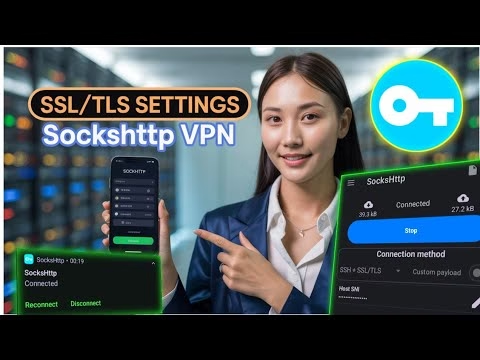
How to setup SSL TLS Settings on SOCKSHTTP VPN

Introduction
This tutorial provides a meticulous walkthrough for configuring SOCKSHTTP VPN with an SSL/TLS tunnel on your mobile device. SSL/TLS (Secure Sockets Layer/Transport Layer Security) encryption is fundamental for safeguarding data in transit, preventing eavesdropping, and ensuring data integrity. By utilizing a custom SSL server, you gain granular control over your secure connection, enhancing both privacy and performance, especially when bypassing network restrictions.
Downloading the SOCKSHTTP VPN Application
The initial step involves acquiring the SOCKSHTTP VPN application, which serves as your client for establishing the secure tunnel. Follow these instructions:
- Navigate to the Google Play Store on your Android mobile device.
- Utilize the search bar to locate “SOCKSHTTP VPN”.
- From the search results, select the official SOCKSHTTP VPN application and initiate the installation process.
- Upon successful installation, launch the application to access its primary interface.
Establishing Your Custom SSL Server via SSHSSL Tunnel
To establish an SSL/TLS tunnel, a dedicated SSL server is required. We will create one using the SSHSSL Tunnel service. This server will provide the endpoint for your encrypted connection.
- Open your preferred web browser (e.g., Chrome, Firefox) on your mobile device or desktop.
- In the browser’s search bar, enter “SSHSSL Tunnel” and navigate to its official website, typically identified by a direct domain related to the service.
- On the SSHSSL Tunnel homepage, locate the “SSL Servers” section. This may be accessible directly from the main menu on desktop or via a hamburger menu icon on mobile devices.
- Proceed to “Choose Location” to select a geographical region for your server. Proximity to your location often yields lower latency.
- You will be prompted to create your server credentials:
- Username: Define a unique username.
- Password: Set a strong, unique password.
- Complete the reCAPTCHA verification to prove you are not a bot.
- Tap “Create” to provision your SSL server.
- Once the server is provisioned (which typically takes a few seconds), meticulously copy all provided server details. These essential parameters include:
- IP Address: The public IP address of your SSL server.
- Port: The designated port for the SSL connection (commonly 443).
- Username: The username you just created.
- Password: The password you just created.
Configuring SOCKSHTTP VPN for SSL/TLS Connectivity
With your custom SSL server details in hand, the next phase involves configuring the SOCKSHTTP VPN application to utilize this secure endpoint.
Selecting the Connection Method
- Return to the SOCKSHTTP VPN application’s home screen.
- Tap on the “SSL settings” option to designate SSL/TLS as your preferred connection method.
Inputting SSH Server Details
- From the SOCKSHTTP VPN home screen, tap the three-line menu icon (often in the top-left) to reveal the sidebar.
- Select “SSH settings” from the sidebar menu.
- Carefully enter the following details, precisely as copied from your SSHSSL Tunnel server creation:
- SSH IP Address: The IP address of your SSL server.
- SSH Port: The designated port (e.g., 443).
- SSH Username: Your chosen server username.
- SSH Password: Your chosen server password.
- Confirm these entries are accurate, then tap “Save” to apply the SSH configuration.
Setting Up Server Name Indication (SNI)
Server Name Indication (SNI) is an extension to the TLS protocol that allows a client to indicate which hostname it is attempting to connect to at the start of the handshaking process. This is particularly useful for servers hosting multiple TLS certificates for different domain names on a single IP address, and can be critical for bypassing certain network restrictions.
- Return to the SOCKSHTTP VPN application’s home screen.
- Locate and tap the “pencil icon” (often used for editing settings).
- In the dedicated SNI field, input a valid SNI hostname. This hostname should typically correspond to a legitimate website that allows SSL/TLS traffic. Consult your SSHSSL Tunnel provider or community resources for recommended SNI values if specific restrictions apply to your network.
- Tap “Save” to apply the SNI configuration.
Activating and Verifying Your Secure Connection
With all configurations complete, it’s time to activate your VPN connection and verify its operational status.
Initiating the VPN Connection
- On the SOCKSHTTP VPN home screen, tap the prominent “Start” button to initiate the VPN connection process. The application will attempt to establish a secure tunnel to your configured SSL server.
Monitoring Connection Status
To ascertain if the connection was successful and for troubleshooting purposes:
- Swipe left on the application’s home screen to access the VPN logs.
- Review these logs for indicators of successful connection establishment (e.g., “Connected,” “Tunnel established”) or any error messages that can guide troubleshooting.
Confirming IP Address Change
The definitive verification of a successful VPN tunnel is a change in your public IP address, indicating that your traffic is now routing through the SSL server.
- Open a web browser on your mobile device.
- Navigate to any reputable IP address checker website (e.g., whatismyip.com, ipinfo.io, or the recommended UDP Custom mentioned in the video).
- Observe the displayed IP address. If it differs from your original public IP address (i.e., it matches the geographical location of your chosen SSL server), your secure SSL/TLS tunnel is active and fully operational.
Frequently Asked Questions (FAQ)
Q1: My SOCKSHTTP VPN is not connecting. What are the common troubleshooting steps?
A1: Connection failures can stem from several issues:
- Verify Credentials: Double-check the SSH IP address, port, username, and password entered in the SOCKSHTTP VPN app against the details provided by SSHSSL Tunnel. Even a minor typo can prevent connection.
- Check Server Status: Confirm that your created SSL server on SSHSSL Tunnel is active and not expired. Free servers often have limited lifespans.
- Network Connectivity: Ensure your mobile device has a stable internet connection before attempting to connect the VPN.
- SNI Configuration: If your network employs deep packet inspection, an incorrect or missing SNI can cause issues. Ensure you’ve entered a valid SNI (e.g., a well-known domain like
www.google.comorcdn.cloudflare.com, or one recommended by your server provider). - App Permissions: Ensure SOCKSHTTP VPN has all necessary permissions, including permission to create VPN connections.
- Logs Review: Examine the VPN logs within the SOCKSHTTP VPN app for specific error messages that can pinpoint the problem.
Q2: Why is my internet speed slow after connecting the VPN?
A2: Several factors can contribute to reduced speeds when using a VPN:
- Server Distance: The further your physical location is from the chosen SSL server, the higher the latency and potentially lower speeds. Try selecting a server closer to you.
- Server Load: Shared free SSL servers can become overloaded with too many users, impacting performance. If possible, try connecting to a different server location or a less congested server.
- Encryption Overhead: SSL/TLS encryption adds a small overhead, which can slightly reduce speeds. However, this is usually negligible on modern devices and networks.
- Network Congestion: Your local network or ISP might be experiencing congestion, affecting your baseline internet speed.
Q3: What is the purpose of the SSHSSL Tunnel and why can’t I just use SOCKSHTTP VPN alone?
A3: SOCKSHTTP VPN functions as a client application capable of tunneling various protocols, including SOCKS and HTTP proxies. To achieve SSL/TLS encryption, it requires an endpoint server configured to accept such secure connections. The SSHSSL Tunnel service provides this critical component: a custom-configured server that routes your traffic through an SSH (Secure Shell) tunnel, which is then encapsulated within SSL/TLS. This multi-layered approach ensures your data is encrypted from your device to the server, and the SSL/TLS outer layer helps in bypassing network restrictions that might block standard VPN protocols or even raw SSH connections. Without a properly configured SSL server, SOCKSHTTP VPN would lack the necessary secure endpoint to establish an encrypted tunnel.
Introduction
This tutorial provides a meticulous walkthrough for configuring SOCKSHTTP VPN with an SSL/TLS tunnel on your mobile device. SSL/TLS (Secure Sockets Layer/Transport Layer Security) encryption is fundamental for safeguarding data in transit, preventing eavesdropping, and ensuring data integrity. By utilizing a custom SSL server, you gain granular control over your secure connection, enhancing both privacy and performance, especially when bypassing network restrictions.
Downloading the SOCKSHTTP VPN Application
The initial step involves acquiring the SOCKSHTTP VPN application, which serves as your client for establishing the secure tunnel. Follow these instructions:
- Navigate to the Google Play Store on your Android mobile device.
- Utilize the search bar to locate “SOCKSHTTP VPN”.
- From the search results, select the official SOCKSHTTP VPN application and initiate the installation process.
- Upon successful installation, launch the application to access its primary interface.
Establishing Your Custom SSL Server via SSHSSL Tunnel
To establish an SSL/TLS tunnel, a dedicated SSL server is required. We will create one using the SSHSSL Tunnel service. This server will provide the endpoint for your encrypted connection.
- Open your preferred web browser (e.g., Chrome, Firefox) on your mobile device or desktop.
- In the browser’s search bar, enter “SSHSSL Tunnel” and navigate to its official website, typically identified by a direct domain related to the service.
- On the SSHSSL Tunnel homepage, locate the “SSL Servers” section. This may be accessible directly from the main menu on desktop or via a hamburger menu icon on mobile devices.
- Proceed to “Choose Location” to select a geographical region for your server. Proximity to your location often yields lower latency.
- You will be prompted to create your server credentials:
- Username: Define a unique username.
- Password: Set a strong, unique password.
- Complete the reCAPTCHA verification to prove you are not a bot.
- Tap “Create” to provision your SSL server.
- Once the server is provisioned (which typically takes a few seconds), meticulously copy all provided server details. These essential parameters include:
- IP Address: The public IP address of your SSL server.
- Port: The designated port for the SSL connection (commonly 443).
- Username: The username you just created.
- Password: The password you just created.
Configuring SOCKSHTTP VPN for SSL/TLS Connectivity
With your custom SSL server details in hand, the next phase involves configuring the SOCKSHTTP VPN application to utilize this secure endpoint.
Selecting the Connection Method
- Return to the SOCKSHTTP VPN application’s home screen.
- Tap on the “SSL settings” option to designate SSL/TLS as your preferred connection method.
Inputting SSH Server Details
- From the SOCKSHTTP VPN home screen, tap the three-line menu icon (often in the top-left) to reveal the sidebar.
- Select “SSH settings” from the sidebar menu.
- Carefully enter the following details, precisely as copied from your SSHSSL Tunnel server creation:
- SSH IP Address: The IP address of your SSL server.
- SSH Port: The designated port (e.g., 443).
- SSH Username: Your chosen server username.
- SSH Password: Your chosen server password.
- Confirm these entries are accurate, then tap “Save” to apply the SSH configuration.
Setting Up Server Name Indication (SNI)
Server Name Indication (SNI) is an extension to the TLS protocol that allows a client to indicate which hostname it is attempting to connect to at the start of the handshaking process. This is particularly useful for servers hosting multiple TLS certificates for different domain names on a single IP address, and can be critical for bypassing certain network restrictions.
- Return to the SOCKSHTTP VPN application’s home screen.
- Locate and tap the “pencil icon” (often used for editing settings).
- In the dedicated SNI field, input a valid SNI hostname. This hostname should typically correspond to a legitimate website that allows SSL/TLS traffic. Consult your SSHSSL Tunnel provider or community resources for recommended SNI values if specific restrictions apply to your network.
- Tap “Save” to apply the SNI configuration.
Activating and Verifying Your Secure Connection
With all configurations complete, it’s time to activate your VPN connection and verify its operational status.
Initiating the VPN Connection
- On the SOCKSHTTP VPN home screen, tap the prominent “Start” button to initiate the VPN connection process. The application will attempt to establish a secure tunnel to your configured SSL server.
Monitoring Connection Status
To ascertain if the connection was successful and for troubleshooting purposes:
- Swipe left on the application’s home screen to access the VPN logs.
- Review these logs for indicators of successful connection establishment (e.g., “Connected,” “Tunnel established”) or any error messages that can guide troubleshooting.
Confirming IP Address Change
The definitive verification of a successful VPN tunnel is a change in your public IP address, indicating that your traffic is now routing through the SSL server.
- Open a web browser on your mobile device.
- Navigate to any reputable IP address checker website (e.g., whatismyip.com, ipinfo.io, or the recommended UDP Custom mentioned in the video).
- Observe the displayed IP address. If it differs from your original public IP address (i.e., it matches the geographical location of your chosen SSL server), your secure SSL/TLS tunnel is active and fully operational.
Frequently Asked Questions (FAQ)
Q1: My SOCKSHTTP VPN is not connecting. What are the common troubleshooting steps?
A1: Connection failures can stem from several issues:
- Verify Credentials: Double-check the SSH IP address, port, username, and password entered in the SOCKSHTTP VPN app against the details provided by SSHSSL Tunnel. Even a minor typo can prevent connection.
- Check Server Status: Confirm that your created SSL server on SSHSSL Tunnel is active and not expired. Free servers often have limited lifespans.
- Network Connectivity: Ensure your mobile device has a stable internet connection before attempting to connect the VPN.
- SNI Configuration: If your network employs deep packet inspection, an incorrect or missing SNI can cause issues. Ensure you’ve entered a valid SNI (e.g., a well-known domain like
www.google.comorcdn.cloudflare.com, or one recommended by your server provider). - App Permissions: Ensure SOCKSHTTP VPN has all necessary permissions, including permission to create VPN connections.
- Logs Review: Examine the VPN logs within the SOCKSHTTP VPN app for specific error messages that can pinpoint the problem.
Q2: Why is my internet speed slow after connecting the VPN?
A2: Several factors can contribute to reduced speeds when using a VPN:
- Server Distance: The further your physical location is from the chosen SSL server, the higher the latency and potentially lower speeds. Try selecting a server closer to you.
- Server Load: Shared free SSL servers can become overloaded with too many users, impacting performance. If possible, try connecting to a different server location or a less congested server.
- Encryption Overhead: SSL/TLS encryption adds a small overhead, which can slightly reduce speeds. However, this is usually negligible on modern devices and networks.
- Network Congestion: Your local network or ISP might be experiencing congestion, affecting your baseline internet speed.
Q3: What is the purpose of the SSHSSL Tunnel and why can’t I just use SOCKSHTTP VPN alone?
A3: SOCKSHTTP VPN functions as a client application capable of tunneling various protocols, including SOCKS and HTTP proxies. To achieve SSL/TLS encryption, it requires an endpoint server configured to accept such secure connections. The SSHSSL Tunnel service provides this critical component: a custom-configured server that routes your traffic through an SSH (Secure Shell) tunnel, which is then encapsulated within SSL/TLS. This multi-layered approach ensures your data is encrypted from your device to the server, and the SSL/TLS outer layer helps in bypassing network restrictions that might block standard VPN protocols or even raw SSH connections. Without a properly configured SSL server, SOCKSHTTP VPN would lack the necessary secure endpoint to establish an encrypted tunnel.
Introduction
This tutorial provides a meticulous walkthrough for configuring SOCKSHTTP VPN with an SSL/TLS tunnel on your mobile device. SSL/TLS (Secure Sockets Layer/Transport Layer Security) encryption is fundamental for safeguarding data in transit, preventing eavesdropping, and ensuring data integrity. By utilizing a custom SSL server, you gain granular control over your secure connection, enhancing both privacy and performance, especially when bypassing network restrictions.
Downloading the SOCKSHTTP VPN Application
The initial step involves acquiring the SOCKSHTTP VPN application, which serves as your client for establishing the secure tunnel. Follow these instructions:
- Navigate to the Google Play Store on your Android mobile device.
- Utilize the search bar to locate “SOCKSHTTP VPN”.
- From the search results, select the official SOCKSHTTP VPN application and initiate the installation process.
- Upon successful installation, launch the application to access its primary interface.
Establishing Your Custom SSL Server via SSHSSL Tunnel
To establish an SSL/TLS tunnel, a dedicated SSL server is required. We will create one using the SSHSSL Tunnel service. This server will provide the endpoint for your encrypted connection.
- Open your preferred web browser (e.g., Chrome, Firefox) on your mobile device or desktop.
- In the browser’s search bar, enter “SSHSSL Tunnel” and navigate to its official website, typically identified by a direct domain related to the service.
- On the SSHSSL Tunnel homepage, locate the “SSL Servers” section. This may be accessible directly from the main menu on desktop or via a hamburger menu icon on mobile devices.
- Proceed to “Choose Location” to select a geographical region for your server. Proximity to your location often yields lower latency.
- You will be prompted to create your server credentials:
- Username: Define a unique username.
- Password: Set a strong, unique password.
- Complete the reCAPTCHA verification to prove you are not a bot.
- Tap “Create” to provision your SSL server.
- Once the server is provisioned (which typically takes a few seconds), meticulously copy all provided server details. These essential parameters include:
- IP Address: The public IP address of your SSL server.
- Port: The designated port for the SSL connection (commonly 443).
- Username: The username you just created.
- Password: The password you just created.
Configuring SOCKSHTTP VPN for SSL/TLS Connectivity
With your custom SSL server details in hand, the next phase involves configuring the SOCKSHTTP VPN application to utilize this secure endpoint.
Selecting the Connection Method
- Return to the SOCKSHTTP VPN application’s home screen.
- Tap on the “SSL settings” option to designate SSL/TLS as your preferred connection method.
Inputting SSH Server Details
- From the SOCKSHTTP VPN home screen, tap the three-line menu icon (often in the top-left) to reveal the sidebar.
- Select “SSH settings” from the sidebar menu.
- Carefully enter the following details, precisely as copied from your SSHSSL Tunnel server creation:
- SSH IP Address: The IP address of your SSL server.
- SSH Port: The designated port (e.g., 443).
- SSH Username: Your chosen server username.
- SSH Password: Your chosen server password.
- Confirm these entries are accurate, then tap “Save” to apply the SSH configuration.
Setting Up Server Name Indication (SNI)
Server Name Indication (SNI) is an extension to the TLS protocol that allows a client to indicate which hostname it is attempting to connect to at the start of the handshaking process. This is particularly useful for servers hosting multiple TLS certificates for different domain names on a single IP address, and can be critical for bypassing certain network restrictions.
- Return to the SOCKSHTTP VPN application’s home screen.
- Locate and tap the “pencil icon” (often used for editing settings).
- In the dedicated SNI field, input a valid SNI hostname. This hostname should typically correspond to a legitimate website that allows SSL/TLS traffic. Consult your SSHSSL Tunnel provider or community resources for recommended SNI values if specific restrictions apply to your network.
- Tap “Save” to apply the SNI configuration.
Activating and Verifying Your Secure Connection
With all configurations complete, it’s time to activate your VPN connection and verify its operational status.
Initiating the VPN Connection
- On the SOCKSHTTP VPN home screen, tap the prominent “Start” button to initiate the VPN connection process. The application will attempt to establish a secure tunnel to your configured SSL server.
Monitoring Connection Status
To ascertain if the connection was successful and for troubleshooting purposes:
- Swipe left on the application’s home screen to access the VPN logs.
- Review these logs for indicators of successful connection establishment (e.g., “Connected,” “Tunnel established”) or any error messages that can guide troubleshooting.
Confirming IP Address Change
The definitive verification of a successful VPN tunnel is a change in your public IP address, indicating that your traffic is now routing through the SSL server.
- Open a web browser on your mobile device.
- Navigate to any reputable IP address checker website (e.g., whatismyip.com, ipinfo.io, or the recommended UDP Custom mentioned in the video).
- Observe the displayed IP address. If it differs from your original public IP address (i.e., it matches the geographical location of your chosen SSL server), your secure SSL/TLS tunnel is active and fully operational.
Frequently Asked Questions (FAQ)
Q1: My SOCKSHTTP VPN is not connecting. What are the common troubleshooting steps?
A1: Connection failures can stem from several issues:
- Verify Credentials: Double-check the SSH IP address, port, username, and password entered in the SOCKSHTTP VPN app against the details provided by SSHSSL Tunnel. Even a minor typo can prevent connection.
- Check Server Status: Confirm that your created SSL server on SSHSSL Tunnel is active and not expired. Free servers often have limited lifespans.
- Network Connectivity: Ensure your mobile device has a stable internet connection before attempting to connect the VPN.
- SNI Configuration: If your network employs deep packet inspection, an incorrect or missing SNI can cause issues. Ensure you’ve entered a valid SNI (e.g., a well-known domain like
www.google.comorcdn.cloudflare.com, or one recommended by your server provider). - App Permissions: Ensure SOCKSHTTP VPN has all necessary permissions, including permission to create VPN connections.
- Logs Review: Examine the VPN logs within the SOCKSHTTP VPN app for specific error messages that can pinpoint the problem.
Q2: Why is my internet speed slow after connecting the VPN?
A2: Several factors can contribute to reduced speeds when using a VPN:
- Server Distance: The further your physical location is from the chosen SSL server, the higher the latency and potentially lower speeds. Try selecting a server closer to you.
- Server Load: Shared free SSL servers can become overloaded with too many users, impacting performance. If possible, try connecting to a different server location or a less congested server.
- Encryption Overhead: SSL/TLS encryption adds a small overhead, which can slightly reduce speeds. However, this is usually negligible on modern devices and networks.
- Network Congestion: Your local network or ISP might be experiencing congestion, affecting your baseline internet speed.
Q3: What is the purpose of the SSHSSL Tunnel and why can’t I just use SOCKSHTTP VPN alone?
A3: SOCKSHTTP VPN functions as a client application capable of tunneling various protocols, including SOCKS and HTTP proxies. To achieve SSL/TLS encryption, it requires an endpoint server configured to accept such secure connections. The SSHSSL Tunnel service provides this critical component: a custom-configured server that routes your traffic through an SSH (Secure Shell) tunnel, which is then encapsulated within SSL/TLS. This multi-layered approach ensures your data is encrypted from your device to the server, and the SSL/TLS outer layer helps in bypassing network restrictions that might block standard VPN protocols or even raw SSH connections. Without a properly configured SSL server, SOCKSHTTP VPN would lack the necessary secure endpoint to establish an encrypted tunnel.
Introduction
This tutorial provides a meticulous walkthrough for configuring SOCKSHTTP VPN with an SSL/TLS tunnel on your mobile device. SSL/TLS (Secure Sockets Layer/Transport Layer Security) encryption is fundamental for safeguarding data in transit, preventing eavesdropping, and ensuring data integrity. By utilizing a custom SSL server, you gain granular control over your secure connection, enhancing both privacy and performance, especially when bypassing network restrictions.
Downloading the SOCKSHTTP VPN Application
The initial step involves acquiring the SOCKSHTTP VPN application, which serves as your client for establishing the secure tunnel. Follow these instructions:
- Navigate to the Google Play Store on your Android mobile device.
- Utilize the search bar to locate “SOCKSHTTP VPN”.
- From the search results, select the official SOCKSHTTP VPN application and initiate the installation process.
- Upon successful installation, launch the application to access its primary interface.
Establishing Your Custom SSL Server via SSHSSL Tunnel
To establish an SSL/TLS tunnel, a dedicated SSL server is required. We will create one using the SSHSSL Tunnel service. This server will provide the endpoint for your encrypted connection.
- Open your preferred web browser (e.g., Chrome, Firefox) on your mobile device or desktop.
- In the browser’s search bar, enter “SSHSSL Tunnel” and navigate to its official website, typically identified by a direct domain related to the service.
- On the SSHSSL Tunnel homepage, locate the “SSL Servers” section. This may be accessible directly from the main menu on desktop or via a hamburger menu icon on mobile devices.
- Proceed to “Choose Location” to select a geographical region for your server. Proximity to your location often yields lower latency.
- You will be prompted to create your server credentials:
- Username: Define a unique username.
- Password: Set a strong, unique password.
- Complete the reCAPTCHA verification to prove you are not a bot.
- Tap “Create” to provision your SSL server.
- Once the server is provisioned (which typically takes a few seconds), meticulously copy all provided server details. These essential parameters include:
- IP Address: The public IP address of your SSL server.
- Port: The designated port for the SSL connection (commonly 443).
- Username: The username you just created.
- Password: The password you just created.
Configuring SOCKSHTTP VPN for SSL/TLS Connectivity
With your custom SSL server details in hand, the next phase involves configuring the SOCKSHTTP VPN application to utilize this secure endpoint.
Selecting the Connection Method
- Return to the SOCKSHTTP VPN application’s home screen.
- Tap on the “SSL settings” option to designate SSL/TLS as your preferred connection method.
Inputting SSH Server Details
- From the SOCKSHTTP VPN home screen, tap the three-line menu icon (often in the top-left) to reveal the sidebar.
- Select “SSH settings” from the sidebar menu.
- Carefully enter the following details, precisely as copied from your SSHSSL Tunnel server creation:
- SSH IP Address: The IP address of your SSL server.
- SSH Port: The designated port (e.g., 443).
- SSH Username: Your chosen server username.
- SSH Password: Your chosen server password.
- Confirm these entries are accurate, then tap “Save” to apply the SSH configuration.
Setting Up Server Name Indication (SNI)
Server Name Indication (SNI) is an extension to the TLS protocol that allows a client to indicate which hostname it is attempting to connect to at the start of the handshaking process. This is particularly useful for servers hosting multiple TLS certificates for different domain names on a single IP address, and can be critical for bypassing certain network restrictions.
- Return to the SOCKSHTTP VPN application’s home screen.
- Locate and tap the “pencil icon” (often used for editing settings).
- In the dedicated SNI field, input a valid SNI hostname. This hostname should typically correspond to a legitimate website that allows SSL/TLS traffic. Consult your SSHSSL Tunnel provider or community resources for recommended SNI values if specific restrictions apply to your network.
- Tap “Save” to apply the SNI configuration.
Activating and Verifying Your Secure Connection
With all configurations complete, it’s time to activate your VPN connection and verify its operational status.
Initiating the VPN Connection
- On the SOCKSHTTP VPN home screen, tap the prominent “Start” button to initiate the VPN connection process. The application will attempt to establish a secure tunnel to your configured SSL server.
Monitoring Connection Status
To ascertain if the connection was successful and for troubleshooting purposes:
- Swipe left on the application’s home screen to access the VPN logs.
- Review these logs for indicators of successful connection establishment (e.g., “Connected,” “Tunnel established”) or any error messages that can guide troubleshooting.
Confirming IP Address Change
The definitive verification of a successful VPN tunnel is a change in your public IP address, indicating that your traffic is now routing through the SSL server.
- Open a web browser on your mobile device.
- Navigate to any reputable IP address checker website (e.g., whatismyip.com, ipinfo.io, or the recommended UDP Custom mentioned in the video).
- Observe the displayed IP address. If it differs from your original public IP address (i.e., it matches the geographical location of your chosen SSL server), your secure SSL/TLS tunnel is active and fully operational.
Frequently Asked Questions (FAQ)
Q1: My SOCKSHTTP VPN is not connecting. What are the common troubleshooting steps?
A1: Connection failures can stem from several issues:
- Verify Credentials: Double-check the SSH IP address, port, username, and password entered in the SOCKSHTTP VPN app against the details provided by SSHSSL Tunnel. Even a minor typo can prevent connection.
- Check Server Status: Confirm that your created SSL server on SSHSSL Tunnel is active and not expired. Free servers often have limited lifespans.
- Network Connectivity: Ensure your mobile device has a stable internet connection before attempting to connect the VPN.
- SNI Configuration: If your network employs deep packet inspection, an incorrect or missing SNI can cause issues. Ensure you’ve entered a valid SNI (e.g., a well-known domain like
www.google.comorcdn.cloudflare.com, or one recommended by your server provider). - App Permissions: Ensure SOCKSHTTP VPN has all necessary permissions, including permission to create VPN connections.
- Logs Review: Examine the VPN logs within the SOCKSHTTP VPN app for specific error messages that can pinpoint the problem.
Q2: Why is my internet speed slow after connecting the VPN?
A2: Several factors can contribute to reduced speeds when using a VPN:
- Server Distance: The further your physical location is from the chosen SSL server, the higher the latency and potentially lower speeds. Try selecting a server closer to you.
- Server Load: Shared free SSL servers can become overloaded with too many users, impacting performance. If possible, try connecting to a different server location or a less congested server.
- Encryption Overhead: SSL/TLS encryption adds a small overhead, which can slightly reduce speeds. However, this is usually negligible on modern devices and networks.
- Network Congestion: Your local network or ISP might be experiencing congestion, affecting your baseline internet speed.
Q3: What is the purpose of the SSHSSL Tunnel and why can’t I just use SOCKSHTTP VPN alone?
A3: SOCKSHTTP VPN functions as a client application capable of tunneling various protocols, including SOCKS and HTTP proxies. To achieve SSL/TLS encryption, it requires an endpoint server configured to accept such secure connections. The SSHSSL Tunnel service provides this critical component: a custom-configured server that routes your traffic through an SSH (Secure Shell) tunnel, which is then encapsulated within SSL/TLS. This multi-layered approach ensures your data is encrypted from your device to the server, and the SSL/TLS outer layer helps in bypassing network restrictions that might block standard VPN protocols or even raw SSH connections. Without a properly configured SSL server, SOCKSHTTP VPN would lack the necessary secure endpoint to establish an encrypted tunnel.
- Introduction
- Downloading the SOCKSHTTP VPN Application
- Establishing Your Custom SSL Server via SSHSSL Tunnel
- Configuring SOCKSHTTP VPN for SSL/TLS Connectivity
- Activating and Verifying Your Secure Connection
- Frequently Asked Questions (FAQ)
Introduction
This tutorial provides a meticulous walkthrough for configuring SOCKSHTTP VPN with an SSL/TLS tunnel on your mobile device. SSL/TLS (Secure Sockets Layer/Transport Layer Security) encryption is fundamental for safeguarding data in transit, preventing eavesdropping, and ensuring data integrity. By utilizing a custom SSL server, you gain granular control over your secure connection, enhancing both privacy and performance, especially when bypassing network restrictions.
Downloading the SOCKSHTTP VPN Application
The initial step involves acquiring the SOCKSHTTP VPN application, which serves as your client for establishing the secure tunnel. Follow these instructions:
- Navigate to the Google Play Store on your Android mobile device.
- Utilize the search bar to locate “SOCKSHTTP VPN”.
- From the search results, select the official SOCKSHTTP VPN application and initiate the installation process.
- Upon successful installation, launch the application to access its primary interface.
Establishing Your Custom SSL Server via SSHSSL Tunnel
To establish an SSL/TLS tunnel, a dedicated SSL server is required. We will create one using the SSHSSL Tunnel service. This server will provide the endpoint for your encrypted connection.
- Open your preferred web browser (e.g., Chrome, Firefox) on your mobile device or desktop.
- In the browser’s search bar, enter “SSHSSL Tunnel” and navigate to its official website, typically identified by a direct domain related to the service.
- On the SSHSSL Tunnel homepage, locate the “SSL Servers” section. This may be accessible directly from the main menu on desktop or via a hamburger menu icon on mobile devices.
- Proceed to “Choose Location” to select a geographical region for your server. Proximity to your location often yields lower latency.
- You will be prompted to create your server credentials:
- Username: Define a unique username.
- Password: Set a strong, unique password.
- Complete the reCAPTCHA verification to prove you are not a bot.
- Tap “Create” to provision your SSL server.
- Once the server is provisioned (which typically takes a few seconds), meticulously copy all provided server details. These essential parameters include:
- IP Address: The public IP address of your SSL server.
- Port: The designated port for the SSL connection (commonly 443).
- Username: The username you just created.
- Password: The password you just created.
Configuring SOCKSHTTP VPN for SSL/TLS Connectivity
With your custom SSL server details in hand, the next phase involves configuring the SOCKSHTTP VPN application to utilize this secure endpoint.
Selecting the Connection Method
- Return to the SOCKSHTTP VPN application’s home screen.
- Tap on the “SSL settings” option to designate SSL/TLS as your preferred connection method.
Inputting SSH Server Details
- From the SOCKSHTTP VPN home screen, tap the three-line menu icon (often in the top-left) to reveal the sidebar.
- Select “SSH settings” from the sidebar menu.
- Carefully enter the following details, precisely as copied from your SSHSSL Tunnel server creation:
- SSH IP Address: The IP address of your SSL server.
- SSH Port: The designated port (e.g., 443).
- SSH Username: Your chosen server username.
- SSH Password: Your chosen server password.
- Confirm these entries are accurate, then tap “Save” to apply the SSH configuration.
Setting Up Server Name Indication (SNI)
Server Name Indication (SNI) is an extension to the TLS protocol that allows a client to indicate which hostname it is attempting to connect to at the start of the handshaking process. This is particularly useful for servers hosting multiple TLS certificates for different domain names on a single IP address, and can be critical for bypassing certain network restrictions.
- Return to the SOCKSHTTP VPN application’s home screen.
- Locate and tap the “pencil icon” (often used for editing settings).
- In the dedicated SNI field, input a valid SNI hostname. This hostname should typically correspond to a legitimate website that allows SSL/TLS traffic. Consult your SSHSSL Tunnel provider or community resources for recommended SNI values if specific restrictions apply to your network.
- Tap “Save” to apply the SNI configuration.
Activating and Verifying Your Secure Connection
With all configurations complete, it’s time to activate your VPN connection and verify its operational status.
Initiating the VPN Connection
- On the SOCKSHTTP VPN home screen, tap the prominent “Start” button to initiate the VPN connection process. The application will attempt to establish a secure tunnel to your configured SSL server.
Monitoring Connection Status
To ascertain if the connection was successful and for troubleshooting purposes:
- Swipe left on the application’s home screen to access the VPN logs.
- Review these logs for indicators of successful connection establishment (e.g., “Connected,” “Tunnel established”) or any error messages that can guide troubleshooting.
Confirming IP Address Change
The definitive verification of a successful VPN tunnel is a change in your public IP address, indicating that your traffic is now routing through the SSL server.
- Open a web browser on your mobile device.
- Navigate to any reputable IP address checker website (e.g., whatismyip.com, ipinfo.io, or the recommended UDP Custom mentioned in the video).
- Observe the displayed IP address. If it differs from your original public IP address (i.e., it matches the geographical location of your chosen SSL server), your secure SSL/TLS tunnel is active and fully operational.
Frequently Asked Questions (FAQ)
Q1: My SOCKSHTTP VPN is not connecting. What are the common troubleshooting steps?
A1: Connection failures can stem from several issues:
- Verify Credentials: Double-check the SSH IP address, port, username, and password entered in the SOCKSHTTP VPN app against the details provided by SSHSSL Tunnel. Even a minor typo can prevent connection.
- Check Server Status: Confirm that your created SSL server on SSHSSL Tunnel is active and not expired. Free servers often have limited lifespans.
- Network Connectivity: Ensure your mobile device has a stable internet connection before attempting to connect the VPN.
- SNI Configuration: If your network employs deep packet inspection, an incorrect or missing SNI can cause issues. Ensure you’ve entered a valid SNI (e.g., a well-known domain like
www.google.comorcdn.cloudflare.com, or one recommended by your server provider). - App Permissions: Ensure SOCKSHTTP VPN has all necessary permissions, including permission to create VPN connections.
- Logs Review: Examine the VPN logs within the SOCKSHTTP VPN app for specific error messages that can pinpoint the problem.
Q2: Why is my internet speed slow after connecting the VPN?
A2: Several factors can contribute to reduced speeds when using a VPN:
- Server Distance: The further your physical location is from the chosen SSL server, the higher the latency and potentially lower speeds. Try selecting a server closer to you.
- Server Load: Shared free SSL servers can become overloaded with too many users, impacting performance. If possible, try connecting to a different server location or a less congested server.
- Encryption Overhead: SSL/TLS encryption adds a small overhead, which can slightly reduce speeds. However, this is usually negligible on modern devices and networks.
- Network Congestion: Your local network or ISP might be experiencing congestion, affecting your baseline internet speed.
Q3: What is the purpose of the SSHSSL Tunnel and why can’t I just use SOCKSHTTP VPN alone?
A3: SOCKSHTTP VPN functions as a client application capable of tunneling various protocols, including SOCKS and HTTP proxies. To achieve SSL/TLS encryption, it requires an endpoint server configured to accept such secure connections. The SSHSSL Tunnel service provides this critical component: a custom-configured server that routes your traffic through an SSH (Secure Shell) tunnel, which is then encapsulated within SSL/TLS. This multi-layered approach ensures your data is encrypted from your device to the server, and the SSL/TLS outer layer helps in bypassing network restrictions that might block standard VPN protocols or even raw SSH connections. Without a properly configured SSL server, SOCKSHTTP VPN would lack the necessary secure endpoint to establish an encrypted tunnel.
In an increasingly interconnected world, ensuring your mobile browsing remains private and secure is paramount. Navigating online without robust encryption can expose your data to interception, bypass geo-restrictions, and enhance your digital privacy. This comprehensive guide, crafted for network administrators and advanced users, details the precise steps to configure SSL/TLS tunneling using the SOCKSHTTP VPN application, leveraging a custom SSL server for optimal security and performance.
Table of Contents
- Introduction
- Downloading the SOCKSHTTP VPN Application
- Establishing Your Custom SSL Server via SSHSSL Tunnel
- Configuring SOCKSHTTP VPN for SSL/TLS Connectivity
- Activating and Verifying Your Secure Connection
- Frequently Asked Questions (FAQ)
Introduction
This tutorial provides a meticulous walkthrough for configuring SOCKSHTTP VPN with an SSL/TLS tunnel on your mobile device. SSL/TLS (Secure Sockets Layer/Transport Layer Security) encryption is fundamental for safeguarding data in transit, preventing eavesdropping, and ensuring data integrity. By utilizing a custom SSL server, you gain granular control over your secure connection, enhancing both privacy and performance, especially when bypassing network restrictions.
Downloading the SOCKSHTTP VPN Application
The initial step involves acquiring the SOCKSHTTP VPN application, which serves as your client for establishing the secure tunnel. Follow these instructions:
- Navigate to the Google Play Store on your Android mobile device.
- Utilize the search bar to locate “SOCKSHTTP VPN”.
- From the search results, select the official SOCKSHTTP VPN application and initiate the installation process.
- Upon successful installation, launch the application to access its primary interface.
Establishing Your Custom SSL Server via SSHSSL Tunnel
To establish an SSL/TLS tunnel, a dedicated SSL server is required. We will create one using the SSHSSL Tunnel service. This server will provide the endpoint for your encrypted connection.
- Open your preferred web browser (e.g., Chrome, Firefox) on your mobile device or desktop.
- In the browser’s search bar, enter “SSHSSL Tunnel” and navigate to its official website, typically identified by a direct domain related to the service.
- On the SSHSSL Tunnel homepage, locate the “SSL Servers” section. This may be accessible directly from the main menu on desktop or via a hamburger menu icon on mobile devices.
- Proceed to “Choose Location” to select a geographical region for your server. Proximity to your location often yields lower latency.
- You will be prompted to create your server credentials:
- Username: Define a unique username.
- Password: Set a strong, unique password.
- Complete the reCAPTCHA verification to prove you are not a bot.
- Tap “Create” to provision your SSL server.
- Once the server is provisioned (which typically takes a few seconds), meticulously copy all provided server details. These essential parameters include:
- IP Address: The public IP address of your SSL server.
- Port: The designated port for the SSL connection (commonly 443).
- Username: The username you just created.
- Password: The password you just created.
Configuring SOCKSHTTP VPN for SSL/TLS Connectivity
With your custom SSL server details in hand, the next phase involves configuring the SOCKSHTTP VPN application to utilize this secure endpoint.
Selecting the Connection Method
- Return to the SOCKSHTTP VPN application’s home screen.
- Tap on the “SSL settings” option to designate SSL/TLS as your preferred connection method.
Inputting SSH Server Details
- From the SOCKSHTTP VPN home screen, tap the three-line menu icon (often in the top-left) to reveal the sidebar.
- Select “SSH settings” from the sidebar menu.
- Carefully enter the following details, precisely as copied from your SSHSSL Tunnel server creation:
- SSH IP Address: The IP address of your SSL server.
- SSH Port: The designated port (e.g., 443).
- SSH Username: Your chosen server username.
- SSH Password: Your chosen server password.
- Confirm these entries are accurate, then tap “Save” to apply the SSH configuration.
Setting Up Server Name Indication (SNI)
Server Name Indication (SNI) is an extension to the TLS protocol that allows a client to indicate which hostname it is attempting to connect to at the start of the handshaking process. This is particularly useful for servers hosting multiple TLS certificates for different domain names on a single IP address, and can be critical for bypassing certain network restrictions.
- Return to the SOCKSHTTP VPN application’s home screen.
- Locate and tap the “pencil icon” (often used for editing settings).
- In the dedicated SNI field, input a valid SNI hostname. This hostname should typically correspond to a legitimate website that allows SSL/TLS traffic. Consult your SSHSSL Tunnel provider or community resources for recommended SNI values if specific restrictions apply to your network.
- Tap “Save” to apply the SNI configuration.
Activating and Verifying Your Secure Connection
With all configurations complete, it’s time to activate your VPN connection and verify its operational status.
Initiating the VPN Connection
- On the SOCKSHTTP VPN home screen, tap the prominent “Start” button to initiate the VPN connection process. The application will attempt to establish a secure tunnel to your configured SSL server.
Monitoring Connection Status
To ascertain if the connection was successful and for troubleshooting purposes:
- Swipe left on the application’s home screen to access the VPN logs.
- Review these logs for indicators of successful connection establishment (e.g., “Connected,” “Tunnel established”) or any error messages that can guide troubleshooting.
Confirming IP Address Change
The definitive verification of a successful VPN tunnel is a change in your public IP address, indicating that your traffic is now routing through the SSL server.
- Open a web browser on your mobile device.
- Navigate to any reputable IP address checker website (e.g., whatismyip.com, ipinfo.io, or the recommended UDP Custom mentioned in the video).
- Observe the displayed IP address. If it differs from your original public IP address (i.e., it matches the geographical location of your chosen SSL server), your secure SSL/TLS tunnel is active and fully operational.
Frequently Asked Questions (FAQ)
Q1: My SOCKSHTTP VPN is not connecting. What are the common troubleshooting steps?
A1: Connection failures can stem from several issues:
- Verify Credentials: Double-check the SSH IP address, port, username, and password entered in the SOCKSHTTP VPN app against the details provided by SSHSSL Tunnel. Even a minor typo can prevent connection.
- Check Server Status: Confirm that your created SSL server on SSHSSL Tunnel is active and not expired. Free servers often have limited lifespans.
- Network Connectivity: Ensure your mobile device has a stable internet connection before attempting to connect the VPN.
- SNI Configuration: If your network employs deep packet inspection, an incorrect or missing SNI can cause issues. Ensure you’ve entered a valid SNI (e.g., a well-known domain like
www.google.comorcdn.cloudflare.com, or one recommended by your server provider). - App Permissions: Ensure SOCKSHTTP VPN has all necessary permissions, including permission to create VPN connections.
- Logs Review: Examine the VPN logs within the SOCKSHTTP VPN app for specific error messages that can pinpoint the problem.
Q2: Why is my internet speed slow after connecting the VPN?
A2: Several factors can contribute to reduced speeds when using a VPN:
- Server Distance: The further your physical location is from the chosen SSL server, the higher the latency and potentially lower speeds. Try selecting a server closer to you.
- Server Load: Shared free SSL servers can become overloaded with too many users, impacting performance. If possible, try connecting to a different server location or a less congested server.
- Encryption Overhead: SSL/TLS encryption adds a small overhead, which can slightly reduce speeds. However, this is usually negligible on modern devices and networks.
- Network Congestion: Your local network or ISP might be experiencing congestion, affecting your baseline internet speed.
Q3: What is the purpose of the SSHSSL Tunnel and why can’t I just use SOCKSHTTP VPN alone?
A3: SOCKSHTTP VPN functions as a client application capable of tunneling various protocols, including SOCKS and HTTP proxies. To achieve SSL/TLS encryption, it requires an endpoint server configured to accept such secure connections. The SSHSSL Tunnel service provides this critical component: a custom-configured server that routes your traffic through an SSH (Secure Shell) tunnel, which is then encapsulated within SSL/TLS. This multi-layered approach ensures your data is encrypted from your device to the server, and the SSL/TLS outer layer helps in bypassing network restrictions that might block standard VPN protocols or even raw SSH connections. Without a properly configured SSL server, SOCKSHTTP VPN would lack the necessary secure endpoint to establish an encrypted tunnel.