
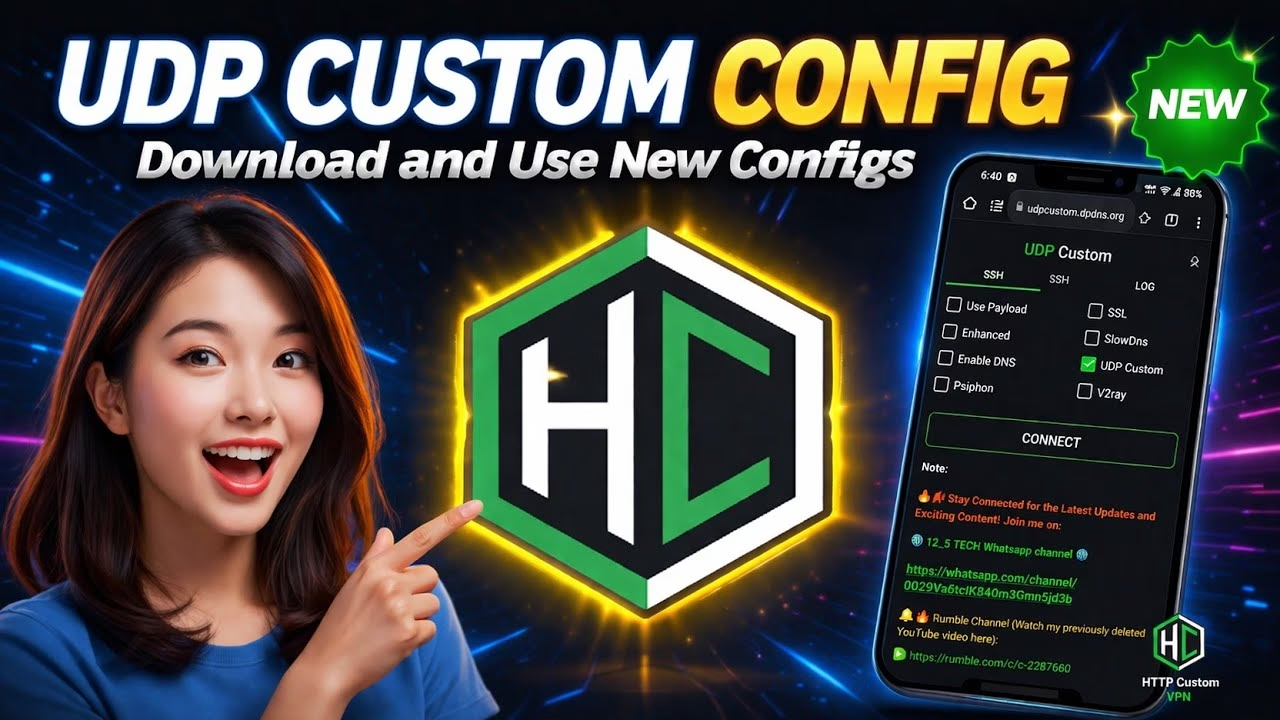
Download UDP CUSTOM Config for http custom VPN

To optimize mobile browsing speeds and bypass network restrictions, many power users turn to UDP-based tunnels. By running traffic over the User Datagram Protocol, these configurations reduce the latency associated with TCP handshakes. This tutorial provides a complete step-by-step guide on how to download the latest, verified UDP Custom configuration files from the official UDP Custom platform and successfully import them into the popular HTTP Custom VPN client on Android.
Table of Contents
- 1. What is HTTP Custom VPN and UDP Custom?
- 2. Downloading the Latest UDP Custom Config Files
- 3. Installing the HTTP Custom VPN Client
- 4. Importing the Config File into HTTP Custom
- 5. Establishing and Verifying the Connection
- 6. Advanced: Building Your Own UDP Configs
- 7. Frequently Asked Questions (FAQ)
1. What is HTTP Custom VPN and UDP Custom?
HTTP Custom VPN is an advanced SSH/VPN client for Android that supports multiple tunneling protocols, custom headers, and DNS configurations. UDP Custom is a specialized platform that hosts high-speed UDP servers and regularly compiles updated configuration files. By utilizing these custom config files inside HTTP Custom, users can bypass standard ISP port blocking, circumvent local web filtering, and enjoy low-latency browsing optimized by custom UDP tunneling protocols.
2. Downloading the Latest UDP Custom Config Files
To obtain the verified, updated server configuration files, follow these instructions:
- Open your browser (such as Google Chrome) and search for the
UDP Custom website. - Navigate to the official site: udpcustom.online. Avoid third-party mirrors to prevent downloading corrupted config files.
- Tap on the menu navigation bar on the homepage.
- Locate and tap on the UDP Custom Configs option.
- On the downloads page, click the download button and wait for the configuration file (usually with an extension like
.hc) to save to your local Downloads folder.
3. Installing the HTTP Custom VPN Client
To run the imported configuration, download the client software:
- Open the Google Play Store on your Android device.
- Search for
HTTP Custom VPNin the search bar. - Select the official application, tap **Install**, and launch the app once the installation is complete.
4. Importing the Config File into HTTP Custom
Once inside the HTTP Custom main interface, follow these steps to load the server config:
- Locate the circular **Plus (+)** button at the bottom-right corner of the dashboard and tap it.
- From the popup options list, tap **Open Config**.
- Navigate to your local file directory (usually the Downloads folder) where the downloaded configuration file is saved.
- Tap on the config file. The application will parse the payload data and load the config parameters into the interface.
5. Establishing and Verifying the Connection
With the config loaded:
- Tap the **Connect** button on the HTTP Custom dashboard.
- Allow the application VPN permission if prompted by the Android OS.
- Tap on the **Log** tab in the top navigation panel to monitor the handshake logs. Once connected successfully, the logs will show “Success” and the status will update to connected, indicating your internet routing is now encrypted and secured.
6. Advanced: Building Your Own UDP Configs
If you want to create your own configuration payloads from scratch rather than using preloaded configs, you can leverage the free servers on the UDP Custom site. Go to the **UDP Server** section on the UDP Custom homepage, fill out the account parameters (username, password), generate a new server account, and copy the IP and port. In HTTP Custom, configure these details manually in the settings panels. This allows you to customize the SNI host headers and target ports to optimize carrier performance.
7. Frequently Asked Questions (FAQ)
Q1: Why does HTTP Custom display an “Invalid Config” or parsing error on import?
A: This happens if the config file was corrupted during download, or if the config was written for an older version of HTTP Custom. Ensure you are using the newest version of the app from the Play Store, delete the corrupted file, and download the config again from the official site.
Q2: How long do the UDP Custom configs remain active?
A: The lifespan of public configuration files varies. Because servers are periodically updated or reset to maintain performance, a config file typically remains valid for 7 to 30 days. When it expires, simply visit udpcustom.online to download the newest config file.
Q3: Can I share my internet connection with other devices while HTTP Custom is active?
A: Yes. You can share your connection via mobile hotspot by navigating to the HTTP Custom menu, selecting the Share Net or Tethering options, and configuring the receiving device’s proxy IP and port to route through the HTTP Custom client.