
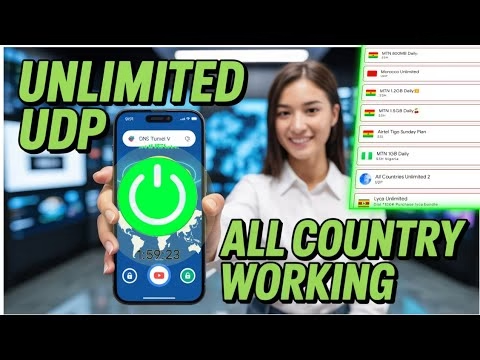
All Country Working Fast UDP VPN

Bypassing geo-restrictions and securing mobile data traffic requires lightweight, high-performance connection clients. **Smart UDP Pro** (Smart VPN) is an optimized Android client equipped with built-in UDP server nodes. Routing secure traffic over UDP sockets reduces latency, making it ideal for streaming high-definition media (such as YouTube videos) and gaming.
This technical guide details how to download Smart UDP Pro via the UDP Custom portal, select UDP nodes, and establish a stable connection.
Table of Contents
- Video Tutorial
- Step 1: Downloading Smart UDP Pro
- Step 2: Launching and VPN Permissions
- Step 3: Server Selection and Connecting
- Frequently Asked Questions & Troubleshooting
Video Tutorial
Step 1: Downloading Smart UDP Pro
To download the official application safely:
- Open your mobile web browser and navigate to the **UDP Custom** homepage.
- Tap the menu button at the top corner and select **All Country VPN**.
- Search for **Smart VPN** in the lists. Click the download link to be redirected to the official Google Play Store page.
- Tap the green **Install** button to install the Smart UDP Pro app.
Step 2: Launching and VPN Permissions
On launching the application for the first time:
- Open the **Smart UDP Pro** app.
- Accept the Android system connection request popup. Tap **OK** or **Allow** to give the app permission to build the secure VPN tunnel.
Step 3: Server Selection and Connecting
Ensure you have active mobile data or Wi-Fi. To connect to a server node:
- Tap the server selection bar labeled **Please choose your server**.
- Scroll down and select a UDP server node (e.g.
All Countries UDP). - Return to the main screen. Tap the large red **Disconnected** power button.
- The button will turn green, indicating that your VPN connection is active. You can check the logs tab to verify packet transmission. To disconnect, tap the green button again.
FAQ & Troubleshooting Guide
1. Why does my Smart UDP Pro connection fail to start?
567:Ensure you accepted the Android VPN connection request popup. If you denied it, the app cannot establish the tunnel. You can reset app permissions in your device settings or uninstall and reinstall the app to trigger the popup again.
2. Does Smart UDP Pro support custom tweaks?
567:No. Smart UDP Pro is designed to be simple and user-friendly, relying on its built-in server database and standard UDP protocol connection rules. It does not require importing custom payloads or tweaks.
3. How do I verify my latency is low enough for gaming?
567:Check the pings next to the server names in the server dropdown menu. Selecting server nodes located in adjacent geographic regions minimizes latency, ensuring faster response times for gaming.