
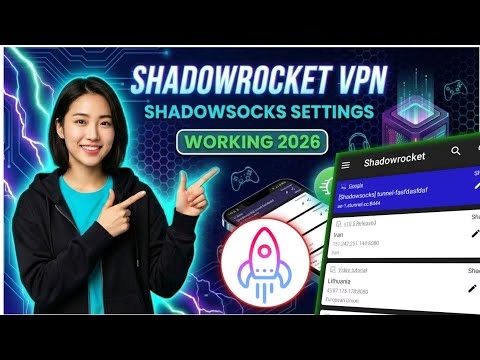
How to setup Shadowsocks server on Shadowrocket VPN for Gaming, Streaming, and Browsing

For network administrators and privacy enthusiasts, setting up a custom proxy tunnel can dramatically improve security, reduce gaming latency, and bypass restrictive firewalls. Shadowsocks is a secure split-tunnel socks5 proxy designed to defend network traffic. By pairing a custom Shadowsocks server generated via an SSH Tunnel platform with the powerful Shadowrocket VPN client, users can establish a fast, encrypted pathway for gaming, streaming, and browsing.
This technical guide explains how to generate a custom Shadowsocks server account, import the configuration parameters into Shadowrocket, and connect successfully on your Android or iOS device.
Table of Contents
- Video Tutorial
- Step 1: Installing the Shadowrocket Client
- Step 2: Generating a Shadowsocks Server Account
- Step 3: Importing Configuration to Shadowrocket
- Step 4: Activating the Tunnel & Latency Testing
- FAQ & Troubleshooting Guide
Video Tutorial
Step 1: Installing the Shadowrocket Client
To begin, you need the proxy client installed on your mobile device. Follow these steps to obtain and launch the client:
- Open the application store on your device (e.g., Google Play Store or Apple App Store).
- Search for Shadowrocket (or compatible client like Shadowrocket VPN / Outline).
- Download and install the application.
- Launch the application to verify successful initialization and grant any requested network permission hooks. Close or minimize it for the next phase.
Step 2: Generating a Shadowsocks Server Account
To route your traffic, you must generate a remote Shadowsocks node. Using a secure SSH Tunnel service platform is an easy way to spin up free nodes:
- Open a web browser on your computer or mobile device.
- Search for
SSH Tunneland open the official web portal offering free Shadowsocks configuration accounts. - Authenticate using your Google credentials to verify your account request.
- Navigate to the **Shadowsocks Server Selection** section and choose a geographic region. Selecting a region physically close to you (e.g., Singapore or UAE if you are in Asia) ensures the lowest round-trip time (RTT) for packet transmissions.
- Input a unique username and a password for authorization on the endpoint, complete the anti-bot verification challenge, and click **Submit**.
- Once generated, the system will output your node parameters (Server address, Port, Password, Encryption Method) along with an encoded URI configuration string (starting with
ss://). Copy this configuration or URI string to your clipboard.
Step 3: Importing Configuration to Shadowrocket
The Shadowrocket client is optimized to parse Shadowsocks configuration strings automatically from the system clipboard:
- Open the Shadowrocket application.
- Tap the + (plus) icon in the top right corner of the dashboard to create a new profile.
- Under the connection type dropdown, select Import from Clipboard. Shadowrocket will automatically parse the
ss://configuration string and populate the node details. - If you need to make changes, tap the edit icon on the newly added node. You can review the server IP/domain, port, password, and encryption protocol (e.g.,
aes-256-gcmorchacha20-ietf-poly1305). - Tap save to commit the configuration profile.
Step 4: Activating the Tunnel & Latency Testing
Toggle the master connection switch at the top of the interface. On the first connection, accept the system VPN security dialog prompt. To verify the health of the connection, perform a latency test directly within the client interface by tapping the test option next to the server profile. A successful test will display your ping in milliseconds (ms), confirming that your network packets are traversing the Shadowsocks node securely.
FAQ & Troubleshooting Guide
1. Why does my imported profile fail the ping test?
If the ping test returns a failure or timeout, check the following:
- Account Expiry: Free SSH tunnel accounts typically expire after 3, 7, or 30 days. Verify if your account is still active on the server provider’s dashboard.
- Server Congestion: The target server might be undergoing maintenance or handling high traffic. Try generating a node on a different server or region.
2. What encryption method is best for performance?
Modern mobile processors handle hardware-accelerated encryption extremely well. The aes-256-gcm and chacha20-ietf-poly1305 ciphers offer the best balance of cryptographic security and processing speed, making them ideal for high-speed streaming and gaming.
3. How does Shadowsocks compare to a traditional VPN?
Traditional VPNs (like OpenVPN or IPsec) encrypt and route all system traffic, which introduces significant packet overhead. Shadowsocks operates as a lightweight SOCKS5 proxy, which has significantly less overhead and is harder to detect by deep packet inspection (DPI) firewalls, making it ideal for low-latency network environments.