
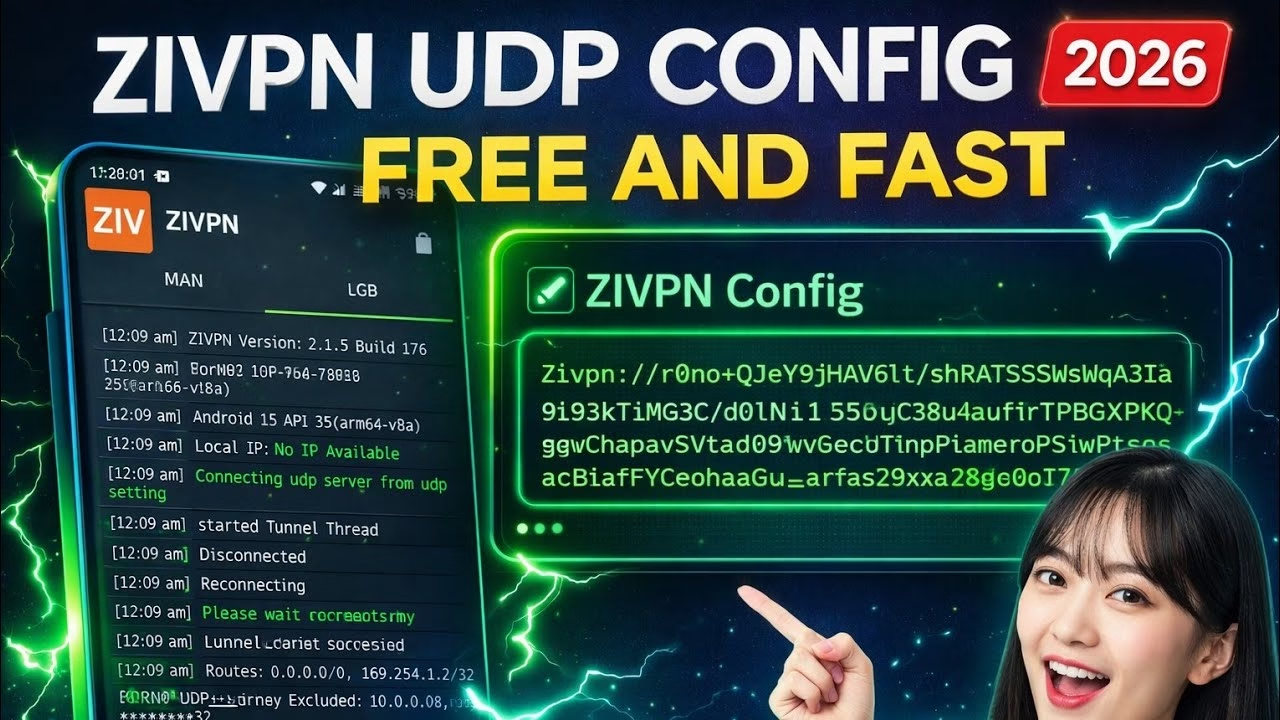
Create Your own Fast and Unlimited ZIVPN UDP Config

To secure mobile data connections and bypass strict firewalls, network administrators and security enthusiasts frequently turn to custom User Datagram Protocol (UDP) configurations. Because UDP operates connectionlessly, it delivers high throughput and low latency. This tutorial provides a complete step-by-step guide on how to download the ZIVPN client, generate a free premium ZIVPN UDP config from the UDP Custom portal, import the profile via the clipboard, and establish a secure VPN tunnel.
Table of Contents
- 1. What is ZIVPN?
- 2. Installing the ZIVPN Client App
- 3. Generating a Free ZIVPN UDP Config
- 4. Importing the Configuration via Clipboard
- 5. Establishing the Connection and Monitoring Logs
- 6. Verifying the Connection (IP Check)
- 7. Frequently Asked Questions (FAQ)
1. What is ZIVPN?
ZIVPN is a modern, high-performance SSH, V2Ray, and UDP tunneling client for Android. Built to handle custom payload requests, it allows users to encrypt all device traffic and bypass carrier restrictions. When paired with the specialized servers hosted on the UDP Custom platform, ZIVPN provides a fast, stable, and highly secure VPN connection designed to prevent data interception on open or public Wi-Fi networks.
2. Installing the ZIVPN Client App
To prepare your device, install the official VPN client from the app store:
- Launch the Google Play Store on your Android device.
- Search for
ZIVPNand select the official application. - Tap **Install** and open the application once the installation is complete to access the dashboard.
3. Generating a Free ZIVPN UDP Config
With the client installed, generate your server configuration credentials:
- Open your browser (such as Google Chrome) and search for the
UDP Custom website. - Navigate to the official site: udpcustom.online.
- Tap on the homepage menu navigation bar.
- Tap on the Premium UDP option.
- From the directory of servers, select ZIVPN UDP Server.
- Choose a location (such as Germany, US, or Singapore) and select **ZIVPN config** as the config type.
- Complete the reCAPTCHA security verification and tap **Get Config**. Once generated, copy the raw config code block to your clipboard.
4. Importing the Configuration via Clipboard
Once the configuration code is copied to your clipboard, import it directly into the VPN client:
- Switch back to the **ZIVPN** application.
- Tap on the **Three Dots** icon in the top-right corner of the dashboard.
- Select **Import from clipboard** from the options list. The application will parse the configuration text and populate the server details automatically.
5. Establishing the Connection and Monitoring Logs
With the configuration imported, initiate the secure tunnel:
- Tap the **Start** button on the ZIVPN dashboard.
- Accept the standard Android VPN permission request.
- Tap on the **Log** tab next to the dashboard to monitor the handshake logs. Once connected successfully, the logs will show “Connection Established”.
6. Verifying the Connection (IP Check)
To verify the tunnel is active and routing your data securely:
- Open your browser and navigate back to udpcustom.online.
- Access the **IP Check** menu from the navigation bar.
- If the displayed IP address and country location match your selected server location, your VPN tunnel is functioning correctly and all outbound traffic is encrypted.
7. Frequently Asked Questions (FAQ)
Q1: Why does ZIVPN display a “Connection Timeout” or “Auth Failed” error in the logs?
A: This occurs if your generated configuration has expired or the server node is congested. To resolve this, go back to the UDP Custom website, select a different server node location, and generate a new configuration to import.
Q2: Do I need a rooted Android device to run the ZIVPN UDP config?
A: No. ZIVPN utilizes the standard Android VPN API to route traffic locally, which does not require root permissions. You can import and use any configuration file on any standard Android phone.
Q3: How long do these free premium ZIVPN configs remain valid?
A: Free premium configs generated on the portal are generally valid for 3 to 7 days depending on the server class. Once the configuration reaches its expiration date, it will disconnect, requiring you to generate and import a new one.