
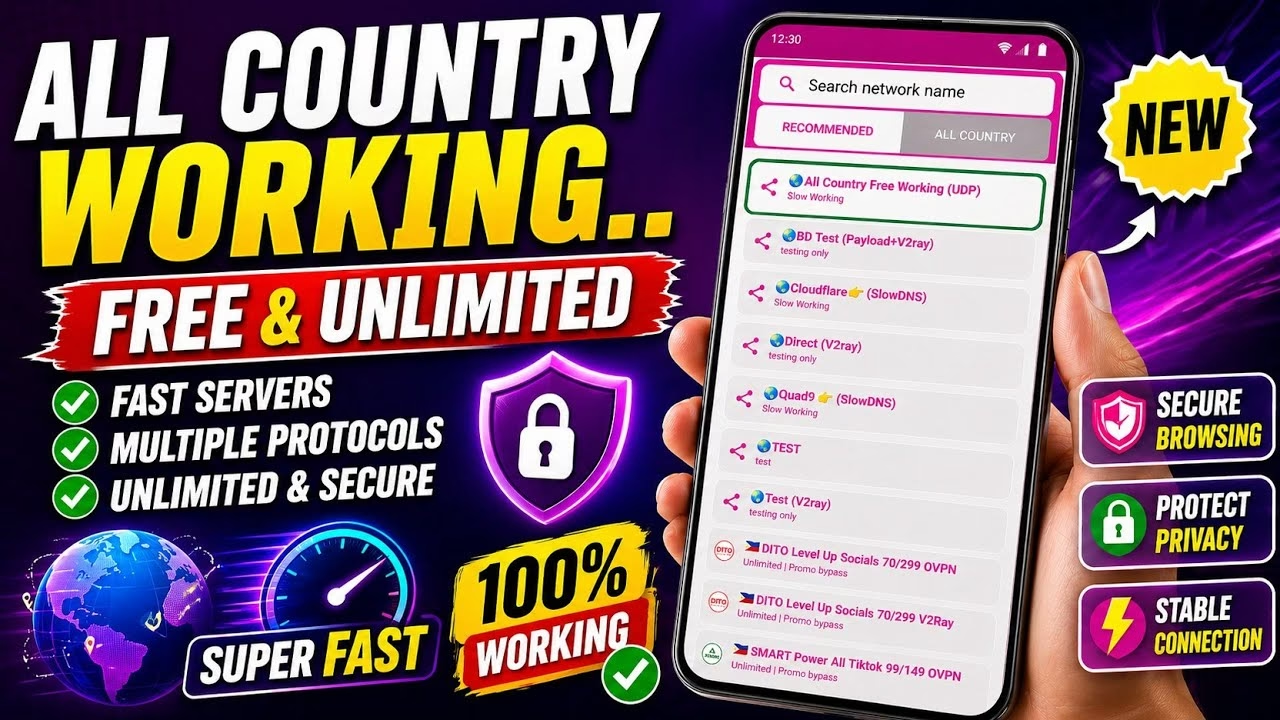
New All COUNTRY WORKING VPN

NN Tunnel VPN is an advanced Android application that offers high-speed servers, support for multiple security protocols, and robust privacy features. In this guide, we provide a complete step-by-step tutorial on how to download, install, and configure NN Tunnel VPN using the resources on the UDP Custom website. We will also explore both the built-in tweaks and advanced custom settings (such as SlowDNS, V2Ray, and SSL) to help you optimize your secure network tunnel.
Table of Contents
- 1. What is NN Tunnel VPN?
- 2. How to Download and Install NN Tunnel VPN
- 3. Initial Application Launch and Sync
- 4. Selecting Servers and Built-in Tweaks
- 5. Advanced Custom Settings (SlowDNS, V2Ray, SSL)
- 6. Establishing the Connection and Tethering
- 7. Frequently Asked Questions (FAQ)
1. What is NN Tunnel VPN?
NN Tunnel VPN is a versatile Android VPN client designed to route internet traffic through encrypted tunnels, protecting user identities and bypassing internet filters. The app supports a broad spectrum of protocols, including SlowDNS (ideal for bypassing DNS-based restrictions), V2Ray (engineered to evade deep packet inspection), and secure SSL configurations. It features both a user-friendly automated setup (via built-in tweaks) and an advanced manual setup menu for power users who want to configure their own custom payloads and servers.
2. How to Download and Install NN Tunnel VPN
To download the verified package files of NN Tunnel VPN, follow these instructions:
- Open your web browser (such as Chrome) and type
UDP Custom websitein the search bar. - Open the official website: udpcustom.online.
- Tap the menu button at the top of the homepage and select the Free VPN section.
- Locate NN Tunnel VPN in the list of tools and tap on it to go to the download page.
- Click the Install button. Once the download is complete, tap Open to launch the application.
3. Initial Application Launch and Sync
To ensure the application functions correctly, run the initial server synchronization:
- Internet Connection: Ensure your phone has active mobile data or Wi-Fi. The application requires an initial data stream to synchronize with remote servers.
- Permissions: If a notification permission dialog appears, choose to allow it so you can monitor the VPN tunnel’s state from your notifications drawer.
- Configuration Reload: The application will download updated config templates and auto-refresh. Wait a few seconds for the dashboard to finish updating.
4. Selecting Servers and Built-in Tweaks
The primary interface of NN Tunnel VPN contains two simple drop-down configuration fields:
Server Location Selection: Tap on the server section of the dashboard. Select an optimized country server from the list. Close servers yield lower latency, while remote servers allow you to spoof your geographic location.
Built-in Tweaks Selection: Tap on the tweaks section. Here, you will find pre-configured network profiles designed for specific cellular carriers and internet methods. Choose the profile that corresponds to your network provider to ensure compatibility.
5. Advanced Custom Settings (SlowDNS, V2Ray, SSL)
For network administrators and power users, NN Tunnel VPN offers an advanced custom configuration mode:
- Locate the radio button next to Custom Settings in the top-right corner of the application interface and toggle it on.
- A custom configuration panel will open. Here, you can select specific protocols including SlowDNS, V2Ray, or direct SSL.
- Enter your custom server hostname, target ports, and SNI host details depending on the protocol chosen. (Note: SlowDNS requires specific DNS server IP configurations, while V2Ray configs require Vmess/Vless configuration text).
- Tap save to store the custom profile.
6. Establishing the Connection and Tethering
Once your chosen method (built-in tweak or custom configuration) is selected:
- Go back to the main home screen of NN Tunnel VPN.
- Tap the large, circular Start button.
- Confirm the standard Android OS VPN authorization dialog by selecting OK.
- Once the connection is established, all internet traffic will route securely. To share this VPN connection via hotspot, open the side menu, tap on Tethering, and toggle the switch to enabled.
7. Frequently Asked Questions (FAQ)
Q1: When should I choose the SlowDNS protocol over SSL or V2Ray?
A: SlowDNS is ideal for bypassing restrictions on networks that block standard VPN ports (like port 443 or 80) and block standard protocols, but allow DNS queries to pass. However, because DNS requests have small payloads, SlowDNS speeds are generally slower compared to V2Ray or SSL.
Q2: Why does NN Tunnel VPN say “Connection Timeout”?
A: This usually indicates that the selected server is congested or the carrier has blocked the specific port configured in the tweak. Try selecting a different server country or switching between different built-in tweaks to resolve the timeout.
Q3: How do I export my custom settings to share them with other users?
A: Currently, custom configuration settings can be backed up or shared by locating the configuration import/export options inside the app settings panel. This allows you to export your settings as encrypted configuration files.