
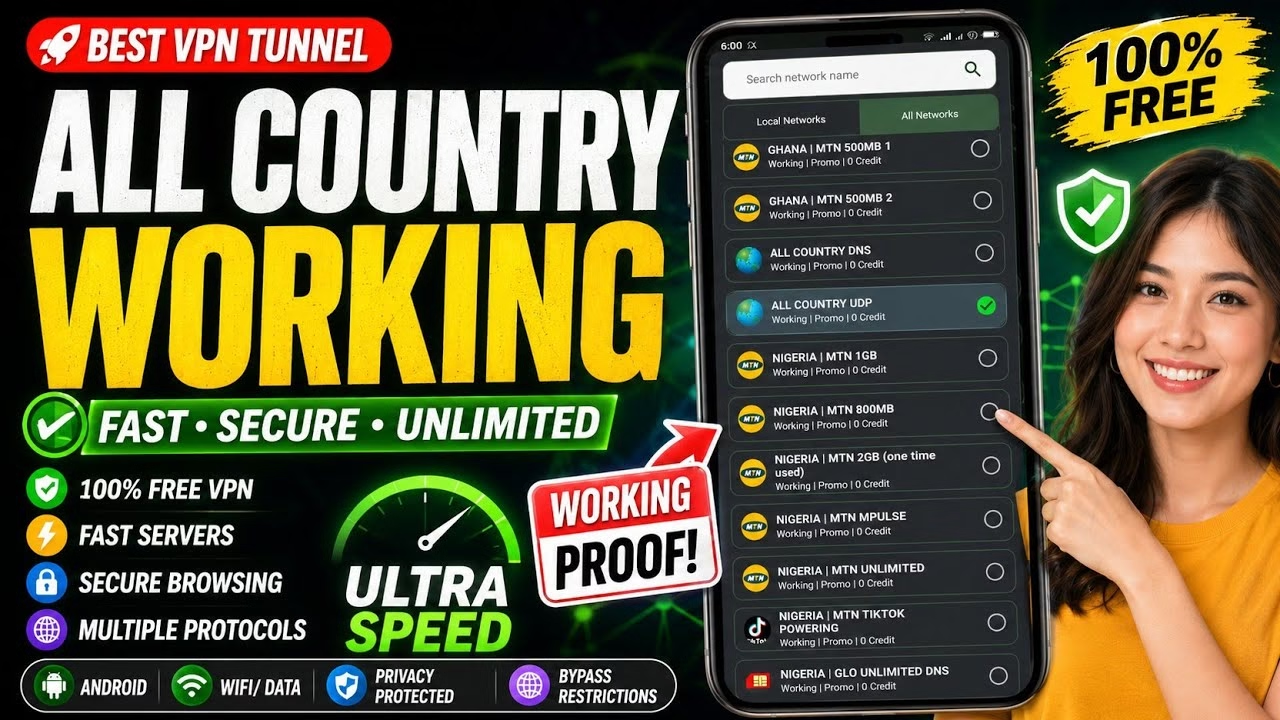
New All COUNTRY WORKING VPN 🔥

As internet privacy concerns continue to rise, using a reliable virtual private network (VPN) is essential for maintaining online security and bypassing geographical restrictions. In this guide, we provide a complete step-by-step tutorial on how to install and configure the Best VPN Tunnel application on your Android device directly from the UDP Custom platform. This lightweight tool supports multiple network protocols, built-in network tweaks, and tethering options to optimize your mobile internet connectivity.
Table of Contents
- 1. What is Best VPN Tunnel?
- 2. Downloading and Installing the App
- 3. Initial Setup and Server Configuration Sync
- 4. Configuring Server Locations and Built-in Tweaks
- 5. Establishing the Connection
- 6. Sharing Your VPN via Tethering
- 7. Frequently Asked Questions (FAQ)
1. What is Best VPN Tunnel?
Best VPN Tunnel is a robust Android VPN utility engineered to provide secure, encrypted, and unrestricted internet access. By leveraging a variety of transport protocols and network-specific payloads (tweaks), the app enables users to establish stable tunnel connections. This is especially useful for circumventing internet service provider (ISP) throttling, bypassing school or workplace firewalls, and accessing geo-blocked streaming services or websites safely.
2. Downloading and Installing the App
To ensure you download the genuine version of the application and avoid security risks, follow these instructions:
- Open your mobile web browser (e.g., Google Chrome) and search for the
UDP Custom website. - Navigate to the official site: udpcustom.online.
- Tap on the menu icon located at the top of the homepage and select the Free VPN section.
- Locate Best VPN Tunnel from the list of available applications.
- Tap on the download card, click the Install button, and wait for the package file to compile and install on your device. Once installed, tap Open to launch.
3. Initial Setup and Server Configuration Sync
When running the application for the first time, you must perform a configuration sync to populate the server database:
- Enable Data/Wi-Fi: Ensure that your mobile device is connected to an active internet source. Best VPN Tunnel needs to connect to its remote database to load the latest configuration files.
- Permissions Check: If the application requests notification permissions, accept it to enable real-time connection status updates in your Android status bar.
- Automatic Reload: The app will automatically fetch the updated server addresses and tweaks. During this process, the application may briefly refresh or restart. Allow it to finish loading completely.
4. Configuring Server Locations and Built-in Tweaks
The core configuration of Best VPN Tunnel revolves around two options on the main interface:
Server Selection: Tap the Server selection section. A list of high-speed servers from different countries (such as USA, Singapore, and Germany) will load. Choose a server that is closest to your location to minimize ping times, or select a specific country if you need to browse from that region.
Tweaks & Protocols: Tap the Tweaks selector below the server menu. This will open a catalog of network configurations and customized tweaks. Select the tweak corresponding to your carrier, region, or desired transport protocol (such as SSH, UDP, or V2ray) to ensure a stable and optimized connection.
5. Establishing the Connection
With your server and tweaks correctly set up, you are ready to initiate the tunnel:
- Go back to the main dashboard of Best VPN Tunnel.
- Tap the large Start button in the center of the application screen.
- If Android prompts you with a VPN Connection request dialog, tap OK to allow the software to route the network traffic.
- Wait a few seconds. The status text will update to “Connected”, indicating that all of your device’s web traffic is now encrypted and routed securely.
6. Sharing Your VPN via Tethering
If you want to extend your secure connection to other devices like laptops, tablets, or Smart TVs, you can make use of the app’s built-in tethering functionality:
- Tap the menu button at the top-left of the application interface.
- Select Tethering from the options.
- Toggle the sharing switch to Enabled.
- Connect your secondary devices to your mobile hotspot, and configure their proxy settings to match the IP address and port displayed in the app’s tethering instructions.
7. Frequently Asked Questions (FAQ)
Q1: Why does the server list inside Best VPN Tunnel appear blank?
A: A blank server list means that the app was launched without a proper active internet connection, preventing it from fetching config files. Check your mobile data or Wi-Fi, force close the application, and launch it again. The database should automatically synchronize.
Q2: Will using Best VPN Tunnel slow down my internet connection?
A: While all VPNs introduce a tiny amount of overhead due to encryption, Best VPN Tunnel uses highly optimized protocols. To achieve the fastest possible speeds, select a server that has a low load percentage and is geographically closest to your actual location.
Q3: Do I need root permissions on my Android phone to use the Tethering feature?
A: No. Best VPN Tunnel’s tethering feature works through local proxy configurations, meaning you do not need to root your Android device to share the VPN connection with other computers or smartphones.