
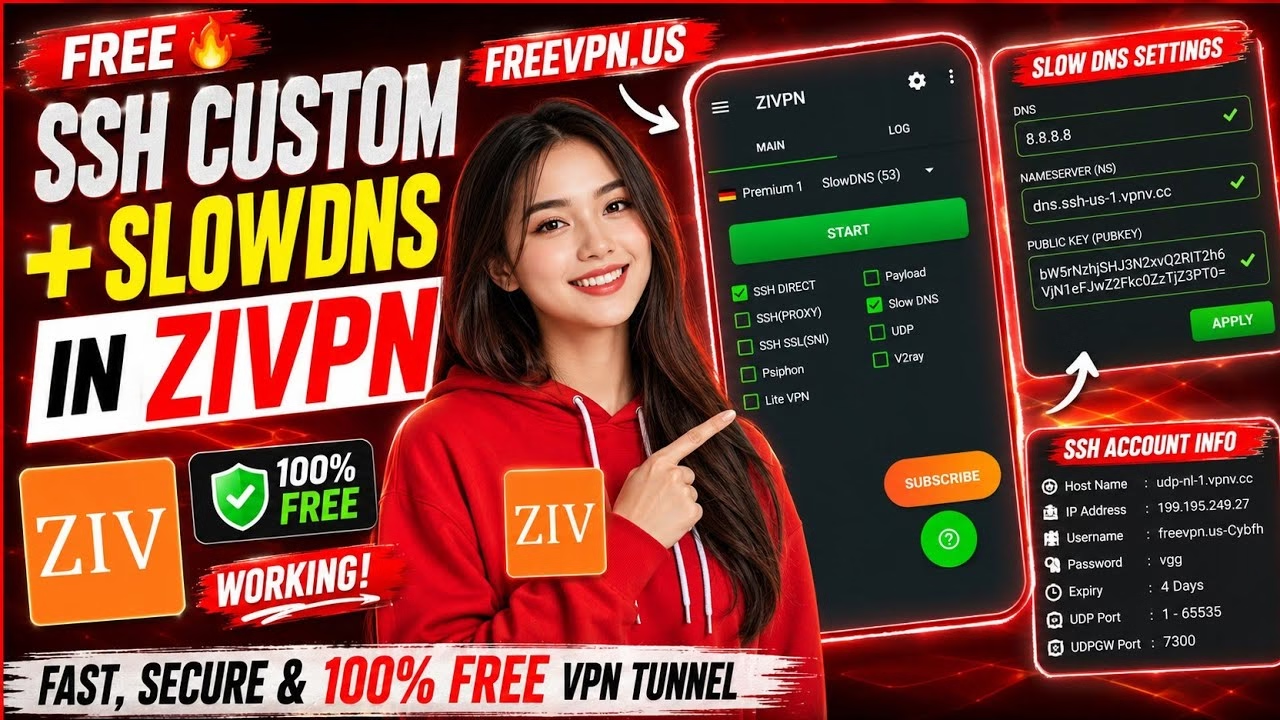
ZIVPN SSH SlowDNS Working Method 2026 | Full Guide

Table of Contents
- 1. Introduction to DNS Tunneling and ZIVPN
- 2. Setup Prerequisites
- 3. Step 1: Generating Free SSH Credentials
- 4. Step 2: Installing and Preparing ZIVPN
- 5. Step 3: Formatting and Mapping SSH Credentials
- 6. Step 4: Configuring Advanced SlowDNS Parameters
- 7. Step 5: Initiating and Verifying the Tunnel Session
- 8. Troubleshooting & Frequently Asked Questions
1. Introduction to DNS Tunneling and ZIVPN
In highly restricted network environments, standard VPN protocols such as OpenVPN, WireGuard, or IPsec are often actively targeted and blocked by Deep Packet Inspection (DPI) firewalls. When standard TCP and UDP ports are closed, network administrators almost always keep UDP Port 53 (Domain Name System – DNS) open to allow local clients to resolve domain names.
SlowDNS is a specialized tunneling protocol designed to exploit this architectural loophole. It encapsulates standard SSH (Secure Shell) traffic inside legitimate-looking DNS query and response packets. By routing your encrypted traffic through recursive DNS queries, SlowDNS can bypass local captive portals, firewalls, and ISP blocks. ZIVPN is an advanced Android-based utility that simplifies this integration, allowing users to bind an SSH Custom backend with a SlowDNS transport layer seamlessly.
2. Setup Prerequisites
Before beginning the configuration process, ensure you have the following prerequisites ready:
- Android Device: Running Android 5.0 (Lollipop) or higher to support ZIVPN’s VpnService API.
- Temporary Internet Access: A cellular connection or local Wi-Fi connection is required solely for the initial setup to generate the SSH profile and download configuration data. Once configured, the tunnel will run over the restricted connection.
- Credential Storage: A simple text editor or scratchpad to copy and format credentials before importing them into ZIVPN.
3. Step 1: Generating Free SSH Credentials
To establish a secure tunnel, you must first provision a secure identity on a remote server. We will use the free provisioning platform FreeVPN.us to generate custom credentials.
- Open your mobile web browser and navigate directly to
https://freevpn.us. - Tap the hamburger menu icon in the top-right corner of the homepage to reveal the primary navigation options.
- Tap to expand the Services section.
- Select SSH Custom (indicated by a green “New” badge). This profile type supports the custom websocket and DNS routing parameters required by ZIVPN.
- Analyze the country lists. For optimal latency and throughput, choose a location close to your geographic area. In this guide, we will select the Netherlands server. Verify that the server status indicates Online and that there are open slots available.
- Scroll down and tap Create Account.
- Define a unique Username and Password in the input fields.
- Solve the security reCAPTCHA challenge.
- Crucial Step: Locate and check the Agree to Terms of Service checkbox. Leaving this box unchecked will cause the database transaction to fail on submission.
- Click submit and wait for the profile generator to output your summary block.
- Tap the integrated Copy button to capture all credentials. This profile acts as your secure anchor and is typically valid for 4 calendar days.
4. Step 2: Installing and Preparing ZIVPN
With the credentials secured, you must install the official, unmodified tunneling client to manage the local virtual network interface.
- Open the Google Play Store on your Android device.
- Search for ZIVPN and verify that the developer is listed explicitly as Z Applications. This protects your device from altered, insecure clones.
- Download, install, and open the application.
- On the primary dashboard, you will find a connection type selection grid. Configure it according to the following matrix:
- SSH Direct: Enabled (Checked)
- SlowDNS: Enabled (Checked)
- All other options (e.g., SSL, SSL+Payload, V2Ray) must remain disabled.
5. Step 3: Formatting and Mapping SSH Credentials
ZIVPN uses a standardized syntax to parse tunneling credentials quickly in a single line. You must map your newly acquired credentials into this format. The structural syntax required by ZIVPN is defined below:
username:password@IP_address:portTo ensure a flawless connection over WebSocket-assisted paths, map the parameters as follows:
- Username: Your full generated username (e.g.,
freevpn.us-youruser). - Password: Your defined password.
- IP Address: The numeric IP address of the Netherlands server. Do not use the raw host domain name here; instead, use the direct IPv4 string provided in the account summary.
- Port: Use the HTTP/Websocket port, which is 80. Do not use standard SSH port 22 or SSL port 443.
Copy this newly assembled configuration string and paste it directly into the text field located at the top of the ZIVPN application. Once formatted correctly, the outline of the input field will turn green, validating that the ZIVPN parser successfully detected a clean, authenticated endpoint pattern.
6. Step 4: Configuring Advanced SlowDNS Parameters
To successfully bypass network filters, the transport layer parameters must be explicitly set so your device knows how to query DNS. Without these configurations, ZIVPN cannot route payloads inside UDP Port 53 packets.
- Tap the hamburger menu icon (three horizontal lines) in the top-left corner of the ZIVPN interface to slide open the navigation drawer.
- Select the Settings panel.
- Locate the Domain Name System (DNS) configuration field. Set this value to Google’s public DNS resolver:
8.8.8.8. This ensures queries are processed via a trusted, unrestricted upstream path. - Locate the Name Server (NS) / DNS Hostname field. Extract the custom DNS hostname string from your copied FreeVPN.us profile page and paste it here. This subdomain acts as the routing identifier that resolves to your target SSH gateway.
- Locate the Public Key (Pub Key) input field. Copy the long, unique cryptographic public key string from your FreeVPN.us details page and paste it in. This key is used to encrypt DNS queries before transmission, preventing passive eavesdropping.
- Tap the Apply / Save button to write these parameters to the local application database.
7. Step 5: Initiating and Verifying the Tunnel Session
Once your configuration is applied and saved, you are ready to start the tunnel. Follow these steps to establish your connection:
- Ensure your mobile device’s mobile data or target Wi-Fi network connection is active.
- Return to the main ZIVPN home interface.
- Tap the prominent Start button located in the center of the screen.
- If this is your first time using the application, Android will display a system security dialog asking to grant ZIVPN authorization to create a local VPN loopback adapter. Tap OK or Allow.
- Tap the Logs tab on the screen to observe the connection sequence in real-time. You should see the client output several status messages:
[Info] DNS Resolver initialized[Info] Connecting to remote host...[Info] SSH Handshake completed[Info] Connection established successfully!
A green Connected banner will display, and a key/VPN icon will appear in your device’s persistent status bar at the top of the screen. This signifies that all system-level network traffic is now routed through your secure DNS tunnel.
8. Troubleshooting & Frequently Asked Questions
Why is my connection speed slower than a standard VPN connection?
SlowDNS carries traffic inside standard DNS queries. Since DNS query packets are typically small and are processed continuously, this introduces protocol overhead and higher packet latency. To maximize performance, avoid streaming high-definition media; instead, use this setup for secure web browsing, messaging, and basic web access.
What should I do if the handshake fails with a “Connection Timeout” in the log?
This error is usually caused by one of three issues:
- Formatting Error: Check that your main credentials line has no spaces, and contains the required colon (
:) and at (@) characters. - Incorrect Upstream DNS: Verify that your DNS settings are set to Google DNS (
8.8.8.8) or another reliable public resolver like Cloudflare (1.1.1.1). - Server Expiration: Free accounts from FreeVPN.us expire after 4 days. If your account has expired, navigate back to the website to generate a new active profile.
Why is the Public Key so important? Can I use a generic one?
No, you cannot use a generic public key. The Public Key corresponds directly to the private key stored on the target Netherlands SSH Server. If these keys do not match, the remote endpoint cannot decrypt the encapsulated payloads sent by ZIVPN. This will cause the server to reject the connection immediately.