
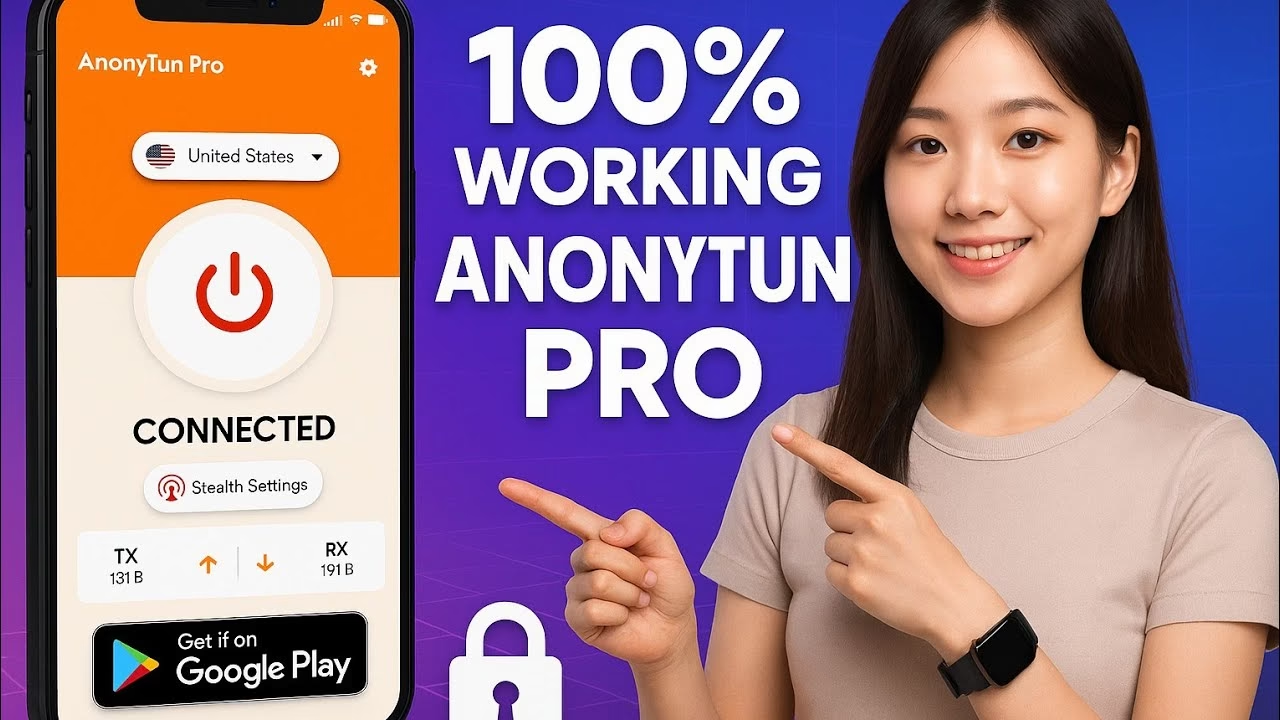
How to Use AnonyTun Pro VPN Step-by-Step | Full Setup Guide with Best Settings (2025)

Securing your internet connection and maintaining high-speed, uncensored access is paramount in today’s digital age. AnonyTun Pro emerges as a reliable client application designed to route your internet traffic through encrypted VPN tunnels. By using optimized servers and carrier bypass tweaks, users can bypass local firewalls and protect their digital privacy easily.
This technical guide outlines how to download, install, and configure AnonyTun Pro for fast, secure, and unlimited browsing.
Table of Contents
- Video Guide: AnonyTun Pro Setup
- Step-by-Step Configuration Guide
- Sharing Connection via Tethering
- Frequently Asked Questions (FAQ)
- Stay Connected
Step-by-Step Configuration Guide
- Install AnonyTun: Download the AnonyTun application from the Google Play Store.
- Access Stealth Settings: Tap on the “Stealth Settings” toggle button on the homepage to open connection properties.
- Configure Protocol: Set the Connection Protocol to SSL and set the Connection Port to 443.
- Enable Custom TCP/HTTP Headers or SNI: Toggle the “Advanced SSL Settings” switch, click the edit button, check the “True SSL (Anti-DPI)” and “Spoof Host:Port” boxes, and enter your carrier’s SNI domain.
- Connect: Save the settings and click the Connect button on the main dashboard.
Sharing Connection via Tethering
To share your VPN connection with other devices like laptops, Smart TVs, or consoles:
- Ensure the VPN is active on your host Android device.
- Tap the side menu icon and select Tethering or VPN sharing.
- Activate your personal Wi-Fi hotspot and connect your other device.
- Route client device traffic by setting up a local Wi-Fi proxy using the IP address and port credentials provided in the app.
Frequently Asked Questions (FAQ)
Q1: What is spoof host in AnonyTun?
A1: The Spoof Host (SNI) is the hostname used to disguise your VPN connection, making it look like legitimate free-access web traffic to your internet service provider.
Q2: Why does AnonyTun disconnect after a few minutes?
A2: This is typically due to aggressive battery savings terminating background services. Exclude AnonyTun from Android battery optimization settings.
Q3: How do I improve connection speeds?
A3: Select server regions close to your physical presence. Clearing the app cache and choosing V2Ray/SSL over SlowDNS protocols will also significantly boost speeds.
Stay Connected
- 🌎 12_5 TECH Whatsapp channel: Join Channel
- 📢 Telegram Group: Join Telegram Group
- 📺 Telegram Channel: Subscribe to Channel