
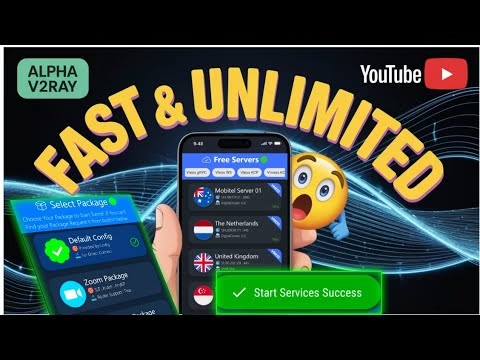
Alpha V2ray VPN: The ULTIMATE Setup Guide (2025)

Bypassing advanced Deep Packet Inspection (DPI) firewalls requires highly robust protocols. **Alpha V2Ray Tunnel VPN** is a modern, feature-rich Android application designed specifically to route secure traffic over V2Ray protocols (such as VMess, VLess, and Trojan). It offers users access to high-speed public server nodes, built-in tweaks, and custom SNI settings for maximum bypass flexibility.
This technical guide details how to download Alpha V2Ray, choose server categories, configure advanced tweaks and SNI settings, and set up split tunneling.
Table of Contents
- Video Tutorial
- Step 1: Installing Alpha V2Ray Tunnel VPN
- Step 2: Server Type Selection (Premium, Free, Custom)
- Step 3: Advanced Tweaks and SNI Configuration
- Step 4: Per-App Proxy (Split Tunneling)
- Frequently Asked Questions & Troubleshooting
Video Tutorial
Step 1: Installing Alpha V2Ray Tunnel VPN
To install the official client application safely:
- Open the Google Play Store on your Android device.
- Search for
Alpha V2Ray Tunnel VPNand tap the install button (size is approximately 22MB). - Launch the app to land on the welcome screen. Read the features and tap the **Let’s Go** button at the bottom.
Step 2: Server Type Selection (Premium, Free, Custom)
To connect, select a server category from the dashboard pop-up:
- Premium Servers: High-bandwidth, paid nodes with minimal congestion.
- Free Servers: Public servers available for all users. You can view the server’s ping latency in milliseconds (ms) next to its node name. Choose the node with the lowest ping.
- Custom Servers: Allows you to paste your private VMess/VLess configuration URI.
Step 3: Advanced Tweaks and SNI Configuration
To bypass network filters, configure your connection rules:
- Tap the menu button (hamburger icon) in the top left corner of the dashboard.
- Select **Tweaks Settings**: Select a pre-configured network profile matching your carrier network.
- Select **SNI Settings**: Enter the Server Name Indication (SNI) host header (e.g. your carrier’s zero-rated domain) to mask your traffic as a secure web connection.
Step 4: Per-App Proxy (Split Tunneling)
To route only specific applications through the encrypted tunnel (optimizing bandwidth for local apps):
- Open the side settings panel from the dashboard.
- Tap **Per App Proxy** (Split Tunneling).
- Toggle the switch to enable it, and select the specific apps (e.g. your browser or YouTube) that should route traffic through Alpha V2Ray.
- Return to the main page and click the large **Power** button in the center. Approve the Android system VPN connection request to secure your selected apps.
FAQ & Troubleshooting Guide
1. Why does my Alpha V2Ray connection show a Handshake error?
567:Handshake errors are usually caused by an incorrect SNI domain. Ensure the SNI you entered is whitelisted on your mobile network. If you are using public free servers, try switching to a different node, as some nodes may be congested.
2. What is the benefit of the “Auto Reload Servers” option?
567:By default, this option is active. It ensures the application periodically fetches updated server configurations and pings, replacing dead nodes with active ones automatically on launch.
3. How do I verify my upload/download speeds?
567:Enable the **Speed Display** option in the settings menu. This displays a real-time bandwidth meter in your Android notification drawer, allowing you to monitor speeds without leaving your browser.