
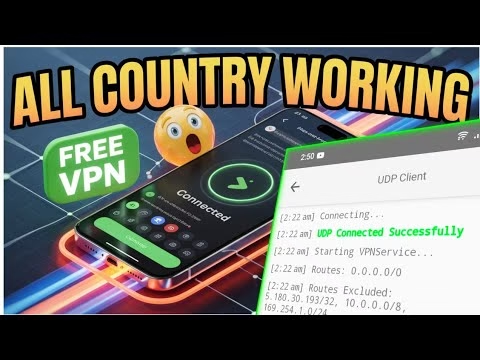
New all Country Working VPN for UDP

Securing network connections and bypassing carrier blocks is made easy with modern VPN clients. **UDP Client VPN** is a lightweight, highly efficient Android application designed to route secure traffic over UDP sockets. This minimizes protocol handshake overhead, offering high-speed, stable browsing. The client features built-in servers and pre-configured network tweaks, removing the need for manual configuration files.
This technical guide details the installation of UDP Client VPN, server selection, and configuring tweaks for stable connection bypass.
Table of Contents
- Video Tutorial
- Step 1: Downloading and Installing UDP Client VPN
- Step 2: Selecting Latency-Optimized Servers
- Step 3: Selecting and Applying Tweak Profiles
- Frequently Asked Questions & Troubleshooting
Video Tutorial
Step 1: Downloading and Installing UDP Client VPN
To download the official installer safely:
- Open your web browser (e.g., Chrome) and search for the **UDP Custom** website.
- On the homepage, tap the menu button to expand connection categories.
- Select **All Country VPN** from the options.
- Locate **UDP Client VPN** in the lists, click to open its download page, and tap install.
- Open the application once installed. If prompted, grant notification permissions to check connection logs.
Step 2: Selecting Latency-Optimized Servers
On launching the application, verify that your mobile data or Wi-Fi is active. The client will connect to its backend configuration servers to retrieve the latest node directory. Once refreshed:
- Tap the **Server** field on the app interface.
- Select a server node from the available locations. Choosing a server geographically close to you minimizes ping and packet loss.
Step 3: Selecting and Applying Tweak Profiles
Tweaks are pre-configured connection profiles designed to inject HTTP request headers and bypass network firewalls. To apply them:
- Tap the **Tweaks** selection field.
- Scroll through the menu list to find the profile corresponding to your mobile network provider.
- Return to the dashboard home screen and tap the large **Start** button. Approve the system VPN request. Once connected, you can browse securely.
FAQ & Troubleshooting Guide
1. Why does the app fail to show any servers?
567:The application requires an active network connection on launch to fetch server details. If it fails, close the application completely, clear its app storage/cache from your settings, check your internet connectivity, and relaunch.
2. What tweak should I use if my network is not listed?
567:If your specific carrier is not listed, try the generic **Direct** connection tweak, or try general global tweaks matching standard SNI bypass headers to find one that bypasses your carrier restrictions.
3. Is UDP Client VPN safe for online shopping or banking?
567:Yes. The VPN establishes an encrypted tunnel between your device and the destination server, preventing local eavesdropping or man-in-the-middle attacks on public Wi-Fi networks.