
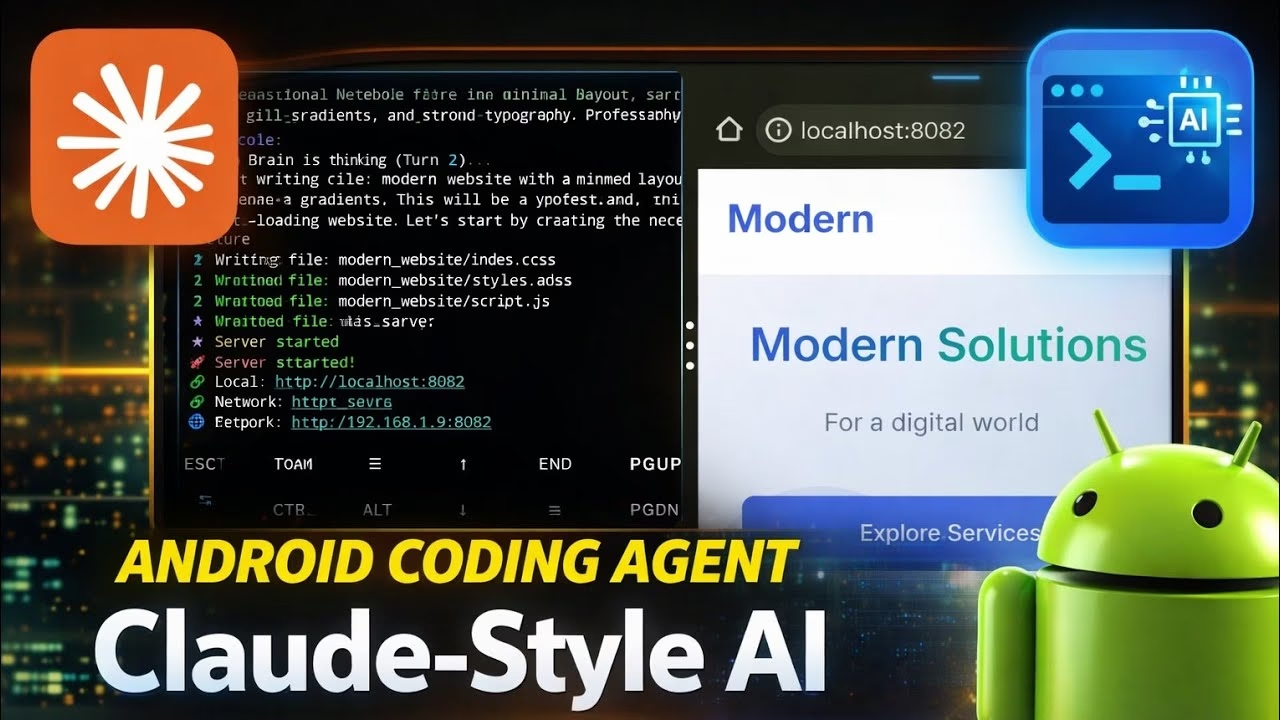
Claude Code on Termux | Tcode AI Agent

In the evolving landscape of software engineering and automation, artificial intelligence agents are shifting from cloud-based servers directly to mobile devices. Claude Code, a terminal-based AI assistant, has revolutionized developers’ workflows. By deploying a Claude-style AI coding agent (often referred to as Tcode AI Agent) on Android using Termux, you can transform your mobile phone into a portable development workstation.
This tutorial provides a complete, step-by-step technical guide to downloading, installing, and configuring a local Claude-style AI agent on Termux, followed by practical examples of automating tasks like web creation, image processing, and file management.
Table of Contents
- Video Tutorial
- Step 1: Preparing the Termux Environment
- Step 2: Installing Node.js & Tcode AI Agent
- Step 3: Configuring API Credentials
- Step 4: Practical Automation & Coding Examples
- FAQ & Troubleshooting
Video Tutorial
Step 1: Preparing the Termux Environment
Termux is a terminal emulator and Linux environment for Android. To ensure package compatibility and security, do not download Termux from the Google Play Store (which is outdated). Instead, download it from F-Droid or GitHub. Once installed, update the packages:
pkg update && pkg upgrade -yDuring the upgrade, accept the default prompts by pressing Enter. Next, grant Termux permission to access your device storage:
termux-setup-storageStep 2: Installing Node.js & Tcode AI Agent
Tcode/Claude Code operates on top of Node.js. Install Node.js along with other essential building utilities:
pkg install nodejs git python clang make -yConfirm the Node.js installation by checking its version: node -v. Now, install the global npm package for the AI agent client:
npm install -g @anthropic-ai/claude-codeStep 3: Configuring API Credentials
The coding agent requires API access to Anthropic’s Claude models. Follow these steps to authenticate:
- Launch the agent by typing
claudeortcodein the terminal. - The client will prompt you to enter an API key or log in via browser. Obtain an API key from the Anthropic Console.
- Export the API key in your Termux shell configuration profile (
.bashrcor.zshrc):
echo 'export ANTHROPIC_API_KEY="your-api-key-here"' >> ~/.bashrcSource the configuration file: source ~/.bashrc. The AI agent is now ready to interact with your local filesystem.
Step 4: Practical Automation & Coding Examples
Since the agent has access to your local files (within the Termux sandbox and shared storage), you can prompt it to perform complex tasks:
- Create Websites: Ask the agent:
"Create a responsive HTML portfolio website in a folder named portfolio."It will write the HTML, CSS, and JS files. - Media Processing: Install ffmpeg in Termux (
pkg install ffmpeg), and ask:"Convert all MP3 files in my Downloads folder to WAV format."The agent will write and run the command. - Code Debugging: Run the agent inside a Git repository and type:
/explainor ask it to find and fix syntax errors in your python or javascript files.
FAQ & Troubleshooting
1. Why does NPM throw compilation errors during installation?
Some npm modules compile native binary bindings. Ensure you have installed the compiler packages (clang, make, and python) using pkg. If errors persist, try running npm install -g --unsafe-perm @anthropic-ai/claude-code.
2. How do I access files on my phone’s internal memory?
After executing termux-setup-storage, a symlink named storage will be created in your home folder. You can access the internal SD card at ~/storage/shared (which maps to your phone’s main storage directory containing Downloads, DCIM, etc.).
3. What is the API cost associated with running the agent?
The agent uses Claude API tokens. Writing code uses tokens based on prompt length and the repository context analyzed. To control costs, run the agent in specific subfolders rather than the root directory of a large project.