
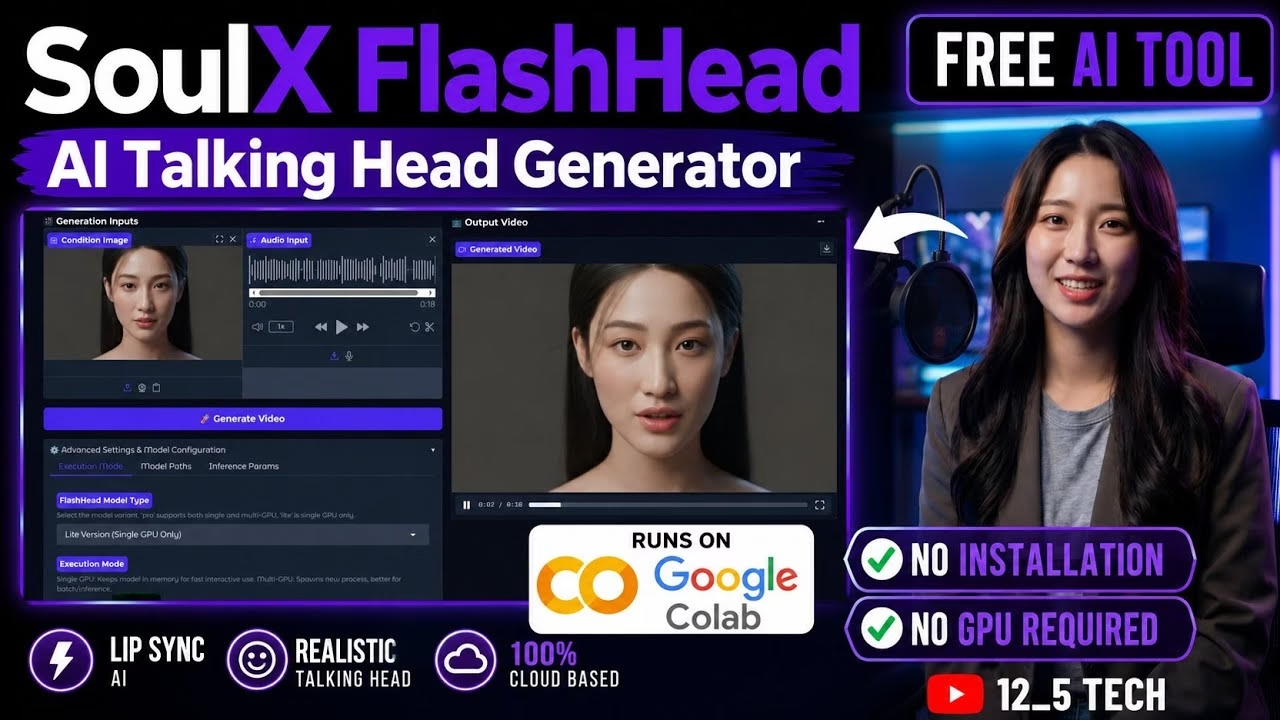
Turn Any Photo Into a Talking Video — SoulX FlashHead on Google Colab & Kaggle

In the rapidly evolving landscape of artificial intelligence, generating realistic video content from static assets has become remarkably accessible. This guide provides a detailed, step-by-step tutorial on how to utilize SoulX FlashHead—a state-of-the-art AI talking head generator. By running this model on Google Colab, you can transform any portrait image and audio file into a lip-synced, naturally moving presenter video completely free of charge, with no local hardware dependencies.
Table of Contents
- 1. What is SoulX FlashHead?
- 2. Accessing the AI Tool via UDP Custom
- 3. Configuring the Colab T4 GPU Runtime
- 4. Running the Google Colab Notebook
- 5. Operating the Gradio Web Interface
- 6. Practical Use Cases and Applications
- 7. Colab Limitations and Best Practices
- 8. Frequently Asked Questions (FAQ)
1. What is SoulX FlashHead?
SoulX FlashHead is a deep learning model engineered for audio-driven talking head synthesis. Unlike traditional animation tools that require complex keyframing, FlashHead accepts two simple inputs: a static portrait photo of a face and an audio recording containing speech. The model analyzes the audio frequencies, extracts phoneme features, and applies them to the facial structure in the photo. The result is a high-fidelity video where the avatar speaks with precise lip-synchronization, natural eye blinking, and realistic head posture adjustments.
2. Accessing the AI Tool via UDP Custom
The pre-configured Google Colab notebook is hosted directly on our platform for ease of access:
udpcustom.online.3. Configuring the Colab T4 GPU Runtime
Because rendering AI video requires intensive graphical processing, you must switch the runtime to utilize Google’s free T4 GPU accelerator:
4. Running the Google Colab Notebook
The notebook is partitioned into sequential code cells. Execute each cell by clicking the play button next to it from top to bottom:
Step 1: GPU Check
Runs system checks to verify that the virtual machine has mounted the T4 GPU. You should see a confirmation message reading PyTorch CUDA is working.
Step 2: Clone Repository & System Tools
Downloads the official SoulX FlashHead GitHub repository to the virtual machine and installs FFmpeg, the terminal-based utility used to stitch audio and video layers together.
Step 3: Install Python Libraries
Installs core libraries including diffusers, transformers, Gradio, and OpenCV. This process will take approximately 2 to 3 minutes.
Step 4: Download Pre-trained AI Models
Downloads the primary 1.3-billion parameter SoulX FlashHead weights alongside Facebook’s Wave2Vec 2.0 audio representation model. This step takes 4 to 6 minutes depending on the connection speed of the Google virtual server.
Step 5: Apply Compatibility Patches
Modifies specific MediaPipe and PyTorch modules to prevent execution errors unique to the Google Colab Linux distribution environment.
Step 6: Launch Gradio Web UI
Compiles the backend and generates a public URL (ending with .gradio.live). Click this link to open the graphical user interface in a new browser tab.
5. Operating the Gradio Web Interface
Once inside the Gradio dashboard, you will be prompted to upload your source files and configure the model mode:
- Upload Portrait Image: Upload a clear, high-resolution portrait. For best results, use a subject looking directly at the camera with clear lighting and a neutral expression. Avoid profile shots or faces obscured by objects.
- Upload Audio File: Upload an audio recording of speech. Ensure the audio is clean and free of background noise, music, or echo.
- Choose Model Mode:
- Lite Mode: Optimized for speed. It processes video rapidly and is ideal for quick testing or draft rendering.
- Pro Mode: Optimized for quality. It utilizes advanced calculations to render highly accurate lip syncs, natural eye blinks, and realistic head rotations. Recommended for final publication.
- Generate: Press Generate. The rendering process takes about 3 to 5 minutes for a 20-second clip in Pro Mode. Download the finished
.mp4video file from the output player.
6. Practical Use Cases and Applications
This technology opens up significant avenues for content creators and businesses:
- Faceless Video Channels: Generate a unique AI avatar, record the voiceover, and merge them with FlashHead to produce regular video uploads without needing to film on camera.
- E-Learning and Explainer Guides: Convert text documentation into audio narrations, then animate an educational avatar to teach tutorials and guide learners.
- Instant Social Updates: Create quick informational videos for Telegram channels, WhatsApp groups, or social media pages without setting up recording equipment.
7. Colab Limitations and Best Practices
To ensure a smooth workflow, keep the following environment details in mind:
- Temporary Runtimes: Google Colab virtual machine sessions are ephemeral. If your session is idle, or if you close the tab, the environment will disconnect, requiring you to run the setup cells again in a new session.
- Audio Optimization: The accuracy of the lip sync is directly proportional to the clarity of the audio signal. Avoid processing audio files that contain background music or ambient noise.
- Responsible Creation: Ensure that you possess the necessary rights and consent for any portrait and voice audio you use. Avoid generating deepfakes or misleading media of public figures or acquaintances.
8. Frequently Asked Questions (FAQ)
Q1: Do I need a high-end graphics card (GPU) on my local machine to use this tool?
A: No. All calculations and video rendering processes are executed remotely on Google’s cloud server. You only need a modern web browser and a stable internet connection to run the notebook and access the Gradio interface.
Q2: Why does the Gradio public link fail to load or show a connection timeout?
A: This occurs if the Google Colab runtime has stopped executing or timed out due to inactivity. Return to your Colab tab, make sure the runtime status in the top right shows “Connected”, and ensure that cell 6 is still active and running.
Q3: Can I generate videos longer than a few minutes using this setup?
A: While possible, longer videos require significantly more GPU VRAM and processing time. For clips longer than two minutes, it is highly recommended to split your audio into shorter segments, process them individually in Lite/Pro mode, and merge the final videos using a video editor.